
Tkinter Python 中的可折叠窗格
pythonserver side programmingprogramming更新于 2025/7/3 18:20:17
Tkinter 是 Python 的 GUI 构建库。在本文中,我们将了解如何创建可折叠窗格。当我们需要在 GUI 画布上显示大量数据但又不希望一直显示时,它们非常有用。它可折叠,因此可以在需要时显示。
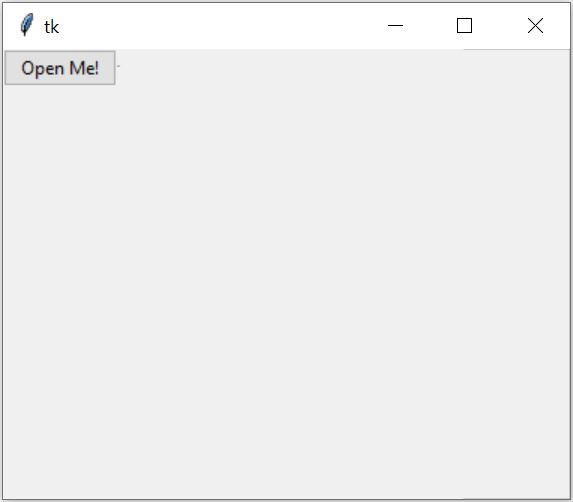
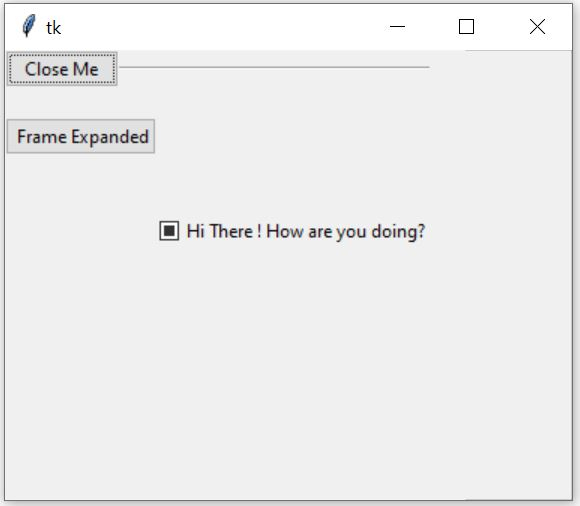
下面的程序创建了可折叠窗格,我们可以在展开和收缩箭头后看到结果。代码注释表明了我们在每个步骤中采用的方法。
示例
from tkinter import *
import tkinter as tk
from tkinter import ttk
from tkinter.ttk import *
class cpane(ttk.Frame):
   def __init__(self, MainWindow, expanded_text, collapsed_text):
      ttk.Frame.__init__(self, MainWindow)
      # The class variable
      self.MainWindow = MainWindow
      self._expanded_text = expanded_text
      self._collapsed_text = collapsed_text
      # Weight=1 to grow it's size as needed
      self.columnconfigure(1, weight=1)
      self._variable = tk.IntVar()
      # Creating Checkbutton
      self._button = ttk.Checkbutton(self, variable=self._variable,
      command=self._activate, style="TButton")
      self._button.grid(row=0, column=0)
      # Create a Horizontal line
      self._separator = ttk.Separator(self, orient="horizontal")
      self._separator.grid(row=0, column=1, sticky="we")
      self.frame = ttk.Frame(self)
      # Activate the class
      self._activate()
   def _activate(self):
      if not self._variable.get():
         # Remove this widget when button pressed.
         self.frame.grid_forget()
         # Show collapsed text
         self._button.configure(text=self._collapsed_text)
      elif self._variable.get():
         # Increase the frame area as needed
         self.frame.grid(row=1, column=0, columnspan=2)
         self._button.configure(text=self._expanded_text)
   def toggle(self):
      self._variable.set(not self._variable.get())
      self._activate()
# 创建根窗口或主窗口
root = Tk()
root.geometry('300x300')
# 创建可折叠窗格容器对象
cpane_obj = cpane(root, 'Close Me', 'Open Me!')
cpane_obj.grid(row=0, column=0)
# 可折叠窗格中显示的按钮
b = Button(cpane_obj.frame, text=" Frame Expanded").grid(
   row=1, column=2, pady=20)
b = Checkbutton(cpane_obj.frame, text="Hi There ! How are you doing?").grid(
   row=3, column=4, pady=20)
mainloop()
输出
运行上述代码得到以下结果 −
相关文章
有用资源
python 参考教程 - 该教程包含有关 python 的更多信息:https://www.cainiaomax.com/python/