
在 Django 中启用 GitHub OAuth
在许多开发者网站中,我们可以看到非常方便的 GitHub 社交身份验证。在本文中,我们将了解如何在我们的 Django 网站中添加 Github Auth。
转到 https://github.com/settings/developers/ 并创建一个 Oauth 应用程序并添加这两个 URL
http://127.0.0.1:8000/accounts/github/login/callback
然后,您将获得一个客户端 ID 和一个密钥。现在,让我们转到编码部分。
示例
安装 django-allauth 库 −
pip install django-allauth
在 settings.py 中添加以下代码行 −
INSTALLED_APPS = [
   ##################
#
#
#
#

   'django.contrib.sites',
   'allauth',
   'allauth.account',
   'allauth.socialaccount',
   'allauth.socialaccount.providers.github',
   'githubAuthentication'
]

SITE_ID = 1
AUTHENTICATION_BACKENDS= [
   'django.contrib.auth.backends.ModelBackend',
   'allauth.account.auth_backends.AuthenticationBackend'
]

LOGIN_REDIRECT_URL="https://github.com"
在已安装的应用程序中,我们添加了所需的导入库,然后添加了 GitHub 默认身份验证后端。我们还启用了重定向 URL,它将告诉登录时重定向到哪里。
在项目根目录的 urls.py 中 −
from django.contrib import admin
from django.urls import path,include

urlpatterns = [
   path('admin/', admin.site.urls),

   # this is module path copy this as it is
path('accounts/', include('allauth.urls')),

# 这是我的应用程序路径
path('', include("githubAuthentication.urls"))
]
这里我们添加了需要添加的默认路径;它是用于启用 GitHub 登录的 allauth 库路径。第二个是我们创建的应用程序路径。
现在转到 http://localhost:8000/admin 并转到社交应用程序。
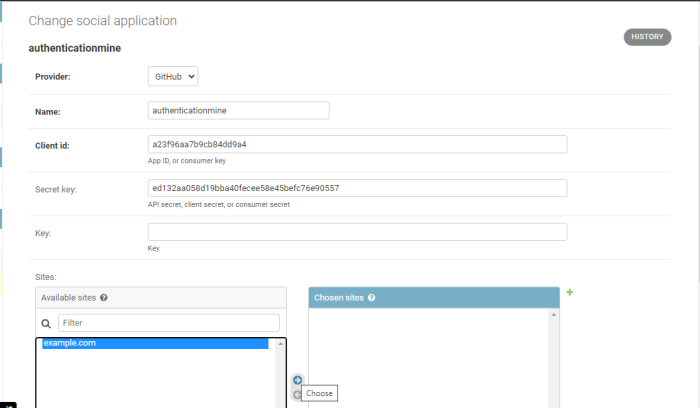
然后,添加一个应用程序 −
粘贴您之前复制的客户端 ID和密钥,名称应为应用程序名称,选择提供商github。
在sites部分中,单击example.com,然后单击箭头键并点击保存。这会将 github 注册为您的 Django 项目上的身份验证后端。
现在,在 templates 文件夹中创建 home.html 并添加以下几行 −
<!DOCTYPE html>
<html>
   <head>
      <title>tut</title>
    </head>
    <body>
      {% load socialaccount %}
      {% providers_media_js %}
<a href="{% provider_login_url 'github' method='js_sdk' %}?n
ext=https://github.com">login with github</a>
   </body>
</html>
在这里,我们只是渲染了 JS 并在前端加载了 allauth 库。在 <a> 中,我们提供了 github 登录页面,并在该页面上设置了默认的 github 登录页面。
在 view.py −
中来自 django.shortcuts import render # 在此处创建您的视图。 def home(request): return render(request,"home.html")
我们在这里呈现了前端
在 urls.py (app urls) −
from django.urls import path,include
from . import views
urlpatterns = [
   path('',views.home, name="Home" ),

]
我们在这里设置 url 并呈现我们的视图。
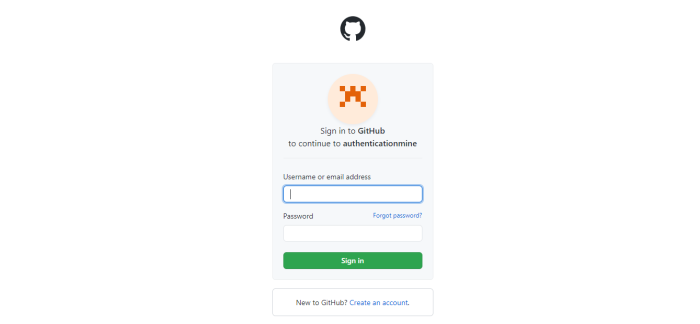
一切都完成了,现在您可以继续检查输出。
输出
相关文章
有用资源
python 参考教程 - 该教程包含有关 python 的更多信息:https://www.cainiaomax.com/python/