解释一下 PowerShell 中的 HTML 格式?
HTML 是 PowerShell 中的另一种输出格式。它是一种丰富的输出形式,您可以使用各种 CSS 样式来增强输出的交互性。我们将使用 Convertto-HTML cmdlet 将输出转换为 HTML 格式。
以下是 Convertto-HTML cmdlet 的语法。
示例
ConvertTo-Html
    [-InputObject <PSObject>]
    [[-Property] <Object[]>]
    [[-Body] <String[]>]
    [[-Head] <String[]>]
    [[-Title] <String>]
    [-As <String>]
    [-CssUri <Uri>]
    [-PostContent <String[]>]
    [-PreContent <String[]>]
    [-Meta <Hashtable>]
    [-Charset <String>]
    [-Transitional]
    [<CommonParameters>]

ConvertTo-Html
    [-InputObject <PSObject>]
    [[-Property] <Object[]>]
    [-As <String>]
    [-Fragment]
    [-PostContent <String[]>]
    [-PreContent <String[]>]
    [<CommonParameters>]
我们来看一个使用 InputObject 参数 Convertto-HTML 的简单示例。
ConvertTo-Html-InputObject(Get-Date)
输出将在同一控制台上。
PS C:\WINDOWS\system32> ConvertTo-Html -InputObject (Get-Date)
<!DOCTYPE html PUBLIC "-//W3C//DTD XHTML 1.0 Strict//EN"  "http://www.w3.org/TR/xhtml1/DTD/xhtml1-strict.dtd">
<html xmlns="http://www.w3.org/1999/xhtml">
<head>
<title>HTML TABLE<title>
</head><body>
<table>
<colgroup><col/><col/><col/><col/><col/><col/><col/><col/><col/><col/><col/><col/><col/><col/><col/></colgroup>
<tr><th>DisplayHint</th><th>DateTime</th><th>Date</th><th>Day</th><th>DayOfWeek</th><th>DayOfYear</th><th>Hour</th><th>Kind<th><th>Millisecond</th><
th>Minute</th><th>Month</th><th>Second</th><th>Ticks</th><th>TimeOfDay</th><th>Year</th></tr>
<tr><td>DateTime</td><td>17 June 2020 08:33:06</td><td>17-06-2020 00:00:00</td><td>17</td><td>Wednesday</td><td>169</td><td>8</td><td>Local</td><td>8
29</td><td>33</td><td>6</td><td>6</td><td>637279795868299280</td><td>08:33:06.8299280</td><td>2020</td></tr>
</table>
</body></html>
因此,您需要在 .html 扩展名中重定向输出。
ConvertTo-Html-InputObject(Get-Date) > C:\temp\dateoutput.html
输出

在这里,您也可以使用管道作为输入对象。示例如下。
下面我们将 Get-Service 的输出转换为 HTML 格式。
Get-Service|Select Name, Status, StartType|ConvertTo-Html|Out-FileServicesoutput.html
当您在名为 ServicesOutput.html 的文件中检查输出时,HTML 文件将如下所示。
输出
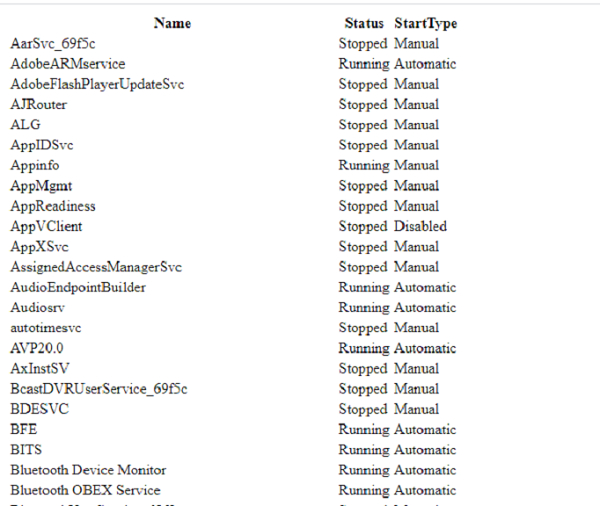
您也可以通过右键单击并使用 Notepad、Notepad++ 或任何兼容的编辑器编辑 HTML 内容来查看。
编辑器中的 HTML 文件如下所示。您可以看到标题"HTML 表格"是自动添加的。您可以在编辑器中更改标题,但这无济于事,因为每次运行脚本时,它都会被覆盖为默认标题。
<!DOCTYPE html PUBLIC "-//W3C//DTD XHTML 1.0 Strict//EN" "http://www.w3.org/TR/xhtml1/DTD/xhtml1-strict.dtd">
<html xmlns="http://www.w3.org/1999/xhtml">
<head>
<title>HTML TABLE</title>
</head><body>
<table>
<colgroup><col/><col/><col/></colgroup>
<tr><th>Name</th><th>Status</th><th>StartType</th></tr>
<tr><td>AarSvc_69f5c</td><td>Stopped</td><td>Manual</td></tr>
<tr><td>AdobeARMservice</td><td>Running</td><td>Automatic</td></tr>
<tr><td>AdobeFlashPlayerUpdateSvc</td><td>Stopped</td><td>Manual</td></tr>
<tr><td>AJRouter</td><td>Stopped</td><td>Manual</td></tr>
<tr><td>ALG</td><td>Stopped</td><td>Manual</td></tr>
<tr><td>AppIDSvc</td><td>Stopped</td><td>Manual</td></tr>
<tr><td>Appinfo</td><td>Running</td<td>Manual</td></tr>
<tr><td>AppMgmt</td><td>Stopped</td><td>Manual</td></tr>
<tr><td>AppReadiness</td><td>Stopped</td><td>Manual</td></tr>
<tr><td>AppVClient</td><td>Stopped</td><td>Disabled</td></tr>
因此,要在脚本中添加标题,您需要使用 –Title 参数。例如:
Get-Service|Select Name, Status, StartType|ConvertTo-Html-Title "Services Output"|Out-File Servicesoutput.html
检查输出结果时,您将看到标题。
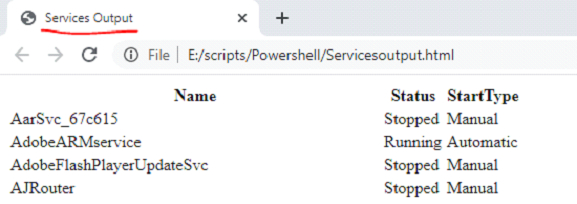
在编辑器中打开上述输出结果的 HTML 文件,您现在可以看到新的标题。
输出
<!DOCTYPE html PUBLIC "-//W3C//DTD XHTML 1.0 Strict//EN" "http://www.w3.org/TR/xhtml1/DTD/xhtml1-strict.dtd">
<html xmlns="http://www.w3.org/1999/xhtml">
<head>
<title>Services Output</title>
</head><body>
<table>
除了在 Get-Services 输出中使用管道属性外,您还可以使用 Convertto-HTML 属性来选择上一个命令的输出。
例如:
Get-Service | ConvertTo-Html -Property Name, Status, Starttype -Title "Services Output" | Out-File Servicesoutput.html
它将产生与上述 HTML 输出相同的结果。
如果您需要在结果前添加描述,则需要使用 –PreContent 参数。例如:
Get-Service | ConvertTo-Html -Property Name, Status, Starttype -Title "Services Output" -PreContent "Services Output" | Out-File Servicesoutput.html
输出
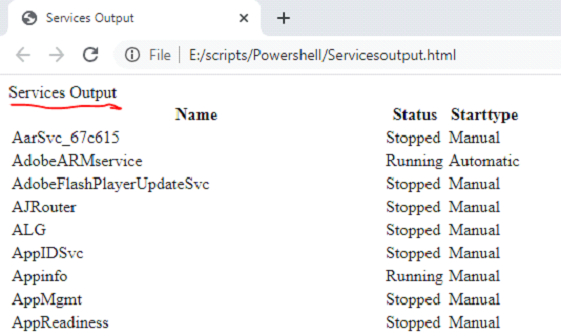
您可以使用 HTML 标头调整预内容。例如:
Get-Service | ConvertTo-Html -Property Name, Status, Starttype -Title "Services Output" -PreContent "<h1><center>Services Output</center></h1>" | Out-File Servicesoutput.html
输出
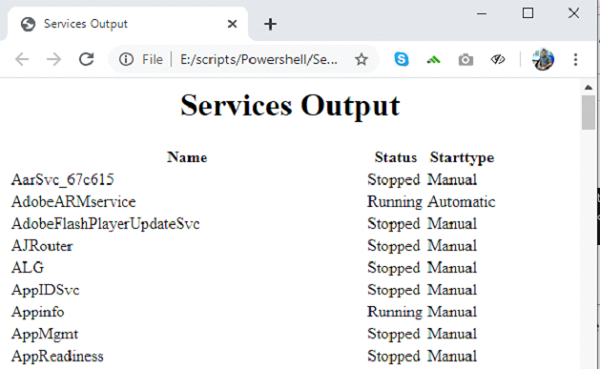
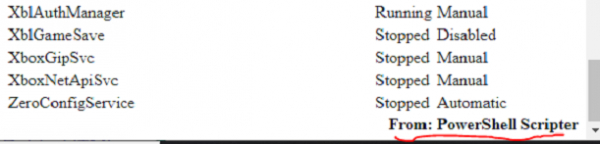
在上面的例子中,我们为 PreContent 设置了标题和居中对齐。同样,您可以使用 PostContent 在底部显示标题。例如:
示例
Get-Service | ConvertTo-Html -Property Name, Status, Starttype -Title "Services Output" -PreContent "<h1><center>Services Output</center></h1>" -PostContent "<div align=right><b>From: PowerShell Scripter</b></div>" | Out-File Servicesoutput.html