
如何使用命令更改 PowerShell ISE 编辑器的颜色?
powershellmicrosoft technologiessoftware & coding
要更改 ISE 编辑器的颜色,我们需要使用 $psISE cmdlet,该命令仅适用于 ISE 编辑器。
现在,ISE 编辑器中有许多颜色,其中一些是可见的(ScriptPane 颜色、控制台颜色等),还有一些在执行脚本时显示(Error、Warning、Verbose)。这些属性如下所示。
ErrorForegroundColor           : #FFFF9494
ErrorBackgroundColor           : #00FFFFFF
WarningForegroundColor         : #FFFF8C00
WarningBackgroundColor         : #00FFFFFF
VerboseForegroundColor         : #FF00FFFF
VerboseBackgroundColor         : #00FFFFFF
DebugForegroundColor           : #FF00FFFF
DebugBackgroundColor           : #00FFFFFF
ConsolePaneBackgroundColor     : #FF000080
ConsolePaneTextBackgroundColor : #FF012456
ConsolePaneForegroundColor     : #FFF5F5F5
ScriptPaneBackgroundColor      : #FFFFFFFF
ScriptPaneForegroundColor      : #FF000000
左侧是特定的颜色属性,右侧是代码中的颜色名称。要设置控制台背景颜色,我们可以使用以下命令,控制台背景颜色将立即变为红色。
$psISE.Options.ConsolePaneBackgroundColor = 'Red'
输出

同样,要更改脚本窗格的背景颜色,
$psISE.Options.ScriptPaneBackgroundColor = 'Black'
输出

同样,您可以设置调试模式颜色、错误、警告、详细颜色等。
如果您在 ISE 中弄乱了颜色并想恢复,不用担心,在 $PSISE cmdlet 的 Options 属性中有一个选项 DefaultOptions,您可以在其中找到原始颜色。
$psISE.Options.DefaultOptions
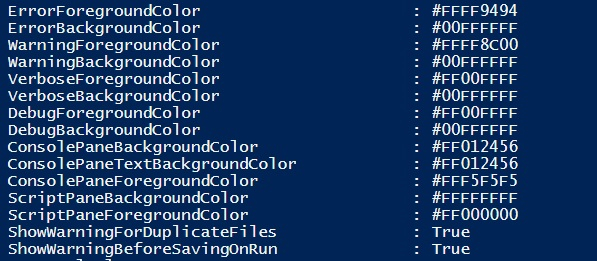
我们可以使用以下命令恢复颜色。
$psISE.Options.ScriptPaneBackgroundColor = '#FFFFFFFF'

