如何检查 Android 应用中的位置服务是否已启用?
androidapps/applicationsmobile development更新于 2026/2/15 12:37:17
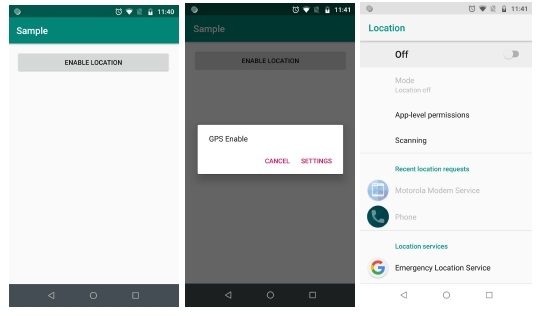
此示例演示了如何检查 Android 应用中的位置服务是否已启用。
步骤 1 − 在 Android Studio 中创建一个新项目,前往"文件"->"新建项目",并填写所有必填信息以创建新项目。
步骤 2 − 将以下代码添加到 res/layout/activity_main.java
<? xml version= "1.0" encoding= "utf-8" ?>
<RelativeLayout xmlns: android = "http://schemas.android.com/apk/res/android"
   xmlns: tools = "http://schemas.android.com/tools"
   android :layout_width= "match_parent"
   android :layout_height= "match_parent"
   android :layout_margin= "16dp"
   tools :context= ".MainActivity" >
   <Button
      android :id= "@+id/button"
      android :layout_width= "match_parent"
      android :layout_height= "wrap_content"
      android :text= "Enable Location" />
</RelativeLayout>
步骤 3 − 将以下代码添加到 src/MainActivity.java
package app.tutorialspoint.com.sample ;
import android.content.Context ;
import android.content.DialogInterface ;
import android.content.Intent ;
import android.location.LocationManager ;
import android.os.Bundle ;
import android.provider.Settings ;
import android.support.v7.app.AlertDialog ;
import android.support.v7.app.AppCompatActivity ;
import android.view.View ;
import android.widget.Button ;
import android.widget.TextView ;
public class MainActivity extends AppCompatActivity {
   @Override
   protected void onCreate (Bundle savedInstanceState) {
      super .onCreate(savedInstanceState) ;
      setContentView(R.layout. activity_main ) ;
      Button button = findViewById(R.id. button ) ;
      button.setOnClickListener( new View.OnClickListener() {
         @Override
         public void onClick (View v) {
            locationEnabled() ;
         }
      }) ;
   }
   private void locationEnabled () {
      LocationManager lm = (LocationManager)
      getSystemService(Context. LOCATION_SERVICE ) ;
      boolean gps_enabled = false;
      boolean network_enabled = false;
      try {
         gps_enabled = lm.isProviderEnabled(LocationManager. GPS_PROVIDER ) ;
      } catch (Exception e) {
         e.printStackTrace() ;
      }
      try {
         network_enabled = lm.isProviderEnabled(LocationManager. NETWORK_PROVIDER ) ;
      } catch (Exception e) {
         e.printStackTrace() ;
      }
      if (!gps_enabled && !network_enabled) {
         new AlertDialog.Builder(MainActivity. this )
         .setMessage( "GPS Enable" )
         .setPositiveButton( "Settings" , new
         DialogInterface.OnClickListener() {
            @Override
            public void onClick (DialogInterface paramDialogInterface , int paramInt) {
               startActivity( new Intent(Settings. ACTION_LOCATION_SOURCE_SETTINGS )) ;
            }
         })
         .setNegativeButton( "Cancel" , null )
         .show() ;
      }
   }
}
步骤 4 − 将以下代码添加到 androidManifest.xml
<? xml version= "1.0" encoding= "utf-8" ?>
<manifest xmlns: android = "http://schemas.android.com/apk/res/android"
   package= "app.tutorialspoint.com.sample" >
   <uses-permission android :name= "android.permission.ACCESS_FINE_LOCATION" />
   <uses-permission android :name= "android.permission.ACCESS_COARSE_LOCATION" />
   <application
      android :allowBackup= "true"
      android :icon= "@mipmap/ic_launcher"
      android :label= "@string/app_name"
      android :roundIcon= "@mipmap/ic_launcher_round"
      android :supportsRtl= "true"
      android :theme= "@style/AppTheme" >
      <activity android :name= ".MainActivity" >
         <intent-filter>
            <action android :name= "android.intent.action.MAIN" />
            <category android :name= "android.intent.category.LAUNCHER" />
         </intent-filter>
      </activity>
   </application>
</manifest>
让我们尝试运行您的应用程序。假设您已将实际的 Android 移动设备连接到电脑。要从 Android Studio 运行该应用程序,请打开项目的某个活动文件,然后点击工具栏上的"运行" 图标。选择您的移动设备作为选项,然后勾选将显示默认屏幕的移动设备。 –