
如何使用 PowerShell 复制 NTFS 权限?
powershellmicrosoft technologiessoftware & coding更新于 2026/2/11 7:07:17
要使用 PowerShell 更改、添加或删除文件或文件夹的安全权限,您可以使用 Set-Acl 命令。如果您需要在目标路径上设置相同的权限,则设置权限的最佳方法是从其他文件或文件夹复制权限。
例如,我希望将源文件夹路径 C:\Shared\ 的权限复制到目标文件夹路径 c:\shared1 的权限。您可以使用任何目标路径,可以是远程共享 UNC 路径。
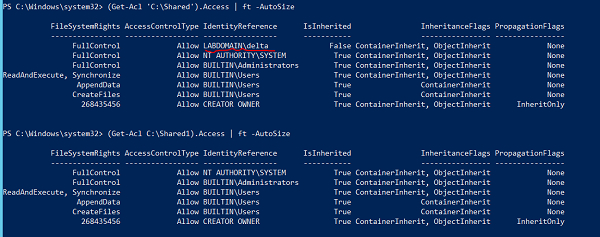
请注意上述安全权限的区别,名为 Shared 的文件夹被分配了一项额外的权限 (LABDOMAIN\Delta)。我们将使用源文件夹的 Get-ACL 将权限从一个文件夹复制到另一个文件夹,并使用管道将 Set-ACL 复制到目标路径。
Get-ACL C:\Shared | Set-Acl C:\Shared1
完成上述操作后,您可以检查目标路径的权限。
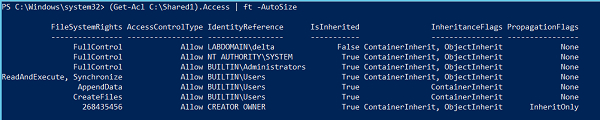
您可以看到增量用户权限已添加,其他权限也已复制。如果用户在源位置和目标位置均已存在,则目标用户权限将被源用户权限覆盖。
您还可以将源对象的 Get-ACL 输出存储到变量中,并将其赋值给目标对象的 Set-ACL。 Set-ACL 使用 -AclObject 参数来获取权限。
示例
$perm = Get-Acl C:\Shared Set-Acl C:\Shared1 -AclObject $perm
如果您需要对多个文件夹、文件或子文件夹应用权限,则可以使用 Get-ChildItem 检索文件和文件夹,并使用如上所示的 Set-ACL 命令。
例如,我们有参考文件夹 C:\shared 权限应用于目标对象。首先,我们将使用 Get-Acl 命令复制权限。
$perm = Get-Acl C:\Shared
其次,我们将使用 Get-ChildItem 检索文件/文件夹,然后在管道后使用 Set-ACL 命令。
示例
Get-ChildItem C:\Temp -Recurse | Set-Acl -AclObject $perm
在为多个文件和文件夹设置权限之前,始终建议您使用 -WhatIf 参数来了解哪些文件或文件夹的权限被应用。
示例
PS C:\> Get-ChildItem C:\Temp -Recurse | Set-Acl -AclObject $perm -WhatIf
What if: Performing the operation "Set-Acl" on target "Microsoft.PowerShell.Core\FileSystem::C:\Temp\Scripts".
What if: Performing the operation "Set-Acl" on target "Microsoft.PowerShell.Core\FileSystem::C:\Temp\vcredist_x64.exe".
What if: Performing the operation "Set-Acl" on target "Microsoft.PowerShell.Core\FileSystem::C:\Temp\W2K12-KB3191565-x64.msu".
What if: Performing the operation "Set-Acl" on target "Microsoft.PowerShell.Core\FileSystem::C:\Temp\WindowsSensor.exe".
What if: Performing the operation "Set-Acl" on target "Microsoft.PowerShell.Core\FileSystem::C:\Temp\WindowsSensor_7E3A9735FA064249A7005E9BE8CDD
What if: Performing the operation "Set-Acl" on target "Microsoft.PowerShell.Core\FileSystem::C:\Temp\Scripts\MyModules".
What if: Performing the operation "Set-Acl" on target "Microsoft.PowerShell.Core\FileSystem::C:\Temp\Scripts\MyModules\MyModules.psm1".

