
如何在 PowerShell 中创建用户菜单?
编写脚本时,如果希望用户从多个值中选择一个选项并基于该选项执行命令,我们通常可以使用 Switch 命令,为此,我们将在以下脚本中询问用户的选择。
还有另一种 .Net 方法可以创建用户菜单,我们将在上述示例之后看到它。
a. Switch 命令方法
对于基于 Switch 命令的用户选择,我们将首先向用户显示消息,然后通过 Read-Host 命令为其提供选择,如下所示。
Write-Host "============= Pick the Server environment=============="
Write-Host "`ta. 'P' for the Prod servers"
Write-Host "`tb. 'T' for the Test servers"
Write-Host "`tc. 'D for the Dev Servers'"
 Write-Host "`td. 'Q to Quit'"
Write-Host "========================================================"
$choice = Read-Host "`nEnter Choice"
一旦我们准备好蓝图,我们将使用 Switch 命令根据用户选择执行步骤。
switch ($choice) {
   'P'{
         Write-Host "`nYou have selected a Prod Environment"
   }
   'T'{
         Write-Host "`nYou have selected a Test Environment"
   }
   'D'{
         Write-Host "`nYou have selected a Dev Environment"
   }
   'Q'{Return}
}
如果您希望用户在给定值中进行选择,则可以使用 do-until 循环。您还可以使用不同的 cmdlet 并根据您的标准设置条件。我们将在下方编写完整的脚本,并限制用户的选择。
do {
Write-Host "`n============= Pick the Server environment=============="
Write-Host "`ta. 'P' for the Prod servers"
Write-Host "`tb. 'T' for the Test servers"
Write-Host "`tc. 'D for the Dev Servers'"
Write-Host "`td. 'Q to Quit'"
Write-Host "========================================================"
$choice = Read-Host "`nEnter Choice"
} until (($choice -eq 'P') -or ($choice -eq 'T') -or ($choice -eq 'D') -or ($choice -eq 'Q') )
switch ($choice) {
   'P'{
       Write-Host "`nYou have selected a Prod Environment"
   }
   'T'{
      Write-Host "`nYou have selected a Test Environment"
   }
   'D'{
       Write-Host "`nYou have selected a Dev Environment"
    }
    'Q'{
      Return
   }
}
输出
============= Pick the Server environment==============
         a. 'P' for the Prod servers
         b. 'T' for the Test servers
         c. 'D for the Dev Servers'
         d. 'Q to Quit'
 ========================================================
 Enter Choice: r
============= Pick the Server environment==============
         a. 'P' for the Prod servers
         b. 'T' for the Test servers
         c. 'D for the Dev Servers'
         d. 'Q to Quit'
 ========================================================
Enter Choice: T
You have selected a Test Environment
b. .NET 菜单选项
借助 .Net 命名空间,我们也可以自动化上述相同的选择菜单,这是实际的标准流程。为此,我们将利用 .Net 框架的 System.Management.Automation.Host 命名空间,然后我们需要使用其中的 [ChoiceDescription] 类。其语法如下。
[ChoiceDescription]::new('Label', 'HelpMessage')
您可以从下面给出的 URL 了解有关上述课程的更多信息。
using namespace System.Management.Automation.Host
$Prod = [ChoiceDescription]::new('&Prod', 'Environment:Prod')
$Test = [ChoiceDescription]::new('&Test', 'Environment:Test')
 $Dev = [ChoiceDescription]::new('&Dev', 'Environment:Dev')
$Envs = [ChoiceDescription[]]($prod,$Test,$Dev)
$choice = $host.ui.PromptForChoice("Select Environment", "Prod?, Dev?, Test?", $envs, 0)
在上面的例子中,我们为环境创建了不同的变量,并将它们合并到名为 $envs 的数组中。稍后为了显示 UI 提示,我们需要使用 PromptForChoice 类或函数。
PromptForChoice 类的语法。
PSHostUserInterface.PromptForChoice(String, String, Collection<ChoiceDescription>, Int32)
有关 PromptForChoice 类的更多信息,请访问以下 URL。
因此,整个脚本将会是这样的,
using namespace System.Management.Automation.Host $Prod = [ChoiceDescription]::new('&Prod', 'Environment:Prod') $Test = [ChoiceDescription]::new('&Test', 'Environment:Test') $Dev = [ChoiceDescription]::new('&Dev', 'Environment:Dev') $Envs = [ChoiceDescription[]]($prod,$Test,$Dev) $choice = $host.ui.PromptForChoice("Select Environment", "Prod?, Dev?, Test?", $envs, 0) switch ($choice) { 0{ Write-Host "`nYou have selected a Prod Environment" } 1{ Write-Host "`nYou have selected a Test Environment" } 2{ Write-Host "`nYou have selected a Dev Environment" } }
输出
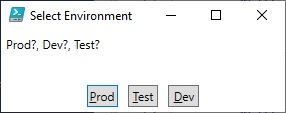
You have selected a Dev Environment
如果您注意到上述两种方法中两个 switch 命令之间的区别,那么在第一种情况下,我们使用 Read-Host 参数读取选项,然后将其传递给 Switch 命令,并根据选项选择 Switch 命令的条件。但在第二种情况下,我们使用了编号,它与用户输入的选项相关。如果用户选择了第一个选项,即 "Prod",则值为"0",第二个值为"1",第三个值为"2",依此类推。

