
如何在 Android 中通过点击对话框外部来关闭对话框?
androidapps/applicationsmobile development更新于 2026/2/13 14:07:17
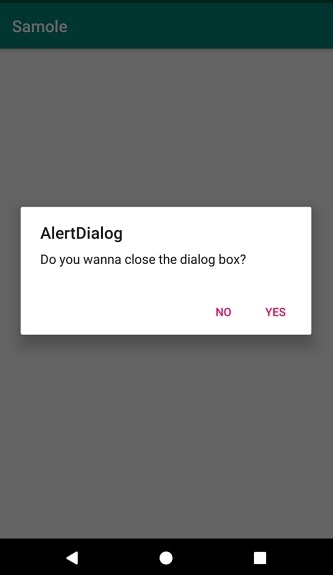
此示例演示了如何在 Android 中通过点击对话框外部来关闭对话框。
步骤 1 − 在 Android Studio 中创建一个新项目,前往"文件"->"新建项目",并填写所有必需的详细信息以创建新项目。
步骤 2 − 将以下代码添加到 res/layout/activity_main.xml。
<?xml version="1.0" encoding="utf-8"?>
<LinearLayout xmlns:android = "http://schemas.android.com/apk/res/android"
   android:layout_width = "match_parent"
   android:gravity = "center"
   android:layout_height = "match_parent">
   <TextView
      android:id = "@+id/click"
      android:layout_width = "wrap_content"
      android:textSize = "30sp"
      android:layout_height = "wrap_content"
      android:text = "Click"/>
</LinearLayout>
步骤 3 − 将以下代码添加到 src/MainActivity.java
import android.annotation.TargetApi;
import android.content.DialogInterface;
import android.os.Build;
import android.support.v7.app.AlertDialog;
import android.support.v7.app.AppCompatActivity;
import android.os.Bundle;
import android.view.View;
import android.widget.TextView;
import android.widget.Toast;
public class MainActivity extends AppCompatActivity {
   TextView text;
   @TargetApi(Build.VERSION_CODES.LOLLIPOP)
   @Override
   protected void onCreate(Bundle savedInstanceState) {
      super.onCreate(savedInstanceState);
      setContentView(R.layout.activity_main);
      text = findViewById(R.id.click);
      text.setOnClickListener(new View.OnClickListener() {
         @Override
         public void onClick(View v) {
            showAlertBox();
         }
      });
   }
   private void showAlertBox() {
      AlertDialog.Builder alertDialog = new AlertDialog.Builder(MainActivity.this);
      alertDialog.setTitle("AlertDialog");
      alertDialog.setMessage("Do you wanna close the dialog box? ");
      alertDialog.setPositiveButton("yes", new DialogInterface.OnClickListener() {
         @Override
         public void onClick(DialogInterface dialog, int which) {
            Toast.makeText(MainActivity.this,"you clicked on yes button",Toast.LENGTH_LONG).show();
         }
      });
      alertDialog.setNegativeButton("No", new DialogInterface.OnClickListener() {
         @Override
         public void onClick(DialogInterface dialog, int which) {
         }
      });
      AlertDialog alert = alertDialog.create();
      alert.setCanceledOnTouchOutside(true);
      alert.show();
   }
}
步骤 4 − 将以下代码添加到 androidManifest.xml
<?xml version="1.0" encoding="utf-8"?>
<manifest xmlns:android="http://schemas.android.com/apk/res/android" package="app.com.sample">
   <application
      android:allowBackup="true"
      android:icon="@mipmap/ic_launcher"
      android:label="@string/app_name"
      android:roundIcon="@mipmap/ic_launcher_round"
      android:supportsRtl="true"
      android:theme="@style/AppTheme">
      <activity android:name="app.com.sample.MainActivity">
         <intent-filter>
            <action android:name="android.intent.action.MAIN" />
            <category android:name="android.intent.category.LAUNCHER" />
         </intent-filter>
      </activity>
   </application>
</manifest>
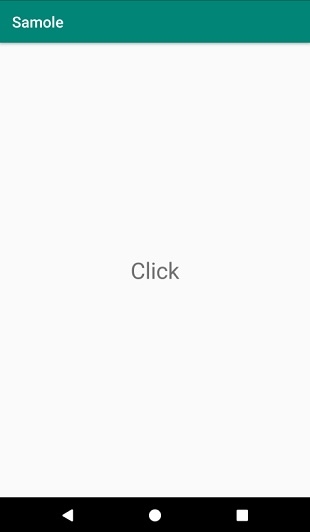
让我们尝试运行您的应用程序。假设您已将实际的 Android 移动设备连接到电脑。要从 Android Studio 运行该应用程序,请打开项目的某个活动文件,然后点击工具栏上的"运行"图标  。选择您的移动设备作为选项,然后勾选将显示默认屏幕 − 的移动设备。
点击此处下载项目代码。

