
如何使用 Kotlin 在 Android 中实现垂直 SeekBar?
kotlin apps/applicationsmobile development更新于 2026/2/10 23:37:17
本示例演示如何使用 Kotlin 在 Android 后台服务中监听音量按钮。
步骤 1 − 在 Android Studio 中创建一个新项目,前往"文件">"新建项目",并填写所有必填信息以创建新项目。
步骤 2 − 将以下代码添加到 res/layout/activity_main.xml。
示例
<?xml version="1.0" encoding="utf-8"?>
<RelativeLayout xmlns:android="http://schemas.android.com/apk/res/android"
xmlns:tools="http://schemas.android.com/tools"
   android:layout_width="match_parent"
   android:layout_height="match_parent"
   android:padding="8dp"
   tools:context=".MainActivity">
   <SeekBar
      android:id="@+id/seekBar"
      android:layout_width="match_parent"
      android:layout_height="wrap_content"
      android:layout_centerInParent="true"
      android:rotation="270" />
   <TextView
      android:id="@+id/textView"
      android:layout_width="wrap_content"
      android:layout_height="wrap_content"
      android:layout_alignParentTop="true"
      android:layout_centerHorizontal="true"
      android:text=""
   android:textSize="16sp" />
</RelativeLayout>
步骤 3 − 将以下代码添加到 src/MainActivity.kt
示例
import android.os.Bundle
import android.widget.SeekBar
import android.widget.SeekBar.OnSeekBarChangeListener
import android.widget.TextView
import androidx.appcompat.app.AppCompatActivity
class MainActivity : AppCompatActivity() {
   lateinit var seekBar: SeekBar
   lateinit var textView: TextView
   var min = 0
   var max: Int = 100
   var current: Int = 50
   override fun onCreate(savedInstanceState: Bundle?) {
      super.onCreate(savedInstanceState)
      setContentView(R.layout.activity_main)
      title = "KotlinApp"
      textView = findViewById(R.id.textView)
      seekBar = findViewById(R.id.seekBar)
      seekBar.progress = max - min
      seekBar.progress = current - min
      textView.text = "" + current
      seekBar.setOnSeekBarChangeListener(object : OnSeekBarChangeListener {
         override fun onProgressChanged(seekBar: SeekBar, progress: Int, fromUser: Boolean) {
            current = progress + min
            textView.text = "" + current
         }
         override fun onStartTrackingTouch(seekBar: SeekBar) {}
         override fun onStopTrackingTouch(seekBar: SeekBar) {}
      })
   }
}
步骤 4 − 将以下代码添加到 src/SettingsContentObserver.kt
示例
<?xml version="1.0" encoding="utf-8"?>
<manifest xmlns:android="http://schemas.android.com/apk/res/android" package="app.com.myapplication">
   <application
      android:allowBackup="true"
      android:icon="@mipmap/ic_launcher"
      android:label="@string/app_name"
      android:roundIcon="@mipmap/ic_launcher_round"
      android:supportsRtl="true"
      android:theme="@style/AppTheme">
      <activity android:name=".MainActivity>
         <intent-filter>
            <action android:name="android.intent.action.MAIN" />
            <category android:name="android.intent.category.LAUNCHER" />
         </intent-filter>
        </activity>
   </application>
</manifest>
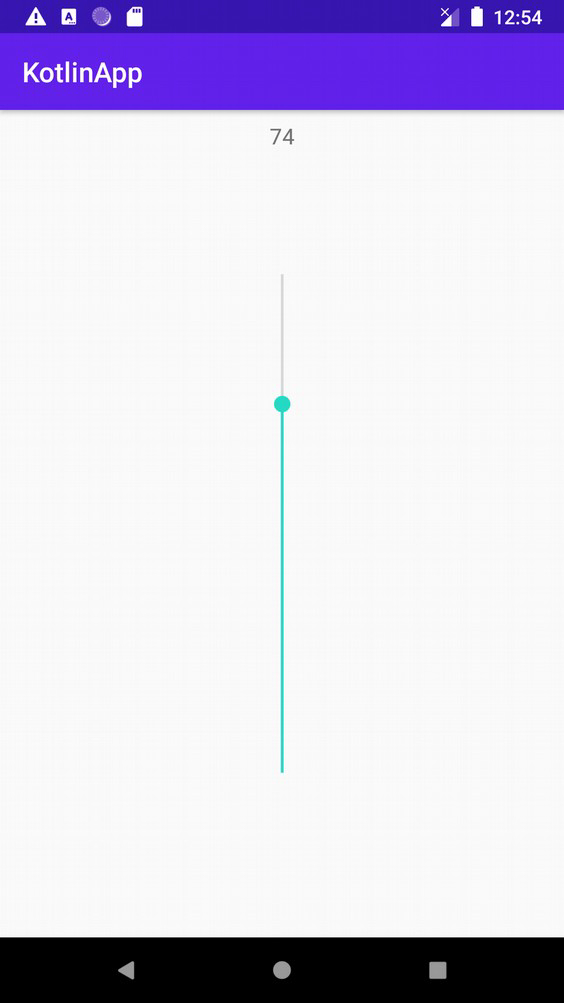
让我们尝试运行您的应用程序。假设您已将实际的 Android 移动设备连接到计算机。要从 Android Studio 运行应用,请打开项目的某个活动文件,然后点击工具栏上的"运行"图标 。选择您的移动设备作为选项,然后勾选将显示默认屏幕的移动设备
相关文章
打印
下一节:如何在 Android Kotlin 中将 HashMap 保存到 Sharedpreferences? ❯❮ 上一节:如何在 Android Kotlin 中使用 Intent 将 ArrayList 传递给另一个 Activity?

