如何在 C# 中使用 Windows 命令提示符安装 Windows 服务?
csharpserver side programmingprogramming更新于 2025/4/14 23:22:17
步骤 1 −
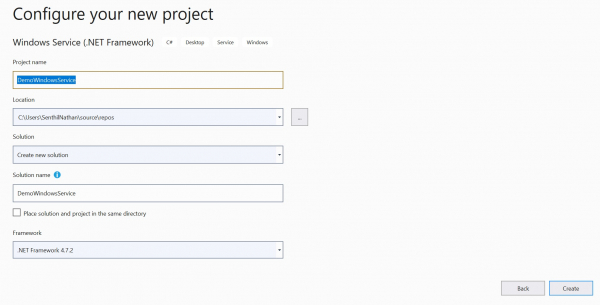
创建一个新的 Windows 服务应用程序。
步骤 2 −
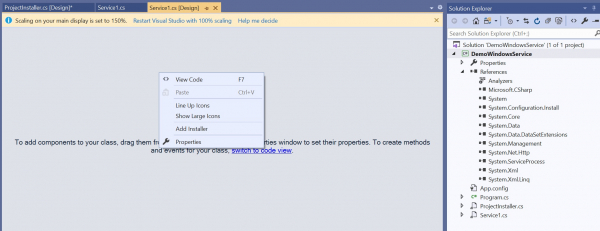
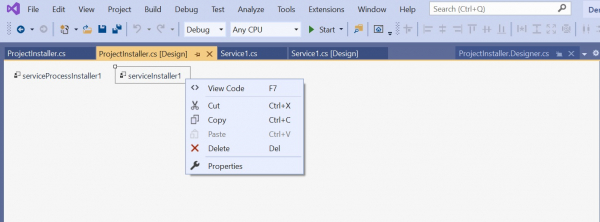
要运行 Windows 服务,您需要安装安装程序,该安装程序会将其注册到服务控制管理器。右键单击 Service1.cs[Design] 并添加安装程序。
步骤 3 −
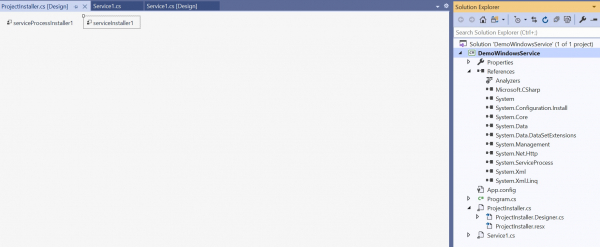
右键单击 ProjectInstaller.cs [设计] 并选择查看代码。
using System;
using System.Collections;
using System.Collections.Generic;
using System.ComponentModel;
using System.Configuration.Install;
using System.Linq;
using System.Threading.Tasks;
namespace DemoWindowsService{
   [RunInstaller(true)]
   public partial class ProjectInstaller : System.Configuration.Install.Installer{
      public ProjectInstaller(){
         InitializeComponent();
      }
   }
}
按 F12 并转到 InitializeComponent 类的实现。添加服务名称和描述,这两个名称将是安装期间 Windows 服务的名称。
private void InitializeComponent(){
   this.serviceProcessInstaller1 = new
   System.ServiceProcess.ServiceProcessInstaller();
   this.serviceInstaller1 = new System.ServiceProcess.ServiceInstaller();
   //
   // serviceProcessInstaller1
   //
   this.serviceProcessInstaller1.Account =
   System.ServiceProcess.ServiceAccount.LocalService;
   this.serviceProcessInstaller1.Password = null;
   this.serviceProcessInstaller1.Username = null;
   //
   // serviceInstaller1
   //
   this.serviceInstaller1.Description = "My Demo Service";
   this.serviceInstaller1.ServiceName = "DemoService";
   //
   // ProjectInstaller
   //
   this.Installers.AddRange(new System.Configuration.Install.Installer[] {
   this.serviceProcessInstaller1,
   this.serviceInstaller1});
}
步骤 4 −
现在让我们添加以下逻辑,将日志数据写入 Service1.cs 类中的文本文件中。
using System;
using System.IO;
using System.ServiceProcess;
using System.Timers;
namespace DemoWindowsService{
   public partial class Service1 : ServiceBase{
      Timer timer = new Timer();
      public Service1(){
         InitializeComponent();
      }
      protected override void OnStart(string[] args){
         WriteToFile("Service started at " + DateTime.Now);
         timer.Elapsed += new ElapsedEventHandler(OnElapsedTime);
         timer.Interval = 5000;
         timer.Enabled = true;
      }
      protected override void OnStop(){
         WriteToFile("Service stopped at " + DateTime.Now);
      }
      private void OnElapsedTime(object source, ElapsedEventArgs e){
         WriteToFile("Service recall at " + DateTime.Now);
      }
      public void WriteToFile(string Message){
         string path = @"D:\Demo";
         if (!Directory.Exists(path)){
            Directory.CreateDirectory(path);
         }
         string filepath = @"D:\Demo\Log.txt";
         if (!File.Exists(filepath)){
            using (StreamWriter sw = File.CreateText(filepath)){
               sw.WriteLine(Message);
            }
         } else {
            using (StreamWriter sw = File.AppendText(filepath)){
               sw.WriteLine(Message);
            }
         }
      }
   }
}
步骤 5(安装)−
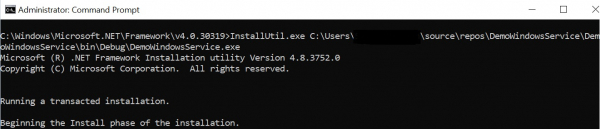
现在我们将使用命令提示符安装 Windows 服务。以管理员身份打开命令提示符并输入以下命令。
cd C:\Windows\Microsoft.NET\Framework\v4.0.30319

打开包含 Windows 服务 exe 文件的文件夹,并运行以下命令。
InstallUtil.exe C:\Users\[用户名]
source\repos\DemoWindowsService\DemoWindowsService\bin\Debug\
DemoWindowsService.exe
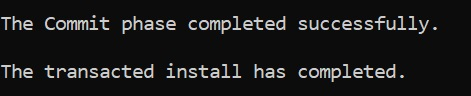
现在从 Windows 应用程序菜单中打开"服务"。
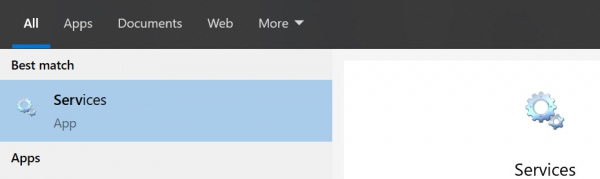

我们可以看到我们的 Windows 服务已安装并按预期开始运行。
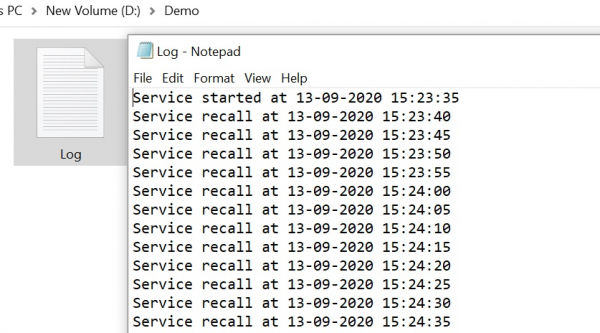
以下输出显示服务正在运行并按预期将日志连接到文本文件。