
如何删除 Ttk Notebook 选项卡虚线?(tkinter)
tkinterpythongui-programming更新于 2025/6/19 17:48:17
为了使用选项卡并在应用程序中分离您的工作流程,Tkinter 提供了一个 Notebook 小部件。我们可以使用 Notebook 小部件在应用程序中创建选项卡。选项卡可用于将一个特定的框架或事件与另一个框架或事件隔离开来。
通常,可以使用 ttk 主题小部件配置和设置 Notebook 小部件的样式。因此,要设置 Notebook 小部件的样式,我们在配置中传递 TNotebook 和 TNotebook.Tab 参数。如果我们点击某个 Tab,可能会出现一些可以删除的矩形虚线。
示例
# 导入所需的库
from tkinter import *
from tkinter import ttk

# 创建 tkinter 框架的实例
win = Tk()
win.geometry("700x350")

# 创建 ttk 的实例
style = ttk.Style()

# 为 Notebook 小部件定义样式
style.layout("Tab", [('Notebook.tab', {'sticky': 'nswe', 'children':
   [('Notebook.padding', {'side': 'top', 'sticky': 'nswe', 'children':
      [('Notebook.label', {'side': 'top', 'sticky': ''})],
   })],
})]
)

# 使用已定义的样式从选项卡中删除虚线
style.configure("Tab", focuscolor=style.configure(".")["background"])

# 创建 Notebook 小部件
my_notebook= ttk.Notebook(win)
my_notebook.pack(expand=1,fill=BOTH)

# 创建标签
tab1 = ttk.Frame(my_notebook)
my_notebook.add(tab1, text= "Tab 1")
tab2 = ttk.Frame(my_notebook)
my_notebook.add(tab2, text= "Tab2")

# 在标签中创建标签
Label(tab1, text= "Hello, Howdy?",
   font = ('Helvetica 20 bold')).pack()
Label(tab2, text= "This is a New Tab Context",
   font = ('Helvetica 20 bold')).pack()
win.mainloop()
输出
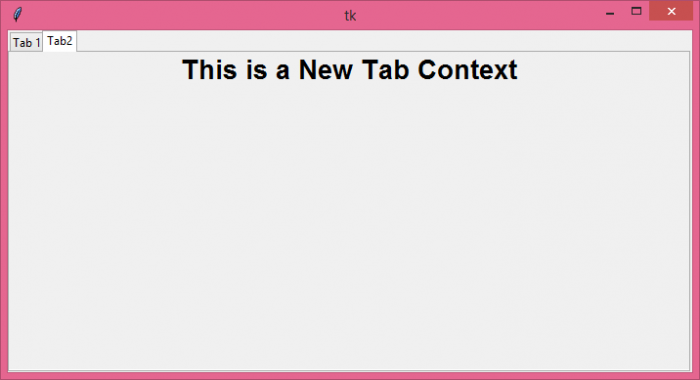
执行上述代码将显示一个包含多个选项卡的窗口。
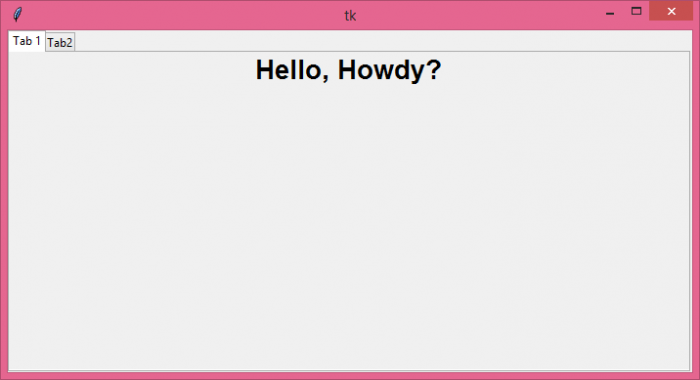
当我们从窗口切换选项卡时,它将显示其内容
相关文章
有用资源
python 参考教程 - 该教程包含有关 python 的更多信息:https://www.cainiaomax.com/python/

