
如何使用 PowerShell 帮助命令?
pythonserver side programmingprogramming更新于 2025/10/12 15:40:17
要获取特定命令的帮助,您可以将 Get-Help (别名:help) cmdlet 与需要帮助的命令一起使用。
例如,
help Get-Service
运行此命令后,您将获得 NAME、SYNOPSIS、SYNTAX、DESCRIPTION、RELATED LINKS 和 REMARKS 的描述。
支持帮助的多个参数如下所示
-Full −带有参数解释和示例的详细帮助。
help Get-Service -Full
-Detailed − 带有参数的详细帮助,但不包括示例。
help Get-Service -Detailed
-Examples − PowerShell 屏幕上仅显示与示例相关的帮助。
help Get-Service -Examples
-Online −将在 Microsoft 网站上在线搜索 cmdlet 的帮助内容。
help Get-Service -Online
当您安装或更新 PowerShell 版本或安装随附 PowerShell 的新操作系统时,您需要确保从 Microsoft 网站更新帮助内容,可以使用 Update-Help 命令完成此操作,建议每月更新一次,因为某些帮助内容会过时,而 MS 会不断更新其帮助内容。
如果过时的帮助驻留在您的系统中,那么某些 cmdlet 帮助将不可见,此时您需要更新帮助内容。
当指定 -ShowWindow 参数时,帮助将显示在该特定命令的单独窗口中。例如,
help Get-Service -ShowWindow
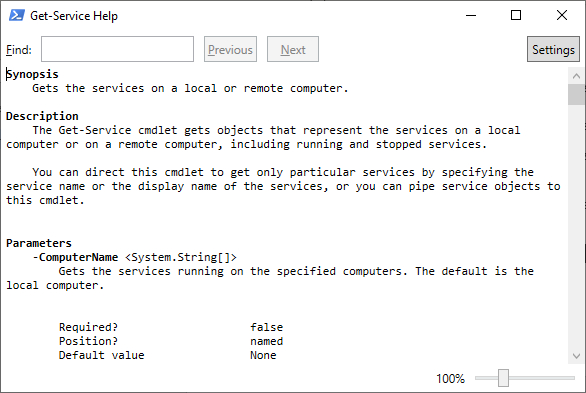
此处,在设置按钮中,有选项可以过滤掉特定项目。
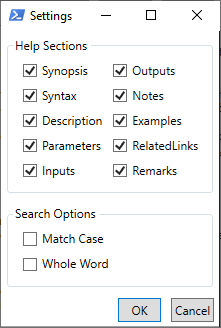
如果您需要任何特定部分相关的帮助,请选择该设置。
如果您需要有关命令行中参数的帮助,请使用-Parameter 和命令名称。例如,
help Get-Service -Parameter ComputerName
PS C:\Users\Chirag.Nagarekar> help Get-Service -Parameter ComputerName -ComputerName <System.String[]>
Gets the services running on the specified computers. The default is the local computer.
Type the NetBIOS name, an IP address, or a fully qualified domain name (FQDN)
of a remote computer. To specify the local computer, type the
computer name, a dot (.), or localhost.

This parameter does not rely on Windows PowerShell remoting. You can use the
ComputerName parameter of Get-Service even if your computer is not configured to run remote commands.

Required? false
Position? named
Default value None
Accept pipeline input? True (ByPropertyName)
Accept wildcard characters? false
如果您需要显示所有参数,请使用 * 代替参数名称。
help Get-Service -Parameter *
同样,如果您需要仅与命令行中的示例部分相关的帮助,请在命令中使用 -Examples。
help Get-Service -Examples
相关文章
有用资源
python 参考教程 - 该教程包含有关 python 的更多信息:https://www.cainiaomax.com/python/