
在 Snack 中使用 JSON 格式的数据
使用 Snack Expo 制作的应用程序有很多种使用数据的方法。有时数据以 JSON 格式存储,即 JavaScript 对象表示法。在这种格式下,数据可以轻松存储为键值对,也可以转换为 CSV 文件。本文使用 Snack 上的 javascript 指定了使用 JSON 数据的方法。在示例 1 中,给出了读取此数据并将其显示为表格的方法。在第二个示例中,显示了将 JSON 数据保存为 CSV 文件并下载它的方法。
算法 1
步骤 1 - 从"react-native"导入视图。还从 json 文件导入 JSON 数据。这里,例如使用 products.json
步骤 2 - 制作 App.js 并编写代码。
步骤 3 - 使用 id 作为键并从 json 文件中获取所有产品。
步骤 4 - 首先显示标题,然后使用 map 函数获取每个产品项。选择要显示的列。
步骤 5 - 使用 <table>、<thead>、<tr> 和 <th> 标签以表格形式显示数据。
步骤 6 - 检查结果。
示例中使用的 JSON 文件:文件名 - products.json
示例
{
   "products": [
      {
         "id": 68,
         "title": "School shoes",
         "price": 122,
         "quantity": 3,
         "total": 160,
         "discount%": 50,
         "discountedRate": 80
      },
      {
         "id": 82,
         "title": "Washing Gloves",
         "price": 50,
         "quantity": 2,
         "total": 60,
         "discount%": 10,
         "discountedRate": 45
      },
      {
         "id": 28,
         "title": "Moisturizer 100ml",
         "price": 45,
         "quantity": 2,
         "total": 90,
         "discount%": 13.1,
         "discountedRate": 70
      },
      {
         "id": 92,
         "title": "Leather Belt",
         "price": 900,
         "quantity": 1,
         "total": 950,
         "discount%": 19.77,
         "discountedRate": 766
      },
      {
         "id": 49,
         "title": "Woollen Shawl",
         "price": 800,
         "quantity": 2,
         "total": 1300,
         "discount%": 20,
         "discountedRate": 994
      }
   ]
}
示例 1:读取 JSON 数据并将其显示为表格。
项目中使用的重要文件是
App.js
App.js:这是该项目的主要 javascript 文件。
示例
import productData from './products.json'

import {Component} from "react";
import {View} from "react-native";

export default class JSONEXAMPLE extends Component {
   render(){
      return (
         <View style={{padding: 10}}>
         <h2>Products Ordered</h2>

         <table>
            <thead>
               <tr>
                  <th>ID</th>
                  <th>Title</th>
                  <th>Price</th>
                  <th>Quantity</th>
               </tr>
            </thead>
            <tbody>
               {productData.products.map(products => {
               const { id, title, price, quantity } = products
               return (
               <tr key={id}>
                  <td>{id}</td>
                  <td>{title}</td>
                  <td>{price}</td>
                  <td>{quantity}</td>
               </tr>
               )
               })}
            </tbody>
         </table>
         </View>
      )
   }
}
查看结果
结果可以在线查看。当用户输入代码时,默认选择 Web 视图,结果立即显示。
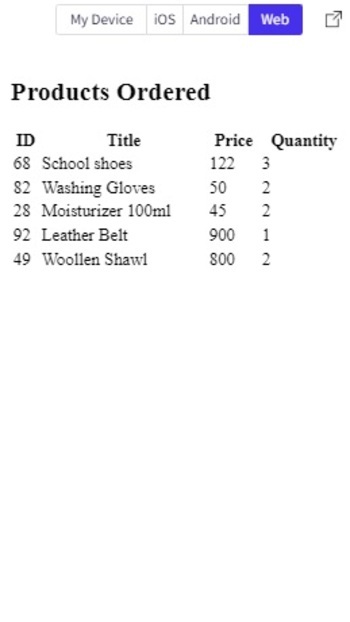
Snack 中 Web 视图中的 JSON 数据显示为表格
算法 2
步骤 1 − 从"react-native"导入视图。还从 json 文件导入 JSON 数据。这里以 products.json 为例
步骤 2 − 制作 App.js 并编写代码。
步骤 3 − 使用 id 作为键,从 json 文件中获取所有产品,并以表格形式显示产品信息。
步骤 4 − 编写一个函数 downldFl(),其中包含参数 data、filename 和 filetype。使用Blob()指定文件类型,使用window.URL.createObjectURL(blob)下载文件。
步骤5 − 用','连接头部,然后用"
"分隔连接json内容。
步骤6 − 点击下载CSV,查看下载文件结果。
示例2:将JSON数据转换为CSV并下载文件。
项目中使用的重要文件是
App.js
App.js:这是该项目的主要javascript文件。
示例
import productData from './products.json'
import {View} from "react-native";

const downldFl = ({ data, fl_name, fl_type }) => {
   const blobb = new Blob([data], { type: fl_type })
   const lnk = document.createElement('a');
   lnk.download = fl_name;
   lnk.href = window.URL.createObjectURL(blobb);
   lnk.click();
   URL.revokeObjectURL(lnk.href);
   lnk.remove();
}

const downloadCSVfile = e => {
   e.preventDefault()

   let headers = ['Id,Title,Price,Quantity']

   let productsCsv = productData.products.reduce((str1, product) => {
   const { id, title, price, quantity } = product
   str1.push([id,title, price, quantity].join(','))
   return str1
   }, [])

   downldFl({
         data: [...headers, ...productsCsv].join('
'),
         fl_name: 'products.csv',
         fl_type: 'text/csv',
      }
   )
}

export default function JSONEXAMPLETWO() {
   return (
      <View style={{padding: 10}}>
         <h2> Download JSON as CSV</h2>

         <table className='productsTable'>
            <thead>
               <tr>
                  <th>ID</th>
                  <th>Title</th>
                  <th>Price</th>
                  <th>Quantity</th>
               </tr>
            </thead>
            <tbody>
               {productData.products.map(products => {
                  const { id, title, price, quantity } = products
                  return (
                     <tr key={id}>
                        <td>{id}</td>
                        <td>{title}</td>
                        <td>{price}</td>
                        <td>{quantity}</td>
                     </tr>
                  )
               }
               )
               }
            </tbody>
         </table>

         <button type='button' onClick={downloadCSVfile}>
            Download CSV
         </button>
      </View>
   )
}
查看结果
结果可以在线查看。当用户单击下载按钮时,文件将被下载,结果将立即显示。
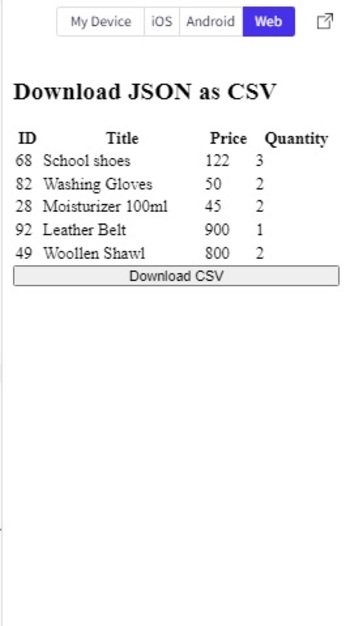
按下下载 CSV 按钮即可下载文件。
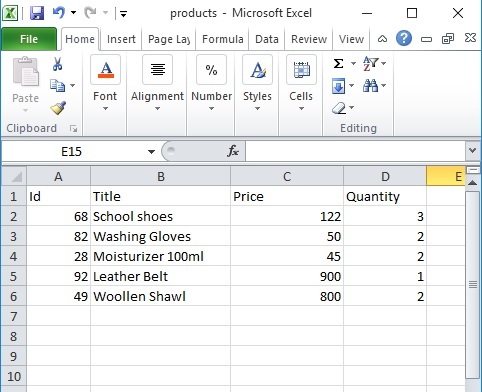
显示由 JSON 生成的已下载 CSV 文件的内容。
在本文中,使用两个不同的示例,给出了在 Expo Snack 应用中使用 JSON 的方法。首先给出了读取 json 文件并以表格形式显示其内容的方法。然后给出了将选定的 JSON 数据保存为 CSV 格式然后下载该文件的方法。
相关文章
有用资源
javascript 参考教程 - 该教程包含有关 javascript 的更多信息:https://www.cainiaomax.com/javascript/

