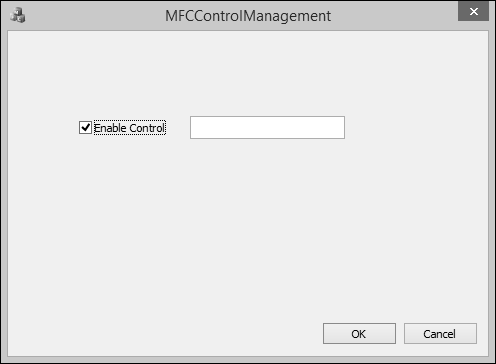
MFC - 复选框
复选框是一种 Windows 控件,允许用户将项目的值设置或更改为 true 或 false。
让我们创建一个新的基于 MFC 对话框的项目。
创建项目后,您将在设计器窗口中看到以下对话框。
步骤 1 − 删除 TODO 行并拖动一个复选框和一个编辑控件,如下图所示。 还将复选框的标题更改为"启用控件"。
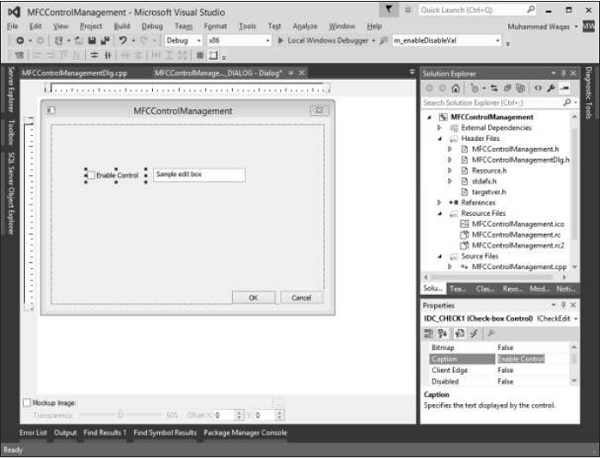
步骤 2 − 右键单击该复选框并选择"添加变量"。
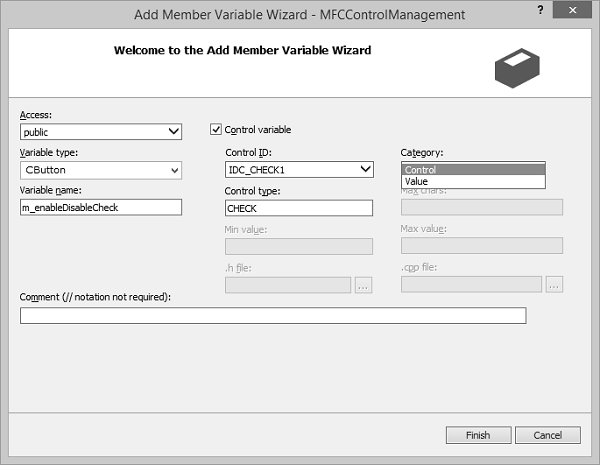
步骤 3 − 您可以在此对话框中选择不同的选项。 对于复选框,默认选择 CButton 变量类型。
步骤 4 − 同样,控件ID也是默认选择的。 现在,我们需要在"类别"组合框中选择"控件",然后在"变量名称"编辑框中键入 m_enableDisableCheck,然后单击"完成"。
步骤 5 − 添加编辑控件的控件变量,其设置如下面的快照所示。
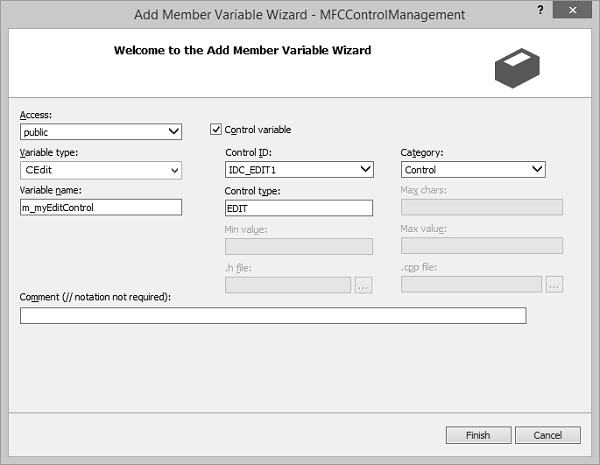
步骤 6 − 观察对话框类的头文件。 可以看到现在已经添加了这两个变量。
CButton m_enableDisableCheck;
CEdit m_myEditControl;
步骤 7 − 右键单击该复选框并选择"添加变量"。
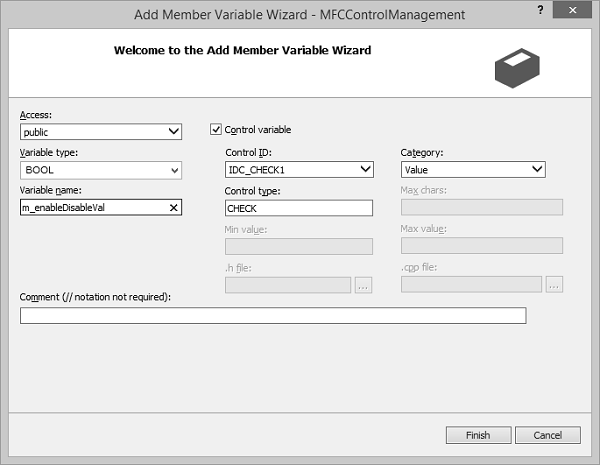
步骤 8 − 单击"完成"继续。
步骤 9 − 为编辑控件添加值变量,其设置如以下快照所示。
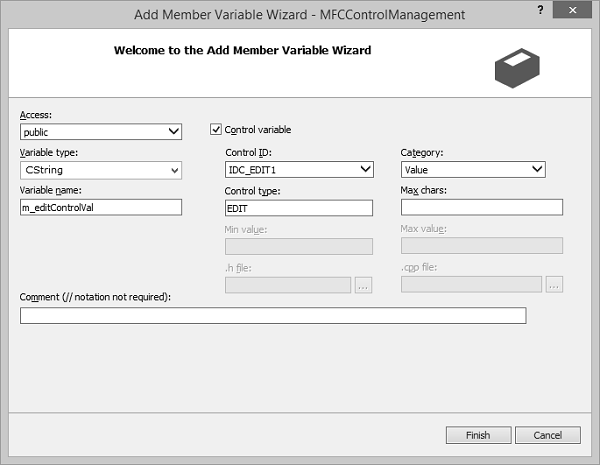
步骤 10 − 查看头文件。 您可以看到现在已经添加了新变量。
bool m_enableDisableVal;
CString m_editControlVal;
步骤 11 − 现在我们将为复选框添加事件处理程序。
步骤 12 − 右键单击要处理通知事件的控件。
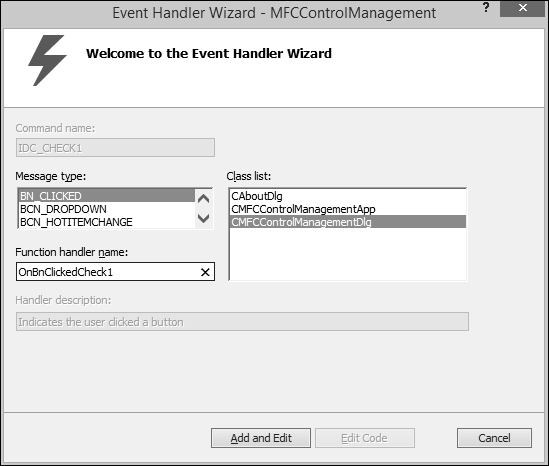
步骤 13 − 在"消息类型"框中选择要添加到"类"列表框中所选类的事件。
步骤 14 − 接受"函数处理程序名称"框中的默认名称,或提供您选择的名称。
步骤 15 − 单击"添加"和"编辑"以添加事件处理程序。
步骤 16 − 您现在可以看到以下事件添加到 CMFCControlManagementDlg.cpp 文件末尾。
void CMFCControlManagementDlg::OnBnClickedCheck1() {
   // TODO: Add your control notification handler code here
}
步骤 17 − 这会在选中/取消选中复选框时启用/禁用编辑控件。
步骤 18 − 我们现在添加了复选框单击事件处理程序。 这是复选框事件处理程序的实现。
void CMFCControlManagementDlg::OnBnClickedCheck1() {
   // TODO: Add your control notification handler code here
   UpdateData(TRUE);
   if (m_enableDisableVal)
      m_myEditControl.EnableWindow(TRUE);
   else
      m_myEditControl.EnableWindow(FALSE);
}
步骤 19 − 我们需要将以下代码添加到 CMFCControlManagementDlg::OnInitDialog()。 创建对话框时,它将管理这些控件。
UpdateData(TRUE);
if (m_enableDisableVal)
   m_myEditControl.EnableWindow(TRUE);
else
   m_myEditControl.EnableWindow(FALSE);
步骤 20 − 以下是 CMFCControlManagementDlg.cpp 文件的完整实现。
// MFCControlManagementDlg.cpp : implementation file
//

#include "stdafx.h"
#include "MFCControlManagement.h"
#include "MFCControlManagementDlg.h"
#include "afxdialogex.h"

#ifdef _DEBUG
#define new DEBUG_NEW
#endif

// CAboutDlg dialog used for App About

class CAboutDlg : public CDialogEx {
   public:
      CAboutDlg();

   // Dialog Data
   #ifdef AFX_DESIGN_TIME
      enum { IDD = IDD_ABOUTBOX };
   #endif

   protected:
      virtual void DoDataExchange(CDataExchange* pDX); // DDX/DDV support

   // Implementation
   protected:
      DECLARE_MESSAGE_MAP()
};

CAboutDlg::CAboutDlg() : CDialogEx(IDD_ABOUTBOX) {

}

void CAboutDlg::DoDataExchange(CDataExchange* pDX) {
   CDialogEx::DoDataExchange(pDX);
}

BEGIN_MESSAGE_MAP(CAboutDlg, CDialogEx)
END_MESSAGE_MAP()
CMFCControlManagementDlg::CMFCControlManagementDlg(CWnd* pParent /* = NULL*/)
   : CDialogEx(IDD_MFCCONTROLMANAGEMENT_DIALOG, pParent),
   m_enableDisableVal(FALSE), m_editControlVal(_T("")) {

   m_hIcon = AfxGetApp()→LoadIcon(IDR_MAINFRAME);
}
void CMFCControlManagementDlg::DoDataExchange(CDataExchange* pDX) {
   CDialogEx::DoDataExchange(pDX);
   DDX_Control(pDX, IDC_CHECK1, m_enableDisableCheck);
   DDX_Control(pDX, IDC_EDIT1, m_myEditControl);
   DDX_Check(pDX, IDC_CHECK1, m_enableDisableVal);
   DDX_Text(pDX, IDC_EDIT1, m_editControlVal);
}

BEGIN_MESSAGE_MAP(CMFCControlManagementDlg, CDialogEx)
   ON_WM_SYSCOMMAND()
   ON_WM_PAINT()
   ON_WM_QUERYDRAGICON()
   ON_BN_CLICKED(IDC_CHECK1, &CMFCControlManagementDlg::OnBnClickedCheck1)
END_MESSAGE_MAP()

// CMFCControlManagementDlg message handlers

BOOL CMFCControlManagementDlg::OnInitDialog() {
   CDialogEx::OnInitDialog();

   // Add "About..." menu item to system menu.

   // IDM_ABOUTBOX must be in the system command range.
   ASSERT((IDM_ABOUTBOX & 0xFFF0) == IDM_ABOUTBOX);
   ASSERT(IDM_ABOUTBOX < 0xF000);

   CMenu* pSysMenu = GetSystemMenu(FALSE);
   if (pSysMenu != NULL) {
      BOOL bNameValid;
      CString strAboutMenu;
      bNameValid = strAboutMenu.LoadString(IDS_ABOUTBOX);
      ASSERT(bNameValid);
      if (!strAboutMenu.IsEmpty()) {
         pSysMenu->AppendMenu(MF_SEPARATOR);
         pSysMenu->AppendMenu(MF_STRING, IDM_ABOUTBOX, strAboutMenu);
      }
   }

   // Set the icon for this dialog. The framework does this automatically
   // when the application's main window is not a dialog
   SetIcon(m_hIcon, TRUE);      // Set big icon
   SetIcon(m_hIcon, FALSE);     // Set small icon

   // TODO: Add extra initialization here
   UpdateData(TRUE);
   if (m_enableDisableVal)
      m_myEditControl.EnableWindow(TRUE);
   else
      m_myEditControl.EnableWindow(FALSE);
   return TRUE; // return TRUE unless you set the focus to a control
}

void CMFCControlManagementDlg::OnSysCommand(UINT nID, LPARAM lParam) {
   if ((nID & 0xFFF0) == IDM_ABOUTBOX) {
      CAboutDlg dlgAbout;
      dlgAbout.DoModal();
   }else {
      CDialogEx::OnSysCommand(nID, lParam);
   }
}

// If you add a minimize button to your dialog, you will need the code below
// to draw the icon. For MFC applications using the document/view model,
// this is automatically done for you by the framework.

void CMFCControlManagementDlg::OnPaint() {
   if (IsIconic()) {
      CPaintDC dc(this); // device context for painting

      SendMessage(WM_ICONERASEBKGND,
         reinterpret_cast<WPARAM>(dc.GetSafeHdc()), 0);

      // Center icon in client rectangle
      int cxIcon = GetSystemMetrics(SM_CXICON);
      int cyIcon = GetSystemMetrics(SM_CYICON);
      CRect rect;
      GetClientRect(&rect);
      int x = (rect.Width() - cxIcon + 1) / 2;
      int y = (rect.Height() - cyIcon + 1) / 2;

      // Draw the icon
      dc.DrawIcon(x, y, m_hIcon);
   }else{
      CDialogEx::OnPaint();
   }
}

// The system calls this function to obtain the cursor to display while the user drags
// the minimized window.
HCURSOR CMFCControlManagementDlg::OnQueryDragIcon() {
   return static_cast<HCURSOR>(m_hIcon);
}
void CMFCControlManagementDlg::OnBnClickedCheck1(){
   // TODO: Add your control notification handler code here
   UpdateData(TRUE);
   if (m_enableDisableVal)
      m_myEditControl.EnableWindow(TRUE);
   else
      m_myEditControl.EnableWindow(FALSE);
}
步骤 21 −当上面的代码被编译并执行时,您将看到以下输出。 您现在可以看到默认情况下该复选框未选中。 这将禁用编辑控件。
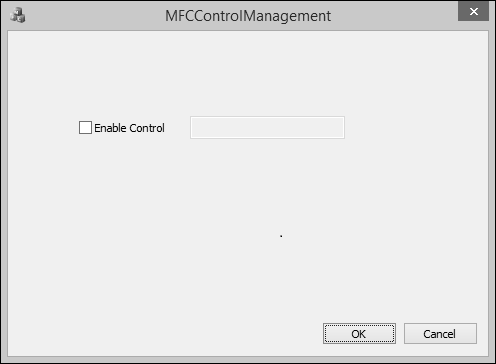
步骤 22 − 现在,当您选中该复选框时,就会启用编辑控件。