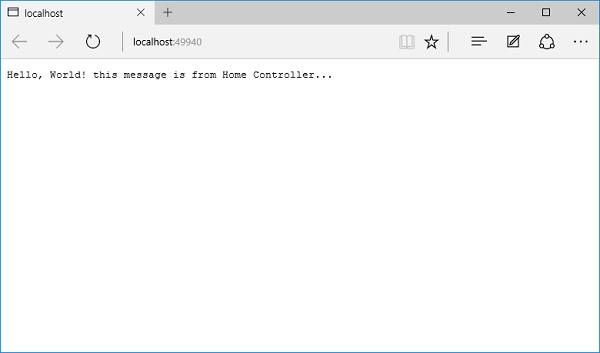
ASP.NET Core - 设置 MVC
在本章中,我们将在 FirstAppDemo 应用程序中设置 MVC 框架。 我们将继续在 ASP.NET Core 之上构建一个 Web 应用程序,更具体地说,是在 ASP.NET Core MVC 框架之上。 从技术上讲,我们可以仅使用中间件构建整个应用程序,但 ASP.NET Core MVC 为我们提供了可用于轻松创建 HTML 页面和基于 HTTP 的 API 的功能。
要在我们的空项目中设置 MVC 框架,请按照以下步骤操作 −
安装Microsoft.AspNet.Mvc 包,它使我们能够访问框架提供的程序集和类。
安装包后,我们需要注册 ASP.NET MVC 在运行时需要的所有服务。 我们将在 ConfigureServices 方法中执行此操作。
最后,我们需要为ASP.NET MVC 添加中间件来接收请求。 本质上,这段中间件接受一个 HTTP 请求,并尝试将该请求定向到我们将编写的 C# 类。
步骤 1 − 让我们通过右键单击 Manage NuGet Packages 转到 NuGet 包管理器。 安装 Microsoft.AspNet.Mvc 包,它使我们能够访问框架提供的程序集和类。
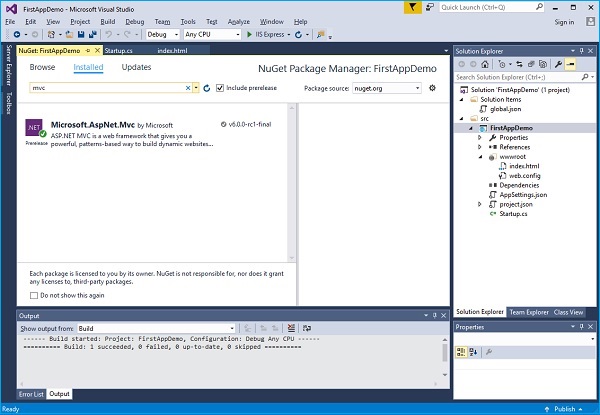
步骤 2 − 安装 Microsoft.AspNet.Mvc 包后,我们需要注册 ASP.NET Core MVC 在运行时需要的所有服务。 我们将使用 ConfigureServices 方法执行此操作。 我们还将添加一个简单的控制器,我们将看到该控制器的一些输出。
让我们向该项目添加一个新文件夹并将其命名为Controllers。 在此文件夹中,我们可以在解决方案资源管理器中放置多个控制器,如下所示。
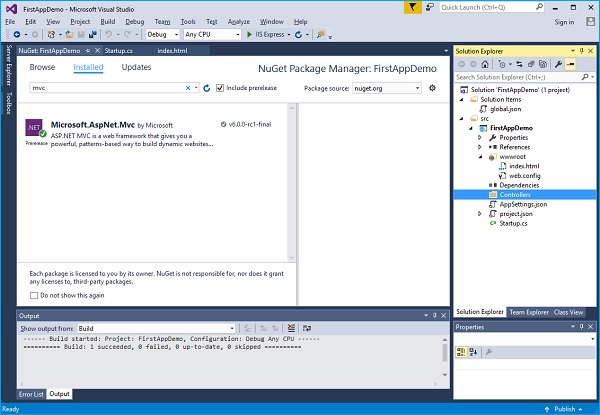
现在右键单击 Controllers 文件夹并选择 Add → Class 菜单选项。
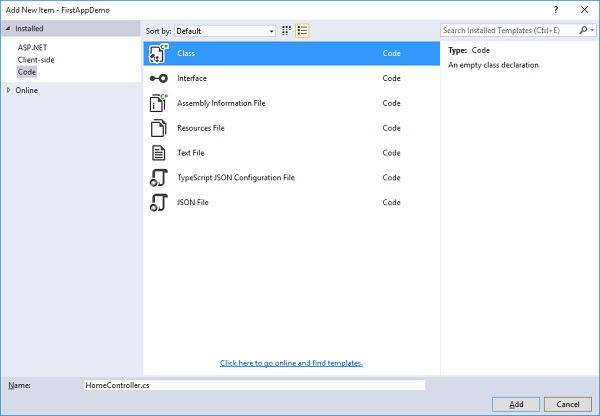
步骤 3 − 在这里我们要添加一个简单的 C# 类,并调用这个类 HomeController 然后点击上面截图中的添加按钮。
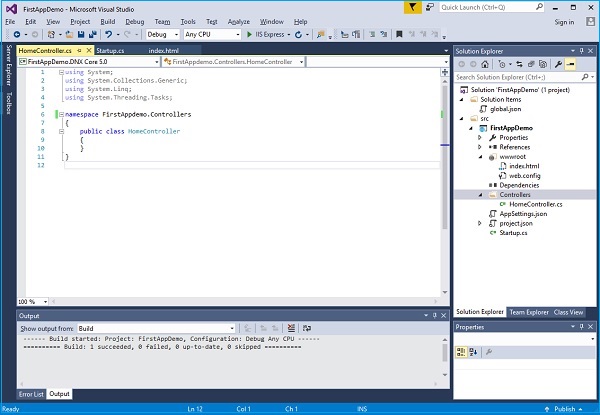
这将是我们的默认页面。
步骤 4 − 让我们定义一个返回字符串的公共方法并调用该方法 Index,如以下程序所示。
using System;
using System.Collections.Generic;
using System.Linq;
using System.Threading.Tasks;

namespace FirstAppdemo.Controllers {
   public class HomeController {
      public string Index() {
         return "Hello, World! this message is from Home Controller...";
      }
   }
}
步骤 5 − 当您转到网站的根目录时,您希望看到控制器响应。 截至目前,我们将提供我们的 index.html 文件。
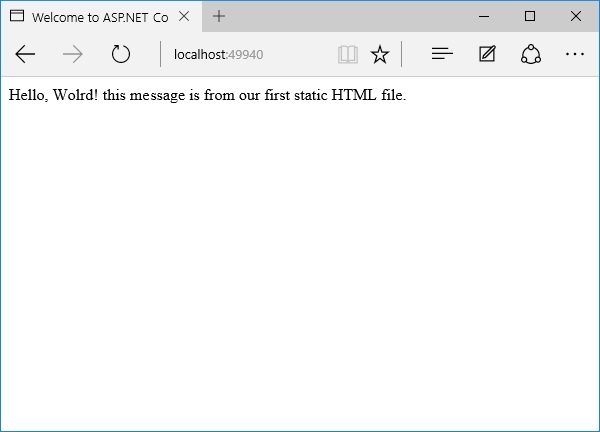
让我们进入网站的根目录并删除 index.html。 我们希望控制器响应而不是 index.html 文件。
步骤 6 − 现在转到 Startup 类中的 Configure 方法并添加 UseMvcWithDefaultRoute 中间件。
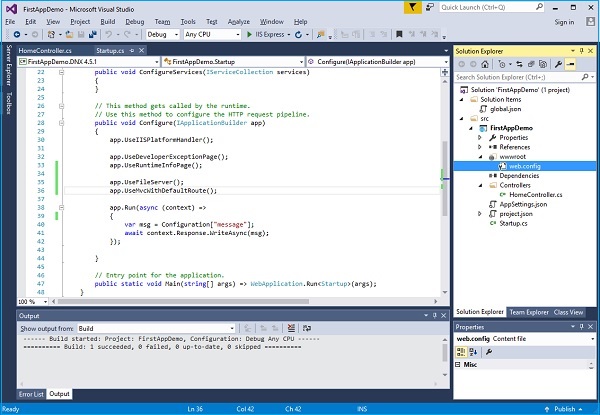
步骤 7 − 现在刷新网站根目录下的应用程序。
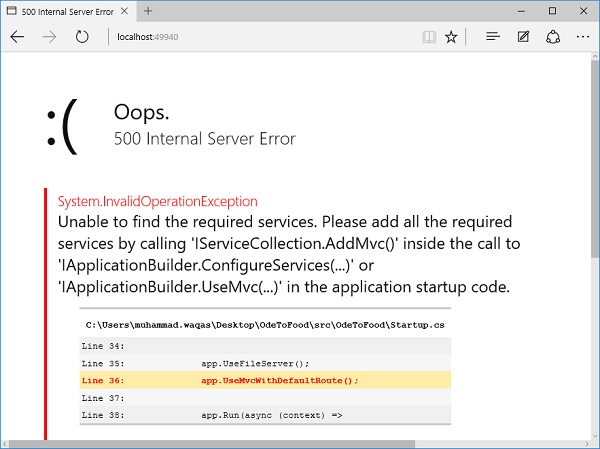
您将遇到 500 错误。 该错误表示框架无法找到所需的 ASP.NET Core MVC 服务。
ASP.NET Core 框架本身由不同的小组件组成,这些组件的职责非常集中。
例如,有一个组件必须定位并实例化控制器。
该组件需要位于 ASP.NET Core MVC 的服务集合中才能正常运行。
步骤 8 − 除了添加NuGet包和中间件,我们还需要在ConfigureServices中添加AddMvc服务。 下面是 Startup 类的完整实现。
using Microsoft.AspNet.Builder;
using Microsoft.AspNet.Hosting;
using Microsoft.AspNet.Http;

using Microsoft.Extensions.DependencyInjection;
using Microsoft.Extensions.Configuration;

namespace FirstAppDemo {
   public class Startup {
      public Startup() {
         var builder = new ConfigurationBuilder() .AddJsonFile("AppSettings.json");
         Configuration = builder.Build();
      }
      public IConfiguration Configuration { get; set; }

      // This method gets called by the runtime.
      // Use this method to add services to the container.
      // For more information on how to configure your application,
      // visit http://go.microsoft.com/fwlink/?LinkID=398940
      public void ConfigureServices(IServiceCollection services) {
         services.AddMvc();
      }

      // This method gets called by the runtime.
      // Use this method to configure the HTTP request pipeline.
      public void Configure(IApplicationBuilder app) {
         app.UseIISPlatformHandler();

         app.UseDeveloperExceptionPage();
         app.UseRuntimeInfoPage();

         app.UseFileServer();
         app.UseMvcWithDefaultRoute();

         app.Run(async (context) => {
            var msg = Configuration["message"];
            await context.Response.WriteAsync(msg);
         });
      }

      // Entry point for the application.
      public static void Main(string[] args) => WebApplication.Run<Startup>(args);
   }
}
步骤 9 − 保存 Startup.cs 文件并转到浏览器并刷新它。 您现在将收到来自 HomeController 的回复。