
JSF - h:panelGrid
h:panel 标签呈现 HTML"表格"元素。
JSF 标签
<h:panelGrid id = "panel" columns = "2" border = "1"
      cellpadding = "10" cellspacing = "1">

   <f:facet name = "header">
      <h:outputText value = "Login"/>
   </f:facet>
   <h:outputLabel value = "Username" />
   <h:inputText  />
   <h:outputLabel value = "Password" />
   <h:inputSecret />

   <f:facet name = "footer">
      <h:panelGroup style = "display:block; text-align:center">
         <h:commandButton id = "submit" value = "Submit" />
      </h:panelGroup>
   </f:facet>
</h:panelGrid>
渲染输出
<table id = "j_idt10:panel" border = "1" cellpadding = "10" cellspacing = "1">
   <thead>
      <tr><th colspan = "2" scope = "colgroup">Login</th></tr>
   </thead>

   <tfoot>
      <tr>
         <td colspan = "2">
            <span style = "display:block; text-align:center">
               <input id = "j_idt10:submit" type = "submit"
                  name = "j_idt10:submit" value = "Submit" />
            </span>
         </td>
      </tr>
   </tfoot>

   <tbody>
      <tr>
         <td><label>Username</label></td>
         <td><input type = "text" name = "j_idt10:j_idt17" /></td>
      </tr>
      <tr>
         <td><label>Password</label></td>
         <td><input type = "password" name = "j_idt10:j_idt21" value = "" /></td>
      </tr>

   </tbody>
</table>
标签属性
| S.No | 属性与描述 |
|---|---|
| 1 | id 组件标识符 |
| 2 | binding 对可在辅助 bean 中使用的组件的引用 |
| 3 | rendered 布尔值;false 表示禁止渲染 |
| 4 | styleClass 层叠样式表 (CSS) 类名 |
| 5 | 值 组件的值,通常是值绑定 |
| 6 | bgcolor 表格的背景颜色 |
| 7 | border 表格边框的宽度 |
| 8 | cellpadding 表格单元格周围的填充 |
| 9 | cellspacing 表格单元格之间的间距 |
| 10 | columnClasses 以逗号分隔的列 CSS 类列表 |
| 11 | columns 表格中的列数 |
| 12 | footerClass 表格页脚的 CSS 类 |
| 13 | frame frame 指定要绘制的表格周围框架的边;有效值:none、above、below、hsides、vsides、lhs、rhs、box、border |
| 14 | headerClass 表格标题的 CSS 类 |
| 15 | rowClasses 以逗号分隔的列 CSS 类列表 |
| 16 | rules 单元格之间绘制线条的规范;有效值:组、行、列、全部 |
| 17 | summary 用于语音等非视觉反馈的表格目的和结构的摘要 |
| 18 | dir 文本的方向。有效值为 ltr(从左到右)和 rtl(从右到左) |
| 19 | lang 元素属性和文本的基本语言 |
| 20 | border 元素边框宽度的像素值 |
| 21 | title 用于可访问性的标题,描述元素。可视化浏览器通常会为标题的值创建工具提示 |
| 22 | width 元素的宽度 |
| 23 | onblur 元素失去焦点 |
| 24 | onchange 元素的值发生变化 |
| 25 | onclick 鼠标按钮在元素上单击 |
| 26 | ondblclick 鼠标按钮在元素上双击 |
| 27 | onfocus 元素获得焦点 |
| 28 | onkeydown 按下按键 |
| 29 | onkeypress 按下按键后释放 |
| 30 | onkeyup 释放按键 |
| 31 | onmousedown 鼠标按钮在元素上按下 |
| 32 | onmousemove 鼠标在元素上移动 |
| 33 | onmouseout 鼠标离开元素区域 |
| 34 | onmouseover 鼠标移动到元素上 |
| 35 | onmouseup 鼠标按钮被释放 |
示例应用程序
让我们创建一个测试 JSF 应用程序来测试上述标记。
| 步骤 | 描述 |
|---|---|
| 1 | 在 com.tutorialspoint.test 包下创建一个名为 helloworld 的项目,如 JSF - 第一个应用程序 一章中所述。 |
| 2 | 按照以下说明修改 home.xhtml。保持其余文件不变。 |
| 3 | 编译并运行应用程序以确保业务逻辑按要求运行。 |
| 4 | 最后,以 war 文件的形式构建应用程序并将其部署在 Apache Tomcat Web 服务器中。 |
| 5 | 按照最后一步中的说明,使用适当的 URL 启动您的 Web 应用程序。 |
home.xhtml
<!DOCTYPE html PUBLIC "-//W3C//DTD XHTML 1.0 Transitional//EN"
   "http://www.w3.org/TR/xhtml1/DTD/xhtml1-transitional.dtd">

<html xmlns = "http://www.w3.org/1999/xhtml">
   <head>
      <title>JSF Tutorial!</title>
   </head>

   <body>
      <h2>h:panelGrid example</h2>
      <hr />

      <h:form>
         <h:panelGrid id = "panel" columns = "2" border = "1"
            cellpadding = "10" cellspacing = "1">

            <f:facet name = "header">
               <h:outputText value = "Login"/>
            </f:facet>
            <h:outputLabel value = "Username" />
            <h:inputText  />
            <h:outputLabel value = "Password" />
            <h:inputSecret />

            <f:facet name = "footer">
               <h:panelGroup style = "display:block; text-align:center">
                  <h:commandButton id = "submit" value = "Submit" />
               </h:panelGroup>
            </f:facet>
         </h:panelGrid>
      </h:form>

   </body>
</html>
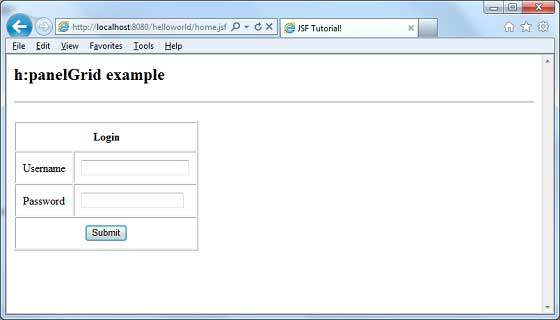
完成所有更改后,让我们像在 JSF - 第一个应用程序章节中一样编译并运行应用程序。如果您的应用程序一切正常,这将产生以下结果。
 jsf_basic_tags.html
