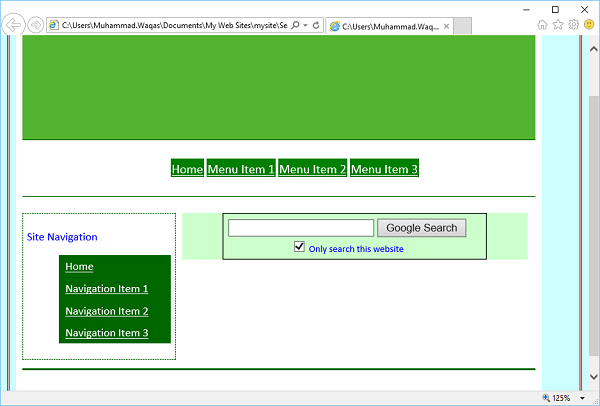
Microsoft Expression Web - 搜索页面
在本章中,我们将学习如何向网站添加搜索选项或搜索框。如果网站规模较大,则需要在网站中设置搜索框,以便用户轻松找到任何数据。有许多免费的搜索框,例如 Windows Live、Google 等。
Windows Live 搜索
以下步骤向您展示如何向网页添加 Windows Live 搜索框,然后设置搜索表单以搜索整个网络或仅搜索您的网站。
步骤 1 − 创建一个新的 HTML 页面并将其命名为 SearchPage。
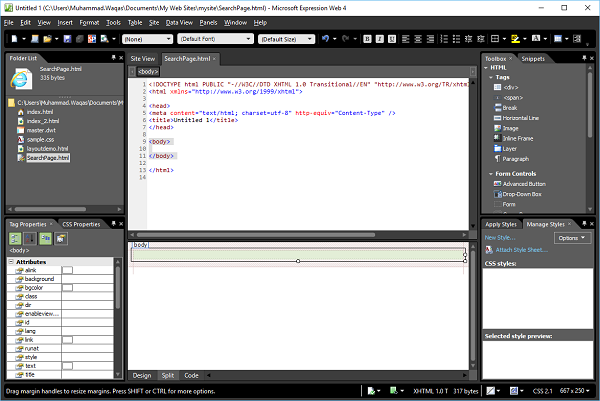
步骤 2 − 转到"格式"菜单并选择 动态 Web 模板 →附加动态 Web 模板...选项。选择 master.dwt 文件并单击"打开"按钮。
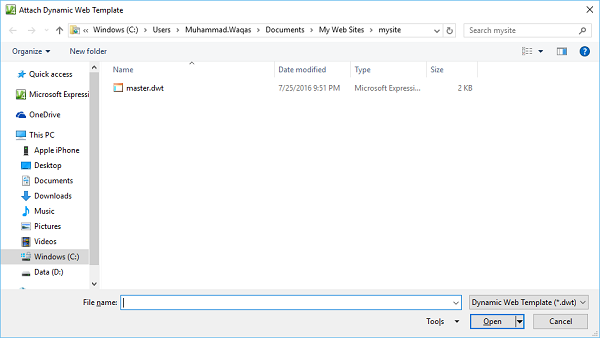
步骤 3 − 让我们在可编辑区域内添加以下代码。
<form method = "get" action = "http://search.live.com/results.aspx">
   <input type = "hidden" name = "cp" value = "1252"/>
   <input type = "hidden" name = "FORM" value = "FREESS"/>
   <table style = "background-color: #ffffff;">
      <tr>
         <td>
            <a href = "http://search.live.com/">
               <img src = "http://search.live.com/s/affillogoLive.gif"
                  style = "border:0px;" alt = "Live Search"/>
            </a>
         </td>
         <td>
            <input type = "text" name = "q" size = "30" />
            <input type = "submit" value = "Search Site"/>
            <input type = "hidden" name = "q1"
               value = "site:http://www.microsoft.com/expression"/>
         </td>
      </tr>
   </table>
</form>
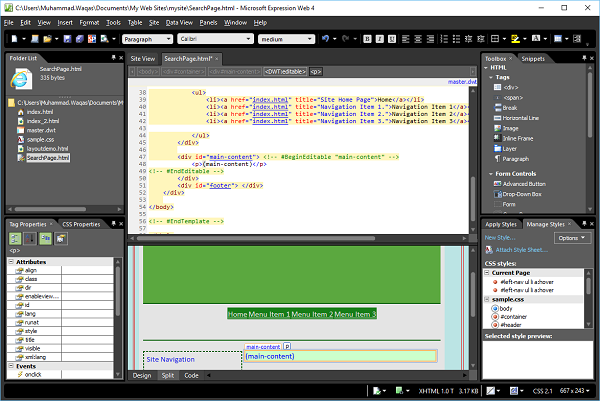
步骤 4 − 保存页面。转到"文件"菜单并选择"在浏览器中预览"。
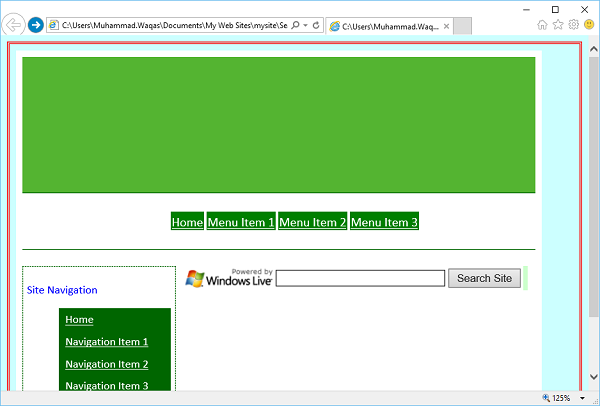
步骤 5 − 您将在网页中看到 Windows Live Search。让我们在搜索中输入一些内容,然后单击"搜索站点"按钮
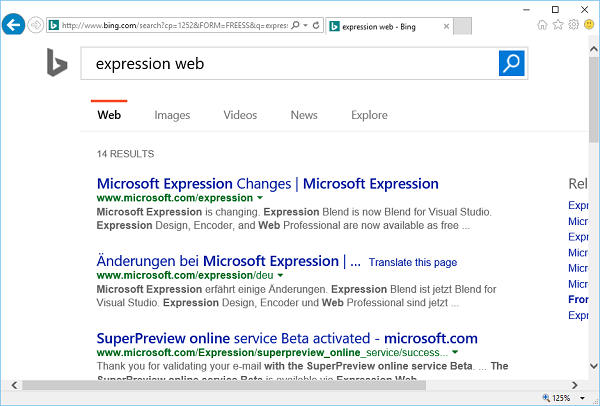
步骤 6 − 如您所见,它将在网络上搜索。如果您想将搜索限制为仅您的网站,则必须在以下名称中指定您的网站域,而不是 www.microsoft.com/expression
<input type = "hidden" name = "q1" value = "site:http://www.microsoft.com/expression"/>
Step 7 − Similarly, you can add the Google search option by adding the following code in the editable region.
<form method = "get" action = "http://www.google.com/search">
   <div style = "border: 1px solid black; padding: 4px; width: 20em; margin: 0px auto 0px auto">
      <table border = "0" cellpadding = "0">
         <tr>
            <td class = "center">
               <input type = "text" name = "q" size = "25" maxlength = "255" value = "" />
               <input type = "submit" value = "Google Search" />
            </td>
         </tr>
         <tr>
            <td align = "center" style = "font-size: 75%">
               <input type = "checkbox" name = "sitesearch"
                  value = " http://www.microsoft.com/expression" checked = "checked" />
               Only search this website<br />
            </td>
         </tr>
      </table>
   </div>
</form>
步骤 8 − 保存您的 HTML 页面,您将看到一个搜索框、搜索按钮、复选框和复选框标签。
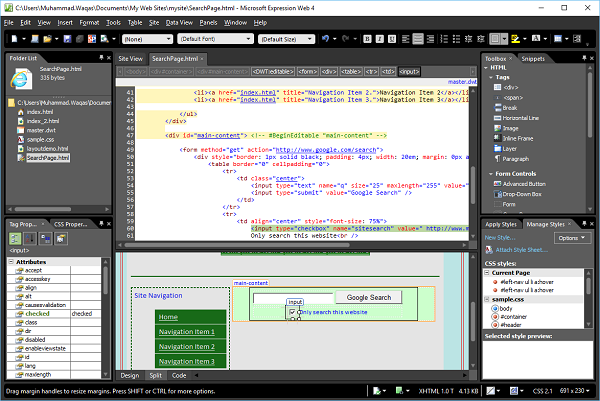
步骤 9 − 要限制用户仅搜索您的网站,请选中复选框并转到"标签属性"面板,并将"值"属性设置为您网站的 URL,例如 www.microsoft.com/expression。
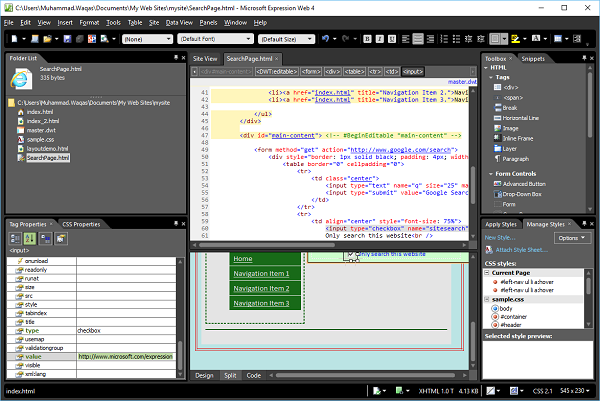
步骤 10 − 保存您的页面并在浏览器中预览。现在您将在网页中看到 Google 搜索选项。