
解释 React Native 中动画的工作原理?
React Native 提供了一个动画组件,可帮助为可用组件添加更多交互性。动画组件可用于为 View、Text、Image、ScrollView、FlatList 和 SectionList 制作动画。
React Native 提供两种类型的动画 −
- 动画 API
- LayoutAnimation
动画 API
动画 API 有助于根据输入/输出提供基于时间的动画。在此示例中,我们将使用动画计时 API 动态更改框的宽度和高度。
要使用动画,请按如下所示导入组件 −
import { Animated } from 'react-native'
要使用动画,我们需要先对其进行配置,如下所示 −
Animated.timing() 函数使用缓动函数,给定的值会随时间动画。默认使用的缓动函数是 easeInOut ,您可以使用其他函数或定义自己的函数。
Animated.timing() 函数的结构如下 −
Animated.timing(animateparam, {
   toValue: 100,
   easing: easingfunc,
   duration: timeinseconds
}).start();
在示例中,我们将为 View 的宽度和高度设置动画,因此我首先对其进行了初始化,如下所示 −
animatedWidth 和 animatedHeight 在 componentWillMount 中初始化,如下所示 −
componentWillMount = () => {
   this.animatedWidth = new Animated.Value(50)
   this.animatedHeight = new Animated.Value(100)
}
稍后添加 Animated.timing 函数,如下所示 −
Animated.timing(this.animatedWidth, {
   toValue: 200,
   duration: 1000
}).start()
Animated.timing(this.animatedHeight, {
   toValue: 500,
   duration: 500
}).start()
动画
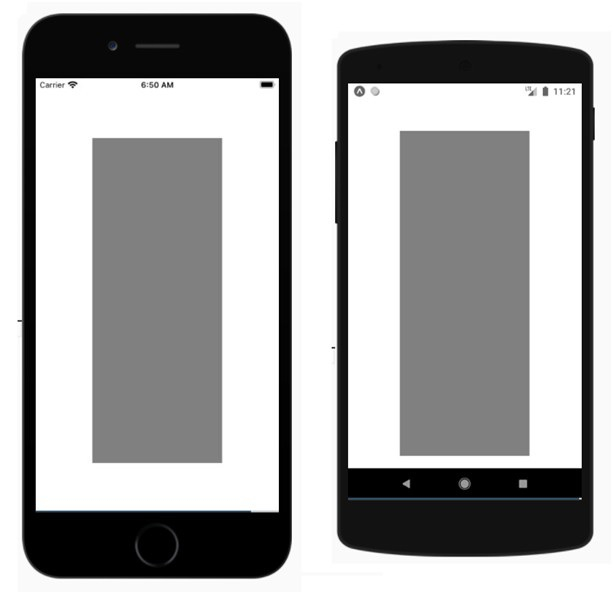
TouchableOpacity 组件用于 onPress,其中调用了 this.animatedBox 函数,该函数具有将执行动画的 Animated.timing 函数。按下 TouchableOpacity 组件时,View 的宽度和高度将发生变化。
示例
import React, { Component } from 'react'
import { View, StyleSheet, Animated, TouchableOpacity } from 'react-native'
class Animations extends Component {
   componentWillMount = () => {
      this.animatedWidth = new Animated.Value(50)
      this.animatedHeight = new Animated.Value(100)
   }
   animatedBox = () => {
      Animated.timing(this.animatedWidth, {
      toValue: 200,
      duration: 1000
   }).start()
   Animated.timing(this.animatedHeight, {
      toValue: 500,
      duration: 500
   }).start()
}
render() {
   const animatedStyle = { width: this.animatedWidth, height:
   this.animatedHeight }
   return (
      <TouchableOpacity style = {styles.container} onPress =
         {this.animatedBox}>
      <Animated.View style = {[styles.box, animatedStyle]}/>
         </TouchableOpacity>
      )
   }
}
export default Animations
const styles = StyleSheet.create({
   container: {
      padding:100,
      justifyContent: 'center',
      alignItems: 'center'
   },
   box: {
      backgroundColor: 'gray',
      width: 50,
      height: 100
   }
})
输出
以下是 IOS 和 Android 设备上的视图 −
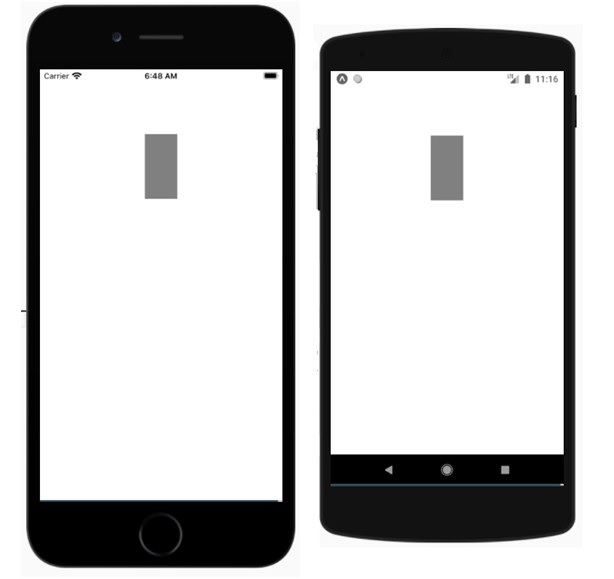
触摸灰色矩形框以查看其动画 −
LayoutAnimation API
与 Animated API 相比,LayoutAnimation 为您提供了更多控制,并允许您全局配置创建和更新视图中用于下一个渲染/布局周期的动画。
要使用布局动画 api 您需要按如下方式导入它 −
import { LayoutAnimation } from 'react-native';:
示例:使用 LayoutAnimation
要使 LayoutAnimation 在 Android 中工作,您需要添加以下几行 −
UIManager.setLayoutAnimationEnabledExperimental &&
UIManager.setLayoutAnimationEnabledExperimental(true);
import React from 'react';
import {
   NativeModules,
   LayoutAnimation,
   Text,
   TouchableOpacity,
   StyleSheet,
   View,
} from 'react-native';
const { UIManager } = NativeModules;
UIManager.setLayoutAnimationEnabledExperimental &&
UIManager.setLayoutAnimationEnabledExperimental(true);
export default class App extends React.Component {
   state = {
      w: 50,
      h: 50,
   };
   animatecircle = () => {
      LayoutAnimation.spring();
      this.setState({w: this.state.w + 10, h: this.state.h + 10})
   }
   render() {
      return (
         <TouchableOpacity style = {styles.container} onPress={this.animatecircle}>
            <View style={[styles.circle, {width: this.state.w, height: this.state.h}]} />
               </TouchableOpacity>
         );
      }
   }
   const styles = StyleSheet.create({
      container: {
         flex: 1,
         alignItems: 'center',
         justifyContent: 'center',
   },
   circle: {
      width: 200,
      height: 200,
      borderRadius: '50%',
      backgroundColor: 'green',
   },
});
输出
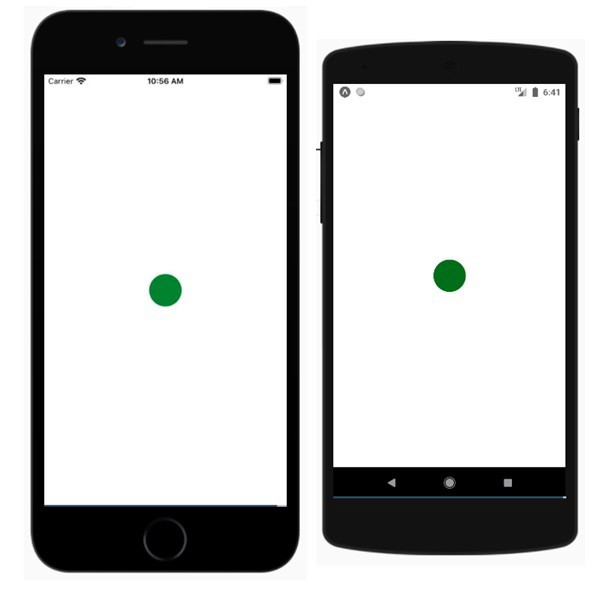
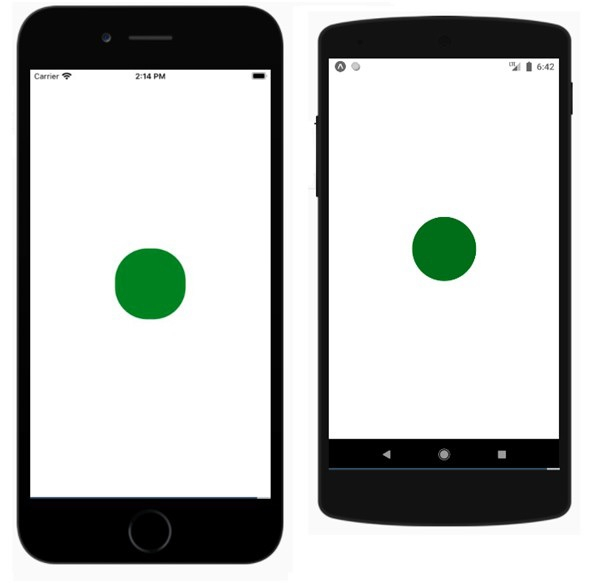
点击圆圈并查看其动画。
相关文章
有用资源
javascript 参考教程 - 该教程包含有关 javascript 的更多信息:https://www.cainiaomax.com/javascript/

