
如何在 Android 中从 AsyncTask 返回布尔值?
简介
Async Task 是 Android 中的一个类,用于执行一些后台长时间运行的任务,例如在后台从互联网加载图片。如果图片尺寸较大,我们可以使用 AsyncTask 将其作为后台任务从互联网加载。在本文中,我们将了解如何在 Android 中从 Async Task 返回布尔值。
实现
我们将创建一个简单的应用程序,其中我们将显示一个文本视图作为应用程序的标题。然后,我们将再创建一个文本视图,用于显示任务正在运行或已停止。之后,我们将创建一个用于启动任务的按钮。
步骤 1:在 Android Studio 中创建新项目
按照下图所示导航到 Android Studio。在下面的屏幕中,点击"新建项目"以创建一个新的 Android Studio 项目。
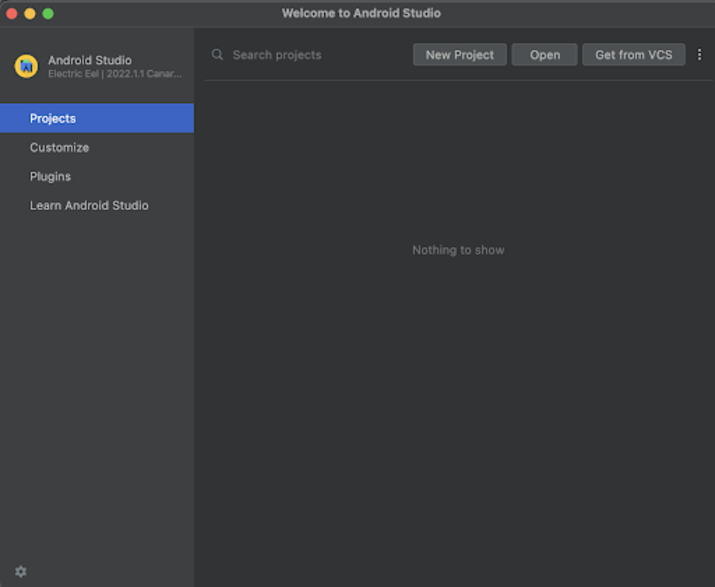
点击"新建项目"后,您将看到以下屏幕。
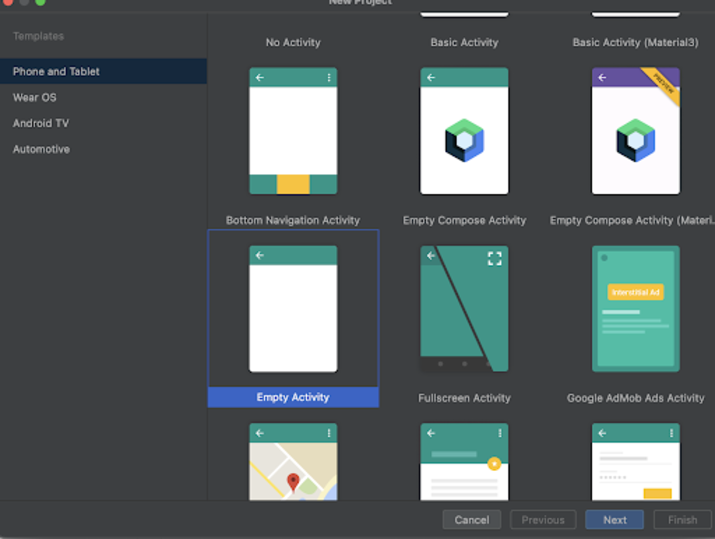
在此屏幕中,我们只需选择"空活动"并点击"下一步"。点击"下一步"后,您将看到以下屏幕。
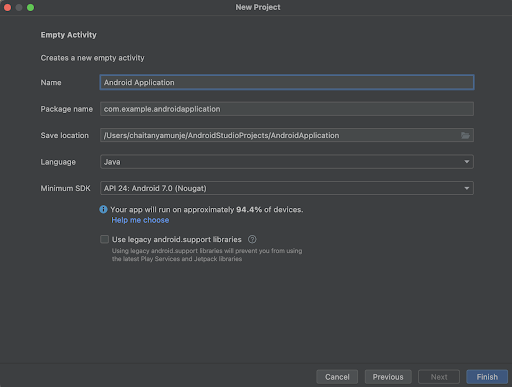
在此屏幕中,我们只需指定项目名称。然后,软件包名称将自动生成。
注意:请确保选择 Java 作为语言。
指定所有详细信息后,点击"完成"以创建一个新的 Android Studio 项目。
项目创建完成后,我们将看到两个打开的文件,即 activity_main.xml 和 MainActivity.java 文件。
步骤 2:使用 activity_main.xml
导航到 activity_main.xml。如果此文件不可见,请在左侧窗格中导航至 app>res>layout>activity_main.xml 以打开此文件。打开此文件后,将以下代码添加到其中。代码中添加了注释,以便您详细了解。
<?xml version="1.0" encoding="utf-8"?>
<RelativeLayout xmlns:android="http://schemas.android.com/apk/res/android"
   xmlns:tools="http://schemas.android.com/tools"
   android:layout_width="match_parent"
   android:layout_height="match_parent"
   android:orientation="vertical"
   tools:context=".MainActivity">

   <!-- on below line creating a text view for heading -->
   <TextView
       android:id="@+id/idTVHeading"
       android:layout_width="match_parent"
       android:layout_height="wrap_content"
       android:layout_centerInParent="true"
       android:layout_margin="5dp"
       android:padding="4dp"
       android:text="Returning Boolean from Async Task in Android"
       android:textAlignment="center"
       android:textColor="@color/black"
       android:textSize="20sp"
       android:textStyle="bold" />

   <!-- on below line creating a text view for displaying a message -->
   <TextView
       android:id="@+id/idTVMsg"
       android:layout_width="match_parent"
       android:layout_height="wrap_content"
       android:layout_below="@id/idTVHeading"
       android:layout_margin="5dp"
       android:padding="4dp"
       android:text="Message"
       android:textAlignment="center"
       android:textColor="@color/black"
       android:textSize="18sp" />

   <!-- on below line creating a button to start out task -->
   <Button
       android:id="@+id/idBtnStartAsyncTask"
       android:layout_width="match_parent"
       android:layout_height="wrap_content"
       android:layout_below="@id/idTVMsg"
       android:layout_margin="20dp"
       android:text="Start Asnync Task"
       android:textAllCaps="false"
       android:textColor="@color/white" />
</RelativeLayout>
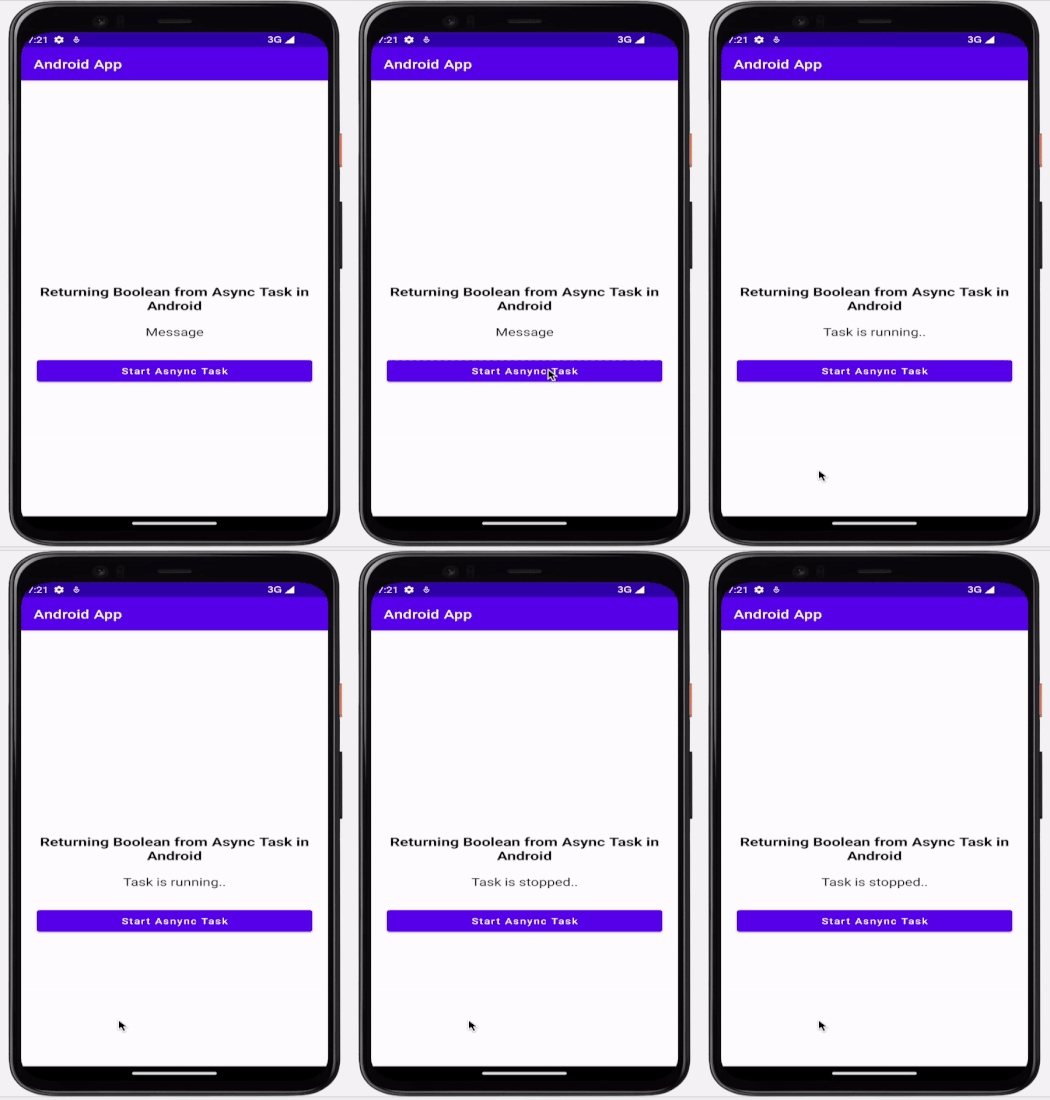
说明:在上面的代码中,我们创建了一个相对布局的根布局。在这个布局中,我们创建了一个文本视图,用于显示应用程序的标题。之后,我们创建了另一个文本视图,用于显示应用程序中正在执行的当前任务状态。之后,我们创建一个按钮,用于启动任务,该任务将运行最多 5 秒,然后终止。
步骤 3:使用 MainActivity.java 文件
导航到 MainActivity.java。如果此文件不可见,请打开此文件。在左侧窗格中,导航至 app>res>layout>MainActivity.java 以打开此文件。打开此文件后,将以下代码添加到其中。代码中添加了注释,以便您详细了解。
package com.example.java_test_application;

import android.os.AsyncTask;
import android.os.Bundle;
import android.view.View;
import android.view.animation.Animation;
import android.view.animation.AnimationUtils;
import android.widget.Button;
import android.widget.RelativeLayout;
import android.widget.TextView;
import androidx.appcompat.app.AppCompatActivity;
public class MainActivity extends AppCompatActivity {

   // creating variables for button and text view.
   private TextView msgTV;
   private Button asyncTaskBtn;

   @Override
   protected void onCreate(Bundle savedInstanceState) {
       super.onCreate(savedInstanceState);
       setContentView(R.layout.activity_main);
       //initializing variable for text view and button on below line.
       msgTV = findViewById(R.id.idTVMsg);
       asyncTaskBtn = findViewById(R.id.idBtnStartAsyncTask);

       //  adding on click listner for button on below line.
       asyncTaskBtn.setOnClickListener(new View.OnClickListener() {
           @Override
           public void onClick(View v) {
        // on below line calling our async task manage class
               AsyncTaskManage asyncTaskManage = new AsyncTaskManage();
               // on below line calling execute method to execute it.
               asyncTaskManage.execute("");
           }
       });
   }
   // on below line creating async task manage class.
   private class AsyncTaskManage extends AsyncTask {

       // on below line creating do in background method.
       @Override
       protected Boolean doInBackground(String... strings) {
           // on below line running try and catch block.
           try {
               // on below line sleeping the app by calling sleep method.
               Thread.sleep(3000);
               // on below line returning as false.
               return false;
               // on below line doing exception handling.
           } catch (Exception e) {
               e.printStackTrace();
           }
           // on below line returning as true.
           return true;
       }
       // 在下面的行中创建一个后执行方法。
       @Override
       protected void onPostExecute(Boolean aBoolean) {
           super.onPostExecute(aBoolean);
           // 在下面的行检查布尔值是真还是假。
           if (aBoolean) {
               // 在下面的行中设置文本消息作为任务正在运行。
               msgTV.setText("Task is running..");
           } else {
               // 在任务停止时,在下面的行设置消息中。
               msgTV.setText("Task is stopped..");
           }
       }
   }
}
说明:在上面的代码中,我们首先为文本视图和按钮创建变量。现在我们来看一下 onCreate 方法。这是每个 Android 应用程序的默认方法。此方法在应用程序视图创建时被调用。在此方法中,我们设置内容视图,即名为 activity_main.xml 的布局文件,并从该文件设置 UI。在 onCreate 方法中,我们使用在 activity_main.xml 文件中指定的 ID 初始化文本视图和按钮变量。之后,我们为按钮添加一个点击监听器。在点击监听器方法中,我们调用异步任务并调用 execute 方法来执行它。之后,我们创建一个名为 AsyncTaskManage 的类,并使用 AsyncTask 扩展它。在这个类中,我们创建了一个后台执行方法。在此方法中,我们将任务休眠 5 秒,在这种情况下,我们返回布尔值 false;之后,在默认情况下,我们返回 true。现在,我们再创建一个方法,作为执行后的操作。在这个方法中,我们检查返回的布尔值,以便在后台方法中执行。如果布尔值为 true,则在文本视图中指定消息,表示任务正在运行;如果布尔值为 false,则在文本视图中指定消息,表示任务已停止。
添加上述代码后,现在只需点击顶部栏中的绿色图标即可在移动设备上运行我们的应用程序。
注意 - 确保您已连接到真实设备或模拟器。
输出
结论
在上文中,我们介绍了如何在 Android 中从异步任务返回布尔值。

