
如何在 Android 中获取自定义圆形按钮?
androidmobile developmentapps/applications
本示例演示如何在 Android 中获取自定义圆形按钮。
步骤 1 − 在 Android Studio 中创建一个新项目,转到"文件"->"新建项目",并填写所有必需的详细信息以创建新项目。
步骤 2 − 将以下代码添加到 res/layout/activity_main.xml。
<?xml version = "1.0" encoding = "utf-8"?>
<LinearLayout xmlns:android = "http://schemas.android.com/apk/res/android"
   android:id = "@+id/parent"
   xmlns:tools = "http://schemas.android.com/tools"
   android:layout_width = "match_parent"
   android:layout_height = "match_parent"
   tools:context = ".MainActivity"
   android:gravity = "center"
   android:orientation = "vertical>
   <Button
      android:id = "@+id/text"
      android:textSize = "18sp"
      android:textAlignment = "center"
      android:background = "@drawable/round_button"
      android:layout_width = "150dp"
      android:textColor = "#000"
      android:layout_height = "150dp" />
</LinearLayout>
在上面的代码中,我们为按钮添加了 round_button 背景。因此,在 drawable 文件夹中创建 round_button.xml 文件并添加以下代码。
<?xml version = "1.0" encoding = "utf-8"?>
<selector xmlns:android = "http://schemas.android.com/apk/res/android">
   <item android:state_pressed = "false">
      <shape android:shape = "oval">
         <solid android:color = "#ffff00"/>
      </shape>
   </item>
   <item android:state_pressed = &"true">
      <shape android:shape = &"oval">
         <solid android:color = &"#fff000"/>
      </shape>
   </item>
</selector>
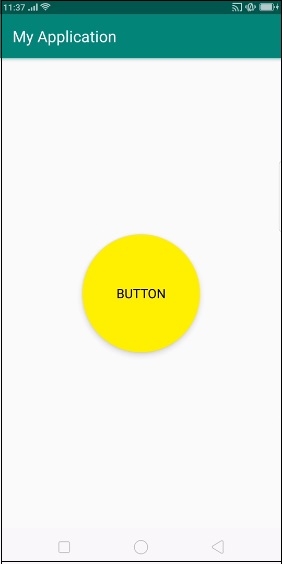
在上面的代码中,我们采用了两种状态:按下按钮和释放按钮。当用户点击按钮时,它将采取按钮的状态并为按钮提供形状。
步骤 3 − 将以下代码添加到 src/MainActivity.java
package com.example.andy.myapplication;
import android.content.res.Configuration;
import android.os.Build;
import android.os.Bundle;
import android.support.annotation.RequiresApi;
import android.support.v7.app.AppCompatActivity;
import android.widget.Button;
import android.widget.TextView;
public class MainActivity extends AppCompatActivity {
   int view = R.layout.activity_main;
   Button button;
   @RequiresApi(api = Build.VERSION_CODES.JELLY_BEAN)
   @Override
   protected void onCreate(Bundle savedInstanceState) {
      super.onCreate(savedInstanceState);
      setContentView(view);
      button = findViewById(R.id.text);
      button.setText("Button");
   }
}
让我们尝试运行您的应用程序。假设您已将实际的 Android 移动设备连接到电脑。要从 Android Studio 运行该应用程序,请打开项目的某个活动文件,然后点击工具栏上的"运行"图标  。选择您的移动设备作为选项,然后勾选将显示默认屏幕 − 的移动设备。
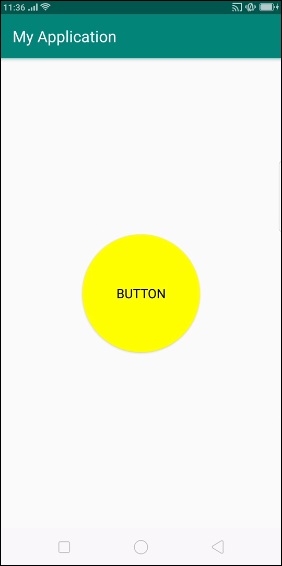
以上结果显示默认屏幕,点击按钮后,按钮颜色会发生变化,如下图所示 -
点击此处下载项目代码

