如何实现 Android 下拉刷新?
androidapps/applicationsmobile development
在开始示例之前,我们应该了解 Android 中的下拉刷新布局是什么。我们可以将 Android 中的下拉刷新称为滑动刷新。当您从屏幕顶部向下滑动时,它会根据 setOnRefreshListener 执行一些操作。
本示例演示了如何实现 Android 下拉刷新。
步骤 1 - 在 Android Studio 中创建一个新项目,依次点击"文件">"新建项目",并填写所有必需信息以创建一个新项目。
步骤 2 - 将以下代码添加到 res/layout/activity_main.xml 文件中。
<?xml version = "1.0" encoding = "utf-8"?>
<android.support.v4.widget.SwipeRefreshLayout xmlns:android = "http://schemas.android.com/apk/res/android"
   xmlns:app = "http://schemas.android.com/apk/res-auto"
   xmlns:tools = "http://schemas.android.com/tools"
   android:id = "@+id/swipeRefresh"
   android:layout_width = "match_parent"
   android:layout_height = "match_parent"
   tools:context = ".MainActivity">
<LinearLayout
   android:layout_width = "wrap_content"
   android:gravity = "center"
   android:layout_height = "wrap_content">
   <TextView
      android:id = "@+id/text"
      android:textSize = "30sp"
      android:layout_width = "wrap_content"
      android:layout_height = "wrap_content"
      android:text = "Hello World!"/>
</LinearLayout>
</android.support.v4.widget.SwipeRefreshLayout>
在上面的代码中,我们将 swipeRefreshLayout 设置为父布局,当用户滑动布局时,它可以刷新子视图。
步骤 3 − 将以下代码添加到 src/MainActivity.java
package com.example.andy.myapplication;
import android.support.v4.widget.SwipeRefreshLayout;
import android.support.v7.app.AppCompatActivity;
import android.os.Bundle;
import android.widget.TextView;
public class MainActivity extends AppCompatActivity {
   SwipeRefreshLayout swipeRefresh;
   static int i = 0;
   @Override
   protected void onCreate(Bundle savedInstanceState) {
      super.onCreate(savedInstanceState);
      setContentView(R.layout.activity_main);
      final TextView textView = findViewById(R.id.text);
      swipeRefresh = findViewById(R.id.swipeRefresh);
      swipeRefresh.setOnRefreshListener(new SwipeRefreshLayout.OnRefreshListener() {
         @Override
         public void onRefresh() {
            i++;
            textView.setText("Tutorialspoint.com "+i);
            swipeRefresh.setRefreshing(false);
         }
      });
   }
}
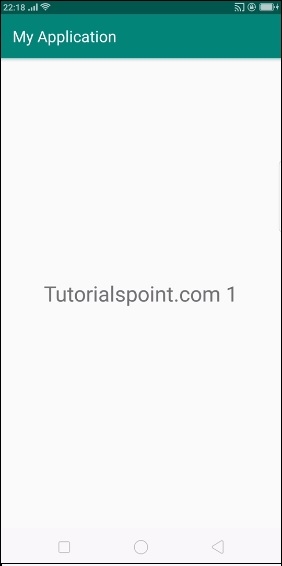
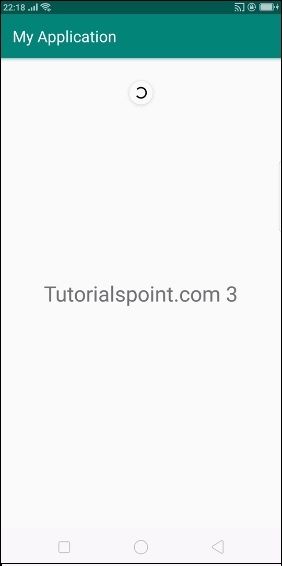
在上面的代码中,我们添加了 onRefreshListener,当您滑动父布局时,它会调用 RefreshListener 中的 onRefresh() 方法,我们根据滑动次数更新测试,如下所示 -
swipeRefresh.setOnRefreshListener(new SwipeRefreshLayout.OnRefreshListener() {
   @Override
   public void onRefresh() {
      i++;
      textView.setText("Tutorialspoint.com "+i);
      swipeRefresh.setRefreshing(false);
   }
});
让我们尝试运行您的应用程序。我假设您已将 Android 移动设备连接到计算机。要从 Android Studio 运行应用程序,请打开项目中的一个 Activity 文件,然后单击工具栏中的"运行"图标。选择您的移动设备作为选项,然后检查您的移动设备,它将显示您的默认屏幕。
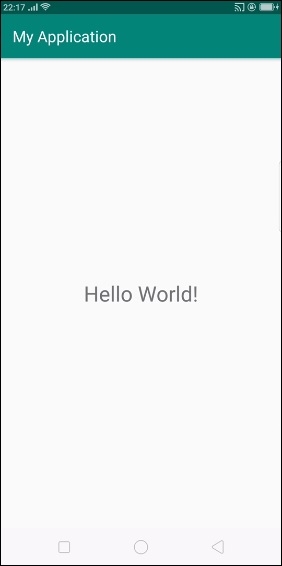
以上结果显示的是初始屏幕,现在从上向下滑动,文本视图将更新,如下所示。 -