如何集成 Android 语音转文本?
androidapps/applicationsmobile development
Android 支持使用 RecognizerIntent.ACTION_RECOGNIZE_SPEECH 的 Google 内置文本转语音 API。本示例演示如何集成 Android 语音转文本功能。
步骤 1 - 在 Android Studio 中创建一个新项目,依次点击"文件">"新建项目",并填写所有必需信息以创建新项目。
步骤 2 - 将以下代码添加到 res/layout/activity_main.xml 文件中。
<?xml version = "1.0" encoding = "utf-8"?>
<RelativeLayout xmlns:android = "http://schemas.android.com/apk/res/android"
   xmlns:app = "http://schemas.android.com/apk/res-auto"
   xmlns:tools = "http://schemas.android.com/tools"
   android:layout_width = "match_parent"
   android:layout_height = "match_parent"
   tools:context = ".MainActivity">
   <LinearLayout
      android:layout_width = "match_parent"
      android:gravity = "center"
      android:layout_height = "match_parent">
   <TextView
      android:id = "@+id/text"
      android:textSize = "30sp"
      android:layout_width = "wrap_content"
      android:layout_height = "wrap_content"/>
   </LinearLayout>
   <LinearLayout
      android:layout_width = "wrap_content"
      android:layout_alignParentBottom = "true"
      android:layout_centerInParent = "true"
      android:orientation = "vertical"
      android:layout_height = "wrap_content">
   <ImageView
      android:id = "@+id/speak"
      android:layout_width = "wrap_content"
      android:layout_height = "wrap_content"
      android:background = "?selectableItemBackground"
      android:src = "@android:drawable/ic_btn_speak_now"/>
   </LinearLayout>
</RelativeLayout>
上面的代码创建了一个文本视图和一个图像视图。当用户点击图像视图时,它会调用 Google 语音转文本 API,并将语音内容添加到文本视图中。
步骤 3 − 将以下代码添加到 src/MainActivity.java
package com.example.andy.myapplication;
import android.content.ActivityNotFoundException;
import android.content.Intent;
import android.speech.RecognizerIntent;
import android.support.v4.widget.SwipeRefreshLayout;
import android.support.v7.app.AppCompatActivity;
import android.os.Bundle;
import android.view.View;
import android.widget.ImageView;
import android.widget.TextView;
import android.widget.Toast;
import java.util.ArrayList;
import java.util.Locale;
public class MainActivity extends AppCompatActivity {
   private final int REQ_CODE = 100;
   TextView textView;
   @Override
   protected void onCreate(Bundle savedInstanceState) {
      super.onCreate(savedInstanceState);
      setContentView(R.layout.activity_main);
      textView = findViewById(R.id.text);
      ImageView speak = findViewById(R.id.speak);
      speak.setOnClickListener(new View.OnClickListener() {
         @Override
         public void onClick(View v) {
            Intent intent = new Intent(RecognizerIntent.ACTION_RECOGNIZE_SPEECH);
               intent.putExtra(RecognizerIntent.EXTRA_LANGUAGE_MODEL,
            RecognizerIntent.LANGUAGE_MODEL_FREE_FORM);
            intent.putExtra(RecognizerIntent.EXTRA_LANGUAGE, Locale.getDefault());
            intent.putExtra(RecognizerIntent.EXTRA_PROMPT, "Need to speak");
            try {
               startActivityForResult(intent, REQ_CODE);
            } catch (ActivityNotFoundException a) {
               Toast.makeText(getApplicationContext(),
               "Sorry your device not supported",
               Toast.LENGTH_SHORT).show();
            }
         }
      });
   }
   @Override
   protected void onActivityResult(int requestCode, int resultCode, Intent data) {
      super.onActivityResult(requestCode, resultCode, data);
      switch (requestCode) {
         case REQ_CODE: {
            if (resultCode = = RESULT_OK && null ! = data) {
               ArrayList result = data
               .getStringArrayListExtra(RecognizerIntent.EXTRA_RESULTS);
               textView.setText(result.get(0));
            }
            break;
         }
      }
   }
}
在上面的代码中,当用户点击图像视图时,它会调用如下所示的 Intent 函数 -
Intent intent = new Intent(RecognizerIntent.ACTION_RECOGNIZE_SPEECH);
intent.putExtra(RecognizerIntent.EXTRA_LANGUAGE_MODEL, RecognizerIntent.LANGUAGE_MODEL_FREE_FORM);
intent.putExtra(RecognizerIntent.EXTRA_LANGUAGE, Locale.getDefault());
intent.putExtra(RecognizerIntent.EXTRA_PROMPT, "Need to speak");
try {
   startActivityForResult(intent, REQ_CODE);
} catch (ActivityNotFoundException a) {
   Toast.makeText(getApplicationContext(), "Sorry your device not supported", Toast.LENGTH_SHORT).show();
}
在上面的代码中,我们调用了 Google API,并将在 onActivityResult() 中获取结果,如下所示 -
@Override
protected void onActivityResult(int requestCode, int resultCode, Intent data) {
   super.onActivityResult(requestCode, resultCode, data);
   switch (requestCode) {
      case REQ_CODE: {
         if (resultCode = = RESULT_OK && null ! = data) {
            ArrayList result = data
            .getStringArrayListExtra(RecognizerIntent.EXTRA_RESULTS);
            textView.setText(result.get(0));
         }
         break;
      }
   }
}
在上面的代码中,我们将得到一个数组列表作为结果,因此我们从数组列表的零位置取出元素并将其添加到文本视图中。
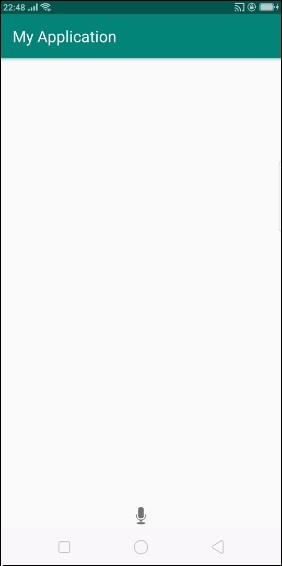
让我们尝试运行您的应用程序。我假设您已将 Android 移动设备连接到计算机。要从 Android Studio 运行应用程序,请打开项目中的一个 Activity 文件,然后单击工具栏中的"运行"图标。选择您的移动设备作为选项,然后选中您的移动设备,它将显示您的默认屏幕。 −
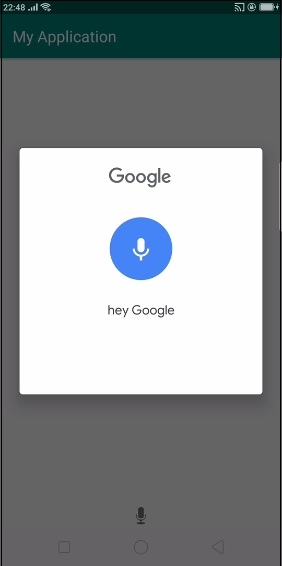
当用户点击麦克风按钮时,它会调用 Google API,如下所示 -
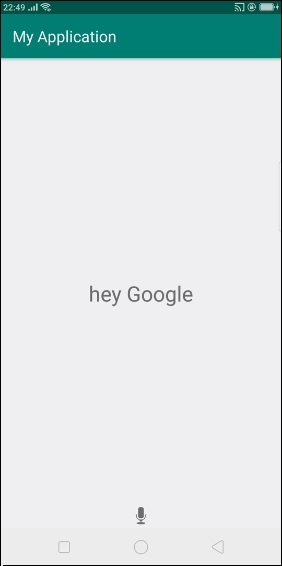
现在我们输入了"Hey GOOGLE"。它会附加如下所示的结果 -