ASP.NET WP - 将数据添加到数据库
在本章中,我们将介绍如何创建一个页面,让用户将数据添加到数据库中的 Customers 表中。
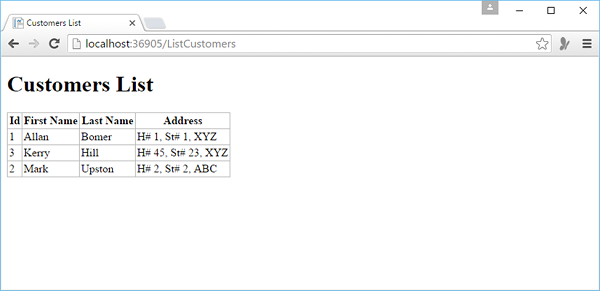
在此示例中,您还将了解何时插入记录,然后页面使用我们在上一章中创建的 ListCustomers.cshtml 页面显示更新后的表。
在此页面中,我们还添加了验证以确保用户输入的数据对于数据库有效。 例如,用户已为所有必填列输入数据。
如何向数据库中的客户表添加数据?
让我们向您的网站添加一个新的 CSHTML 文件。
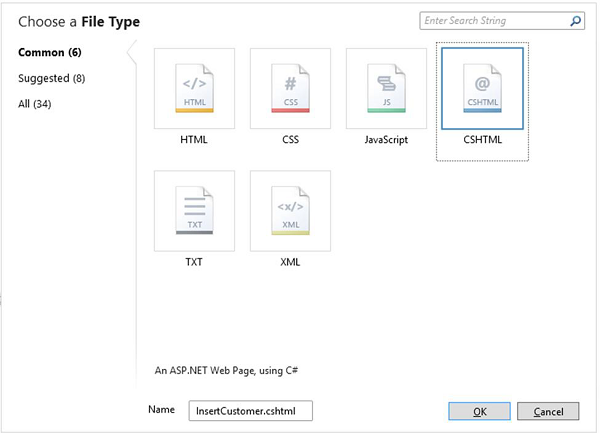
在"名称"字段中输入 InsertCustomer.cshtml,然后单击"确定"。
现在创建一个新网页,用户可以在其中插入 Customers 表中的数据,因此将 InsertCustomer.cshtml 文件替换为以下代码。
@{
   Validation.RequireField("FirstName", "First Name is required.");
   Validation.RequireField("LastName", "Last Name is required.");
   Validation.RequireField("Address", "Address is required.");

   var db = Database.Open("WebPagesCustomers");
   var FirstName = Request.Form["FirstName"];
   var LastName = Request.Form["LastName"];
   var Address = Request.Form["Address"];

   if (IsPost && Validation.IsValid()) {
      // Define the insert query. The values to assign to the
      // columns in the Customers table are defined as parameters
      // with the VALUES keyword.

      if(ModelState.IsValid) {
         var insertQuery = "INSERT INTO Customers (FirstName, LastName, Address) " +
            "VALUES (@0, @1, @2)";
         db.Execute(insertQuery, FirstName, LastName, Address);

         // Display the page that lists products.
         Response.Redirect("~/ListCustomers");
      }
   }
}

<!DOCTYPE html>
<html>

   <head>
      <title>Add Customer</title>
      <style type = "text/css">
         label {
            float:left;
            width: 8em;
            text-align:
            right;
            margin-right: 0.5em;
         }
         fieldset {
            padding: 1em;
            border: 1px solid;
            width: 50em;
         }
         legend {
            padding: 2px 4px;
            border: 1px solid;
            font-weight:bold;
         }
         .validation-summary-errors {
            font-weight:bold;
            color:red;
            font-size: 11pt;
         }
      </style>

   </head>
   <body>
      <h1>Add New Customer</h1>
      @Html.ValidationSummary("Errors with your submission:")

      <form method = "post" action = "">
         <fieldset>
            <legend>Add Customer</legend>
            <div>
               <label>First Name:</label>
               <input name = "FirstName" type = "text" size = "50" value = "@FirstName"/>
            </div>

            <div>
               <label>Last Name:</label>
               <input name = "LastName" type = "text" size = "50" value = "@LastName" />
            </div>

            <div>
               <label>Address:</label>
               <input name = "Address" type = "text" size = "50" value = "@Address" />
            </div>

            <div>
               <label> </label>
               <input type = "submit" value = "Insert" class = "submit" />
            </div>
         </fieldset>
      </form>

   </body>
</html>
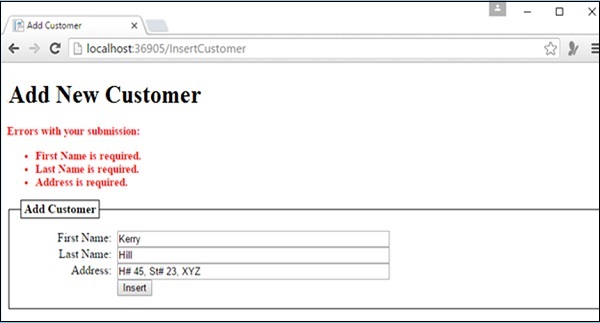
现在让我们运行应用程序并指定以下 url − http://localhost:36905/InsertCustomer 您将看到以下网页。
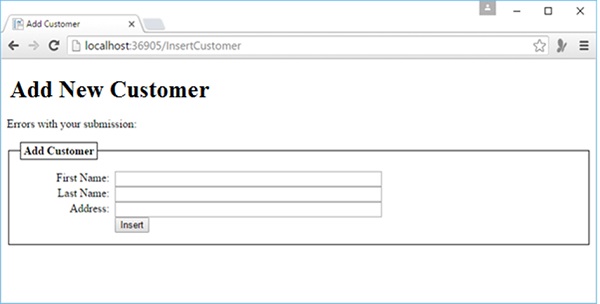
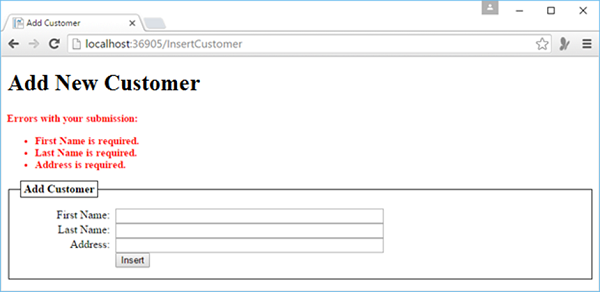
在上面的屏幕截图中,您可以看到我们添加了验证,因此,如果您单击插入按钮而不输入任何数据或错过任何上述字段,那么您将看到它显示错误消息,如以下屏幕截图所示。
现在让我们在所有字段中输入一些数据。
现在单击"插入",您将看到更新后的客户列表,如以下屏幕截图所示。