
Cordova - 对话框
Cordova 对话框插件将调用平台原生对话框 UI 元素。
步骤 1 - 安装对话框
在命令提示符窗口中键入以下命令以安装此插件。
C:\Users\username\Desktop\CordovaProject>cordova plugin add cordova-plugin-dialogs
步骤 2 - 添加按钮
现在让我们打开index.html并添加四个按钮,每个对话框类型一个。
<button id = "dialogAlert">ALERT</button>
<button id = "dialogConfirm">CONFIRM</button>
<button id = "dialogPrompt">PROMPT</button>
<button id = "dialogBeep">BEEP</button>
步骤 3 - 添加事件监听器
现在我们将在 index.js 中的 onDeviceReady 函数内添加事件监听器。一旦单击相应的按钮,监听器将调用回调函数。
document.getElementById("dialogAlert").addEventListener("click", dialogAlert);
document.getElementById("dialogConfirm").addEventListener("click", dialogConfirm);
document.getElementById("dialogPrompt").addEventListener("click", dialogPrompt);
document.getElementById("dialogBeep").addEventListener("click", dialogBeep);
步骤 4A - 创建警报函数
由于我们添加了四个事件监听器,我们现在将在 index.js 中为它们创建回调函数。第一个是 dialogAlert。
function dialogAlert() {
   var message = "I am Alert Dialog!";
   var title = "ALERT";
   var buttonName = "Alert Button";
   navigator.notification.alert(message, alertCallback, title, buttonName);

   function alertCallback() {
      console.log("Alert is Dismissed!");
   }
}
如果我们点击 ALERT 按钮,我们将看到警报对话框。
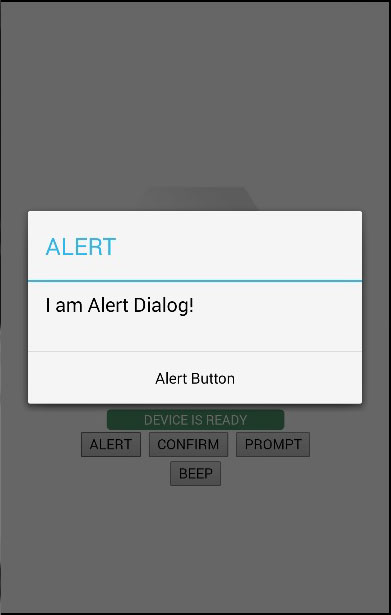
当我们点击对话框按钮时,控制台上将显示以下输出。

步骤 4B - 创建确认函数
我们需要创建的第二个函数是 dialogConfirm 函数。
function dialogConfirm() {
   var message = "Am I Confirm Dialog?";
   var title = "CONFIRM";
   var buttonLabels = "YES,NO";
   navigator.notification.confirm(message, confirmCallback, title, buttonLabels);

   function confirmCallback(buttonIndex) {
      console.log("You clicked " + buttonIndex + " button!");
   }

}
按下 CONFIRM 按钮时,将弹出新对话框。
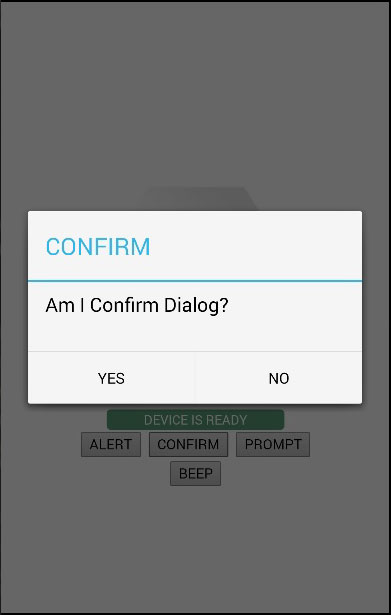
我们将点击 YES 按钮来回答问题。控制台上将显示以下输出。

步骤 4C - 创建提示函数
第三个函数是 dialogPrompt 函数。这允许用户在对话框输入元素中输入文本。
function dialogPrompt() {
   var message = "Am I Prompt Dialog?";
   var title = "PROMPT";
   var buttonLabels = ["YES","NO"];
   var defaultText = "Default"
   navigator.notification.prompt(message, promptCallback,
      title, buttonLabels, defaultText);

   function promptCallback(result) {
      console.log("You clicked " + result.buttonIndex + " button!
" +
         "You entered " +  result.input1);
   }

}
PROMPT 按钮将触发一个对话框,如以下屏幕截图所示。
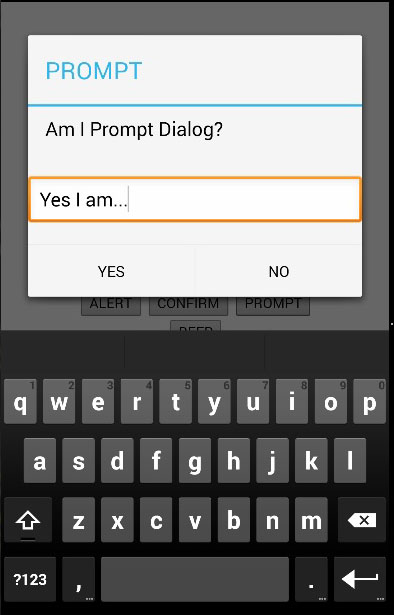
在此对话框中,我们可以选择键入文本。我们将在控制台中记录此文本以及单击的按钮。

步骤 4D - 创建蜂鸣函数
最后一个是 dialogBeep 函数。这用于调用音频蜂鸣通知。times 参数将设置蜂鸣信号的重复次数。
function dialogBeep() {
   var times = 2;
   navigator.notification.beep(times);
}
当我们点击BEEP按钮时,我们会听到两次通知声音,因为times值设置为2。

