
GWT - DockPanel 小部件
简介
DockPanel 小部件表示一个面板,该面板将其子小部件"停靠"在其外边缘,并允许其最后一个小部件占据其中心的剩余空间。
类声明
以下是 com.google.gwt.user.client.ui.DockPanel 类的声明 −
@Deprecated
public class DockPanel
   extends CellPanel
      implements HasAlignment
类构造函数
| Sr.No. | 构造函数和说明 |
|---|---|
| 1 |
DockPanel() DockPanel 的构造函数。 |
类方法
| Sr.No. | 函数名称和说明描述 |
|---|---|
| 1 |
void add(Widget widget, DockPanel. DockLayoutConstant direction) 已弃用。将小部件添加到停靠的指定边缘。 |
| 2 |
HasHorizontalAlignment. HorizontalAlignmentConstant getHorizontalAlignment() 已弃用。获取水平对齐。 |
| 3 |
HasVerticalAlignment. VerticalAlignmentConstant getVerticalAlignment() 已弃用。获取垂直对齐方式。 |
| 4 |
DockPanel。DockLayoutConstant getWidgetDirection(Widget w) 已弃用。获取给定子窗口小部件的布局方向。 |
| 5 |
protected void onEnsureDebugId(java.lang. String baseID) 已弃用。 DockPanel 支持在一个方向上添加多个单元格,因此将在调试 ID 的末尾附加一个整数。 |
| 6 |
boolean remove(Widget w) 已弃用。删除子窗口小部件。 |
| 7 |
void setCellHeight(Widget w, java.lang.String height) 已弃用。设置与给定小部件关联的单元格的高度,与整个面板相关。 |
| 8 |
void set Cell Horizontal Alignment(Widget w, Has Horizontal Alignment. Horizontal Alignment Constant align) 已弃用。设置给定小部件在其单元格内的水平对齐方式。 |
| 9 |
void set Cell Vertical Alignment (Widget w, HasVertical Alignment. Vertical Alignment Constant align) 已弃用。设置给定小部件在其单元格内的垂直对齐方式。 |
| 10 |
void setCellWidth(Widget w, java.lang.String width) 已弃用。设置与给定小部件关联的单元格的宽度,与整个面板相关。 |
| 11 |
void set Horizontal Alignment (Has Horizontal Alignment. Horizontal Alignment Constant align) 已弃用。设置添加到此面板的小部件使用的默认水平对齐方式。 |
| 12 |
void setVerticalAlignment(HasVerticalAlignment. VerticalAlignmentConstant align) 已弃用。设置添加到此面板的小部件使用的默认垂直对齐方式。 |
继承的方法
该类继承了以下类的方法 −
com.google.gwt.user.client.ui.UIObject
com.google.gwt.user.client.ui.Widget
com.google.gwt.user.client.ui.Panel
com.google.gwt.user.client.ui.ComplexPanel
com.google.gwt.user.client.ui.CellPanel
java.lang.Object
DockPanel Widget 示例
此示例将带您通过简单的步骤展示 GWT 中 DockPanel Widget 的使用方法。按照以下步骤更新我们在 GWT - 创建应用程序 一章中创建的 GWT 应用程序 −
| 步骤 | 描述 |
|---|---|
| 1 | 在 com.tutorialspoint 包下创建一个名为 HelloWorld 的项目,如 GWT - 创建应用程序 一章中所述。 |
| 2 | 修改 HelloWorld.gwt.xml、HelloWorld.css、HelloWorld.html 和 HelloWorld.java,如下所述。其余文件保持不变。 |
| 3 | 编译并运行应用程序以验证实现逻辑的结果。 |
以下是修改后的模块描述符src/com.tutorialspoint/HelloWorld.gwt.xml的内容。
<?xml version = "1.0" encoding = "UTF-8"?>
<module rename-to = 'helloworld'>
   <!-- Inherit the core Web Toolkit stuff.                        -->
   <inherits name = 'com.google.gwt.user.User'/>

   <!-- Inherit the default GWT style sheet.                       -->
   <inherits name = 'com.google.gwt.user.theme.clean.Clean'/>

   <!-- Specify the app entry point class.                         -->
   <entry-point class = 'com.tutorialspoint.client.HelloWorld'/>

   <!-- Specify the paths for translatable code                    -->
   <source path = 'client'/>
   <source path = 'shared'/>

</module>
以下是修改后的样式表文件war/HelloWorld.css的内容。
body {
   text-align: center;
   font-family: verdana, sans-serif;
}

h1 {
   font-size: 2em;
   font-weight: bold;
   color: #777777;
   margin: 40px 0px 70px;
   text-align: center;
}
.dockpanel td {
   border: 1px solid #BBBBBB;
   padding: 3px;
}
以下是修改后的 HTML 主机文件 war/HelloWorld.html 的内容。
<html>
   <head>
      <title>Hello World</title>
      <link rel = "stylesheet" href = "HelloWorld.css"/>
      <script language = "javascript" src = "helloworld/helloworld.nocache.js">
      </script>
   </head>

   <body>
      <h1>DockPanel Widget Demonstration</h1>
      <div id = "gwtContainer"></div>
   </body>
</html>
让我们来看看 Java 文件 src/com.tutorialspoint/HelloWorld.java 的以下内容,它将演示如何使用 DockPanel 小部件。
package com.tutorialspoint.client;

import com.google.gwt.core.client.EntryPoint;
import com.google.gwt.user.client.ui.DockPanel;
import com.google.gwt.user.client.ui.HTML;
import com.google.gwt.user.client.ui.RootPanel;
import com.google.gwt.user.client.ui.ScrollPanel;
import com.google.gwt.user.client.ui.VerticalPanel;

public class HelloWorld implements EntryPoint {

   public void onModuleLoad() {
      DockPanel dockPanel = new DockPanel();
      dockPanel.setStyleName("dockpanel");
      dockPanel.setSpacing(4);
      dockPanel.setHorizontalAlignment(DockPanel.ALIGN_CENTER);

      // 添加四周的文字
      dockPanel.add(new HTML("This is the first north component."),
      DockPanel.NORTH);
      dockPanel.add(new HTML("This is the first south component."),
      DockPanel.SOUTH);
      dockPanel.add(new HTML("This is the east component."),
      DockPanel.EAST);
      dockPanel.add(new HTML("This is the west component."),
      DockPanel.WEST);
      dockPanel.add(new HTML("This is the second north component."),
      DockPanel.NORTH);
      dockPanel.add(new HTML("This is the second south component"),
      DockPanel.SOUTH);

      // 在中心添加可滚动的文本
      HTML contents = new HTML("This is a ScrollPanel contained"
         +" at the center of a DockPanel. "
         +" By putting some fairly large contents in the middle"
         +" and setting its size explicitly, it becomes a scrollable area"
         +" within the page, but without requiring the use of an IFRAME."
         +" Here's quite a bit more meaningless text that will serve primarily"
         +" to make this thing scroll off the bottom of its visible area."
         +" Otherwise, you might have to make it really, really"
         +" small in order to see the nifty scroll bars!");
      ScrollPanel scroller = new ScrollPanel(contents);
      scroller.setSize("400px", "100px");
      dockPanel.add(scroller, DockPanel.CENTER);

      VerticalPanel vPanel = new VerticalPanel();
      vPanel.add(dockPanel);

      // 将小部件添加到根面板。
      RootPanel.get().add(vPanel);
   }
}
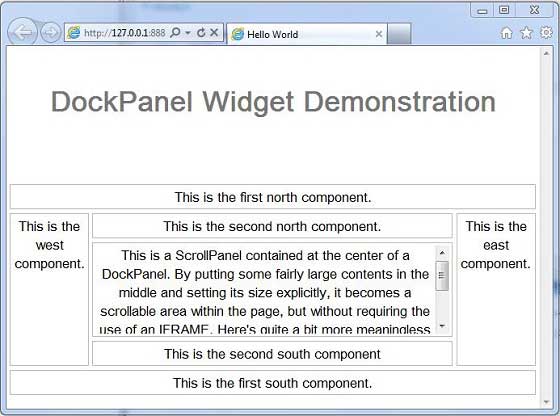
完成所有更改后,让我们像在 GWT - 创建应用程序 一章中一样,在开发模式下编译并运行应用程序。如果您的应用程序一切正常,这将产生以下结果 −
 gwt_layout_panels.html
