
GWT - FormPanel 小部件
简介
FormPanel 小部件表示将其内容包装在 HTML <FORM> 元素中的面板。
类声明
以下是 com.google.gwt.user.client.ui.FormPanel 类的声明 −
public class FormPanel
   extends SimplePanel
      implements FiresFormEvents,
         com.google.gwt.user.client.ui.impl.FormPanelImplHost
类构造函数
| Sr.No. | 构造函数 &描述 |
|---|---|
| 1 |
FormPanel() 创建一个新的 FormPanel。 |
| 2 |
protected FormPanel(Element element) 子类可以使用此构造函数来明确使用现有元素。 |
| 3 |
protected FormPanel(Element element, boolean createIFrame) 子类可以使用此构造函数来明确使用现有元素。 |
| 4 |
FormPanel(NamedFrame frameTarget) 创建一个以 NamedFrame 为目标的 FormPanel。 |
| 5 |
FormPanel(java.lang.String target) 创建一个新的 FormPanel。 |
类方法
| Sr.No. | 函数名称 &描述 |
|---|---|
| 1 |
void add Form Handler (FormHandler handler) 已弃用。改用添加提交完成处理程序 (com.google.gwt.user.client.ui.Form Panel.Submit Complete Handler) 和添加提交处理程序 (com.google.gwt.user.client.ui.Form Panel.Submit Handler) |
| 2 |
处理程序注册 addSubmit 完成处理程序 (FormPanel.SubmitCompleteHandler 处理程序) 添加 FormPanel.Submit 完成事件处理程序。 |
| 3 |
HandlerRegistration addSubmitHandler(FormPanel.SubmitHandler 处理程序) 添加 FormPanel.SubmitEvent 处理程序。 |
| 4 |
java.lang.String getAction() 获取与此表单关联的"操作"。 |
| 5 |
java.lang.String getEncoding() 获取用于提交此表单的编码。 |
| 6 |
java.lang.String getMethod() 获取用于提交此表单的 HTTP 方法。 |
| 7 |
java.lang.String getTarget() 获取表单的"目标"。 |
| 8 |
protected void onAttach() 当小部件附加到浏览器的文档时,将调用此方法。 |
| 9 |
protected void onDetach() 当小部件与浏览器的文档分离时,将调用此方法。 |
| 10 |
boolean onFormSubmit() 当表单已提交。 |
| 11 |
void onFrameLoad() |
| 12 |
void removeFormHandler(FormHandler handler) 已弃用。改为对由 add*Handler 方法返回的对象使用 HandlerRegistration.removeHandler() 方法 |
| 13 |
void reset() 重置表单,清除所有字段。 |
| 14 |
void setAction(java.lang.String url) 设置与此表单关联的"操作"。 |
| 15 |
void setEncoding(java.lang.String encodingType) 设置用于提交此表单的编码表单。 |
| 16 |
void setMethod(java.lang.String method) 设置用于提交此表单的 HTTP 方法。 |
| 17 |
void submit() 提交表单。 |
| 18 |
静态 FormPanel wrap(Element element) 创建一个包装现有 <form> 元素的 FormPanel。 |
| 19 |
静态 FormPanel wrap(Element element, boolean createIFrame) 创建一个包装现有 <form> 元素的 FormPanel。 |
继承的方法
该类继承了以下类的方法 −
com.google.gwt.user.client.ui.UIObject
com.google.gwt.user.client.ui.Widget
com.google.gwt.user.client.ui.Panel
com.google.gwt.user.client.ui.SimplePanel
java.lang.Object
FormPanel Widget 示例
此示例将带您通过简单的步骤展示如何在 GWT 中使用 FormPanel Widget。按照以下步骤更新我们在 GWT - 创建应用程序 一章中创建的 GWT 应用程序 −
| 步骤 | 描述 |
|---|---|
| 1 | 在 com.tutorialspoint 包下创建一个名为 HelloWorld 的项目,如 GWT - 创建应用程序 一章中所述。 |
| 2 | 修改 HelloWorld.gwt.xml、HelloWorld.css、HelloWorld.html 和 HelloWorld.java,如下所述。其余文件保持不变。 |
| 3 | 编译并运行应用程序以验证实现逻辑的结果。 |
以下是修改后的模块描述符src/com.tutorialspoint/HelloWorld.gwt.xml的内容。
<?xml version = "1.0" encoding = "UTF-8"?>
<module rename-to = 'helloworld'>
   <!-- Inherit the core Web Toolkit stuff.                        -->
   <inherits name = 'com.google.gwt.user.User'/>

   <!-- Inherit the default GWT style sheet.                       -->
   <inherits name = 'com.google.gwt.user.theme.clean.Clean'/>

   <!-- Specify the app entry point class.                         -->
   <entry-point class = 'com.tutorialspoint.client.HelloWorld'/>

   <!-- Specify the paths for translatable code                    -->
   <source path = 'client'/>
   <source path = 'shared'/>

</module>
以下是修改后的样式表文件war/HelloWorld.css的内容。
body {
   text-align: center;
   font-family: verdana, sans-serif;
}

h1 {
   font-size: 2em;
   font-weight: bold;
   color: #777777;
   margin: 40px 0px 70px;
   text-align: center;
}
以下是修改后的 HTML 主机文件 war/HelloWorld.html 的内容。
<html>
   <head>
      <title>Hello World</title>
      <link rel = "stylesheet" href = "HelloWorld.css"/>
      <script language = "javascript" src = "helloworld/helloworld.nocache.js">
      </script>
   </head>

   <body>
      <h1>FormPanel Widget Demonstration</h1>
      <div id = "gwtContainer"></div>
   </body>
</html>
让我们来看看 Java 文件 src/com.tutorialspoint/HelloWorld.java 的以下内容,它将演示如何使用 FormPanel 小部件。
package com.tutorialspoint.client;

import com.google.gwt.core.client.EntryPoint;
import com.google.gwt.event.dom.client.ClickEvent;
import com.google.gwt.event.dom.client.ClickHandler;
import com.google.gwt.user.client.Window;
import com.google.gwt.user.client.ui.Button;
import com.google.gwt.user.client.ui.DecoratorPanel;
import com.google.gwt.user.client.ui.FileUpload;
import com.google.gwt.user.client.ui.FormPanel;
import com.google.gwt.user.client.ui.FormPanel.SubmitCompleteEvent;
import com.google.gwt.user.client.ui.FormPanel.SubmitEvent;
import com.google.gwt.user.client.ui.ListBox;
import com.google.gwt.user.client.ui.RootPanel;
import com.google.gwt.user.client.ui.TextBox;
import com.google.gwt.user.client.ui.VerticalPanel;

public class HelloWorld implements EntryPoint {

   public void onModuleLoad() {
        // 创建一个 FormPanel 并将其指向服务。
        final FormPanel form = new FormPanel();
        form.setAction("/myFormHandler");

        // 因为我们要添加一个 FileUpload 小部件,
        // 我们需要将表单设置为使用 POST 方法,
        // 和多部分 MIME 编码。
        form.setEncoding(FormPanel.ENCODING_MULTIPART);
        form.setMethod(FormPanel.METHOD_POST);

        // 创建一个面板来容纳所有表单小部件。
        VerticalPanel panel = new VerticalPanel();
        panel.setSpacing(10);
        form.setWidget(panel);

        // 创建一个 TextBox,为其命名以便提交。
        final TextBox tb = new TextBox();
        tb.setWidth("220");

        tb.setName("textBoxFormElement");
        panel.add(tb);

        // 创建一个 ListBox,为其指定名称和
        // 与其选项关联的一些值。
        ListBox lb = new ListBox();
        lb.setName("listBoxFormElement");
        lb.addItem("item1", "item1");
        lb.addItem("item2", "item2");
        lb.addItem("item3", "item3");
        lb.setWidth("220");
        panel.add(lb);

        // 创建一个 FileUpload 小部件。
        FileUpload upload = new FileUpload();
        upload.setName("uploadFormElement");
        panel.add(upload);

        // 添加"提交"按钮。
        panel.add(new Button("Submit", new ClickHandler() {
            @Override
            public void onClick(ClickEvent event) {
                form.submit();
            }
        }));

        // 向表单添加事件处理程序。
        form.addSubmitHandler(new FormPanel.SubmitHandler() {
            @Override
            public void onSubmit(SubmitEvent event) {
                // 此事件在表单提交前触发。
                // 我们可以借此机会执行验证。
                if (tb.getText().length() == 0) {
                    Window.alert("文本框不能为空");
                    event.cancel();
                }
            }
        });

        form.addSubmitCompleteHandler(new FormPanel.SubmitCompleteHandler() {
            @Override
            public void onSubmitComplete(SubmitCompleteEvent event) {
                // 当表单提交成功完成后,
                // 此事件被触发。假设服务返回
                // text/html 类型的响应,我们可以在这里获得结果。
                Window.alert(event.getResults());
            }
        });

      DecoratorPanel decoratorPanel = new DecoratorPanel();
      decoratorPanel.add(form);
      // 将小部件添加到根面板。
      RootPanel.get().add(decoratorPanel);
   }

}
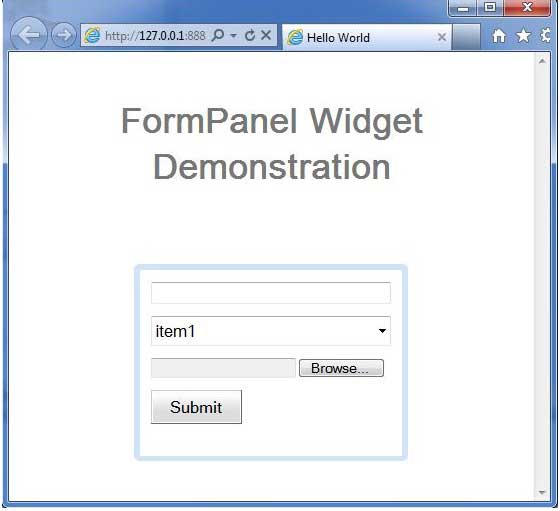
完成所有更改后,让我们像在 GWT - 创建应用程序 一章中一样,在开发模式下编译并运行应用程序。如果您的应用程序一切正常,这将产生以下结果 −
 gwt_layout_panels.html
