
GWT - PopupPanel 小部件
简介
PopupPanel 小部件表示可以弹出到其他小部件的面板。它覆盖浏览器的客户区(以及任何先前创建的弹出窗口)。
类声明
以下是 com.google.gwt.user.client.ui.PopupPanel 类的声明 −
public class PopupPanel
   extends SimplePanel
      implements SourcesPopupEvents, EventPreview,
         HasAnimation, HasCloseHandlers<PopupPanel>
类构造函数
| Sr.No. | 构造函数 &描述 |
|---|---|
| 1 |
PopupPanel() 创建一个空的弹出面板。 |
| 2 |
PopupPanel(boolean autoHide) 创建一个空的弹出面板,并指定其 auto-hide 属性。 |
| 3 |
PopupPanel(boolean autoHide, boolean modal) 创建一个空的弹出面板,并指定其 auto-hide 和 modal属性。 |
类方法
| Sr.No. | 函数名称 &描述 |
|---|---|
| 1 |
void addAutoHidePartner(Element partner) 在 autoHide 伙伴中发生的鼠标事件不会隐藏设置为 autoHide 的面板。 |
| 2 |
HandlerRegistration addCloseHandler( CloseHandler <PopupPanel> handler) 添加 CloseEvent 处理程序。 |
| 3 |
void addPopupListener(PopupListener listener) 已弃用。改用 addCloseHandler(com.google.gwt.event. logical.shared.CloseHandler) |
| 4 |
void center() 将弹出窗口置于浏览器窗口的中心并显示它。 |
| 5 |
protected Element getContainerElement() 重写此方法以指定除根元素之外的元素是面板子小部件的容器。 |
| 6 |
protected Element getGlassElement() 获取此方法使用的玻璃元素PopupPanel。 |
| 7 |
java.lang.String getGlassStyleName() 获取玻璃元素上要使用的样式名称。 |
| 8 |
int getOffsetHeight() 获取面板的偏移高度(以像素为单位)。 |
| 9 |
int getOffsetWidth() 获取面板的偏移宽度(以像素为单位)。 |
| 10 |
int getPopupLeft() 获取弹出窗口相对于浏览器客户端区域的左侧位置。 |
| 11 |
int getPopupTop() 获取弹出窗口相对于浏览器客户端区域的顶部位置。 |
| 12 |
protected Element getStyleElement() 返回将应用样式名称的元素的模板方法。 |
| 13 |
java.lang.String getTitle() 获取与此对象关联的标题。 |
| 14 |
void hide() 隐藏弹出窗口并将其与页面分离。 |
| 15 |
void hide(boolean autoClosed) 隐藏弹出窗口并将其与页面分离。 |
| 16 |
boolean isAnimationEnabled() 如果动画已启用,则返回 true,否则返回 false。 |
| 17 |
boolean isAutoHideEnabled() 如果用户点击弹出窗口外部时弹出窗口应自动隐藏,则返回 true。 |
| 18 |
boolean isAutoHideOnHistoryEventsEnabled() 如果历史标记更改时弹出窗口应自动隐藏,例如用户按下浏览器的后退按钮,则返回 true。 |
| 19 |
boolean isGlassEnabled() 如果玻璃元素将显示在 PopupPanel 下方,则返回 true。 |
| 20 |
boolean isModal() 如果应忽略不针对 PopupPanel 或其子项的键盘或鼠标事件,则返回 true。 |
| 21 |
boolean isPreviewingAllNativeEvents( ) 如果弹出窗口应预览所有本机事件,则返回 true,即使该事件已被另一个弹出窗口使用。 |
| 22 |
boolean isShowing() 确定此弹出窗口是否显示。 |
| 23 |
boolean isVisible() 确定此弹出窗口是否可见。 |
| 24 |
boolean onEventPreview(Event event) 已弃用。请改用 onPreviewNativeEvent(com.google.gwt.user. client.Event.NativePreviewEvent) |
| 25 |
boolean onKeyDownPreview(char key, int modifiers) 已弃用。改用 onPreviewNativeEvent(com.google.gwt.user. client.Event.NativePreviewEvent) |
| 26 |
boolean onKeyPressPreview(char key, int modifiers) 已弃用。改用 onPreviewNativeEvent(com.google.gwt.user. client.Event.NativePreviewEvent) |
| 27 |
boolean onKeyUpPreview(char key, int modifiers) 已弃用。改用 onPreviewNativeEvent(com.google.gwt.user. client.Event.NativePreviewEvent) |
| 28 |
protected void onPreviewNativeEvent(Event.NativePreviewEvent event) |
| 29 |
protected void onUnload() 在小部件从浏览器文档分离之前立即调用此方法。 |
| 30 |
void removeAutoHidePartner(Element partner) 删除自动隐藏合作伙伴。 |
| 31 |
void removePopupListener(PopupListener listener) 已弃用。请使用 HandlerRegistration。 removeHandler() 方法,而不是 addCloseHandler(com.google.gwt.event. logical.shared.CloseHandler) 返回的对象 |
| 32 |
void setAnimationEnabled(boolean enable) 启用或禁用动画。 |
| 33 |
void setAutoHideEnabled(boolean autoHide) 启用或禁用自动隐藏功能。 |
| 34 |
void setAutoHideOnHistoryEventsEnabled( boolean enabled) 启用或禁用历史记录更改事件上的自动隐藏。 |
| 35 |
void setGlassEnabled(boolean enabled) 启用后,下次显示时背景将被半透明窗格阻挡。 |
| 36 |
void setGlassStyleName(java.lang.String glassStyleName) 设置玻璃元素上要使用的样式名称。 |
| 37 |
void setHeight(java.lang.String height) 设置面板子小部件的高度。 |
| 38 |
void setModal(boolean modal) 当弹出窗口为模态时,不针对 PopupPanel 或其子项的键盘或鼠标事件将被忽略。 |
| 39 |
void setPopupPosition(int left, int top) 设置弹出窗口相对于浏览器客户端区域的位置。 |
| 40 |
void setPopupPositionAndShow(PopupPanel. PositionCallback call) 使用 PopupPanel.PositionCallback 设置弹出窗口的位置,并显示弹出窗口。 |
| 41 |
void setPreviewingAllNativeEvents(boolean previewAllNativeEvents) 启用后,弹出窗口将预览所有本机事件,即使在此弹出窗口之后打开了另一个弹出窗口。 |
| 42 |
void setTitle(java.lang.String title) 设置与此对象关联的标题。 |
| 43 |
void setVisible(boolean visible) 设置此对象是否可见。 |
| 44 |
void setWidget(Widget w) 设置此面板的小部件。 |
| 45 |
void setWidth(java.lang.String width) 设置面板子小部件的宽度。 |
| 46 |
void show() 显示弹出窗口并将其附加到页面。 |
| 47 |
void showRelativeTo(UIObject target) 通常,弹出窗口位于相对目标的正下方,其左边缘与目标的左边缘对齐。 |
继承的方法
该类继承了以下类的方法 −
com.google.gwt.user.client.ui.UIObject
com.google.gwt.user.client.ui.Widget
com.google.gwt.user.client.ui.Panel
com.google.gwt.user.client.ui.SimplePanel
java.lang.Object
PopupPanel 小部件示例
此示例将带您通过简单的步骤展示 GWT 中 PopupPanel 小部件的用法。按照以下步骤更新我们在 GWT - 创建应用程序 一章中创建的 GWT 应用程序 −
| 步骤 | 描述 |
|---|---|
| 1 | 在 com.tutorialspoint 包下创建一个名为 HelloWorld 的项目,如 GWT - 创建应用程序 一章中所述。 |
| 2 | 修改 HelloWorld.gwt.xml、HelloWorld.css、HelloWorld.html 和 HelloWorld.java,如下所述。其余文件保持不变。 |
| 3 | 编译并运行应用程序以验证实现逻辑的结果。 |
以下是修改后的模块描述符src/com.tutorialspoint/HelloWorld.gwt.xml的内容。
<?xml version = "1.0" encoding = "UTF-8"?>
<module rename-to = 'helloworld'>
   <!-- Inherit the core Web Toolkit stuff.                        -->
   <inherits name = 'com.google.gwt.user.User'/>

   <!-- Inherit the default GWT style sheet.                       -->
   <inherits name = 'com.google.gwt.user.theme.clean.Clean'/>

   <!-- Specify the app entry point class.                         -->
   <entry-point class = 'com.tutorialspoint.client.HelloWorld'/>

   <!-- Specify the paths for translatable code                    -->
   <source path = 'client'/>
   <source path = 'shared'/>

</module>
以下是修改后的样式表文件war/HelloWorld.css的内容。
body {
   text-align: center;
   font-family: verdana, sans-serif;
}

h1 {
   font-size: 2em;
   font-weight: bold;
   color: #777777;
   margin: 40px 0px 70px;
   text-align: center;
}

.gwt-PopupPanel {
   border: 3px solid #000000;
   padding: 3px;
   background: white;
}

.gwt-PopupPanelGlass {
   background-color: #000;
   opacity: 0.3;
   filter: alpha(opacity=30);
}

.gwt-PopupPanel .popupContent {
   border: none;
   padding: 3px;
   background: gray;
}
以下是修改后的 HTML 主机文件 war/HelloWorld.html 的内容。
<html>
   <head>
      <title>Hello World</title>
      <link rel = "stylesheet" href = "HelloWorld.css"/>
      <script language = "javascript" src = "helloworld/helloworld.nocache.js">
      </script>
   </head>

   <body>
      <h1>PopupPanel Widget Demonstration</h1>
      <div id = "gwtContainer"></div>
   </body>
</html>
让我们来看看 Java 文件 src/com.tutorialspoint/HelloWorld.java 的以下内容,它将演示如何使用 PopupPanel 小部件。
package com.tutorialspoint.client;

import com.google.gwt.core.client.EntryPoint;
import com.google.gwt.event.dom.client.ClickEvent;
import com.google.gwt.event.dom.client.ClickHandler;
import com.google.gwt.user.client.Window;
import com.google.gwt.user.client.ui.Button;
import com.google.gwt.user.client.ui.DecoratorPanel;
import com.google.gwt.user.client.ui.HasHorizontalAlignment;
import com.google.gwt.user.client.ui.Label;
import com.google.gwt.user.client.ui.PopupPanel;
import com.google.gwt.user.client.ui.RootPanel;
import com.google.gwt.user.client.ui.VerticalPanel;

public class HelloWorld implements EntryPoint {

   private static class MyPopup extends PopupPanel {

      public MyPopup() {
        // PopupPanel 的构造函数将"自动隐藏"作为其布尔值
        // 参数。如果设置了该参数,则当用户单击面板外部时,面板会自动关闭。
        super(true);

        // PopupPanel 是一个 SimplePanel,因此您必须将其小部件
        // 属性设置为您希望其内容的任何内容。
        setWidget(new Label("单击此弹出窗口外部以将其关闭"));
      }
   }

   public void onModuleLoad() {
      Button b1 = new Button("Click me to show popup");
      b1.addClickHandler(new ClickHandler() {
         public void onClick(ClickEvent event) {
            // 实例化弹出窗口并显示它。
             new MyPopup().show();
         }
      });

      Button b2 = new Button("Click me to show popup partway"
         +" across the screen");
      b2.addClickHandler(new ClickHandler() {
         public void onClick(ClickEvent event) {

                // 创建新的弹出窗口。
                final MyPopup popup = new MyPopup();

                // 将弹出窗口定位在屏幕下方和屏幕横跨的 1/3 处,并显示弹出窗口。由于位置
                // 计算基于弹出窗口的 offsetWidth 和 offsetHeight
                //,因此您必须使用
                // setPopupPositionAndShow(callback) 方法。另一种方法是
                // 调用 show(),计算左侧和
                // 顶部位置,然后调用 setPopupPosition(left, top)。
                // 这会产生不好的副作用,即弹出窗口会从其原始位置跳转到其新位置。
                popup.setPopupPositionAndShow(new PopupPanel.PositionCallback(){
               	public void setPosition(int offsetWidth, int offsetHeight) {
                  int left = (Window.getClientWidth() - offsetWidth) / 3;
                  int top = (Window.getClientHeight() - offsetHeight) / 3;
                  popup.setPopupPosition(left, top);
               }
            });
         }
      });
      VerticalPanel panel = new VerticalPanel();
      panel.setHorizontalAlignment(HasHorizontalAlignment.ALIGN_CENTER);
      panel.setSpacing(10);
      panel.add(b1);
      panel.add(b2);

      DecoratorPanel decoratorPanel = new DecoratorPanel();
      decoratorPanel.add(panel);

      // 将小部件添加到根面板。
      RootPanel.get().add(decoratorPanel);
   }
}
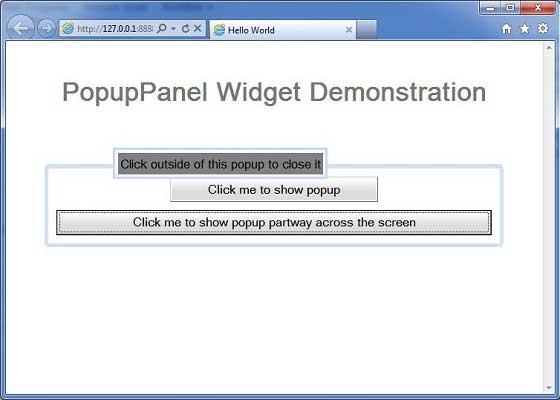
完成所有更改后,让我们像在 GWT - 创建应用程序 一章中一样,在开发模式下编译并运行应用程序。如果您的应用程序一切正常,这将产生以下结果 −
 gwt_layout_panels.html
