
XAML - Button
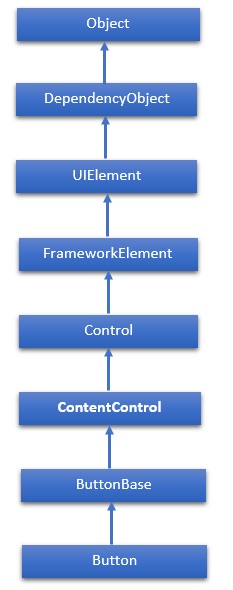
Button 类代表最基本的按钮控件类型。Button 类的层次继承如下 −
属性
| Sr.No. | 属性 &描述 |
|---|---|
| 1 | Background 获取或设置提供控件背景的画笔。(从控件继承) |
| 2 | BorderBrush 获取或设置描述控件边框填充的画笔。(从控件继承) |
| 3 | BorderThickness 获取或设置控件的边框厚度。 (从 Control 继承) |
| 4 | Content 获取或设置 ContentControl 的内容。 (从 ContentControl 继承) |
| 5 | ClickMode 获取或设置一个值,该值指示设备行为中 Click 事件的发生时间。 (从 ButtonBase 继承) |
| 6 | ContentTemplate 获取或设置用于显示 ContentControl 内容的数据模板。 (从 ContentControl 继承) |
| 7 | FontFamily 获取或设置用于在控件中显示文本的字体。 (从 Control 继承) |
| 8 | FontSize 获取或设置此控件中文本的大小。 (从 Control 继承) |
| 9 | FontStyle 获取或设置文本呈现的样式。 (从控件继承) |
| 10 | FontWeight 获取或设置指定字体的粗细。 (从控件继承) |
| 11 | Foreground 获取或设置描述前景色的画笔。 (从控件继承) |
| 12 | Height 获取或设置 FrameworkElement 的建议高度。 (从 FrameworkElement 继承) |
| 13 | HorizontalAlignment 获取或设置在布局父级(例如面板或项目控件)中组合 FrameworkElement 时应用于它的水平对齐特性。 (从 FrameworkElement 继承) |
| 14 | IsEnabled 获取或设置一个值,指示用户是否可以与控件交互。 (从 Control 继承) |
| 15 | IsPressed 获取一个值,指示 ButtonBase 当前是否处于按下状态。 (从 ButtonBase 继承) |
| 16 | Margin 获取或设置 FrameworkElement 的外边距。 (从 FrameworkElement 继承) |
| 17 | Name 获取或设置对象的标识名称。 当 XAML 处理器从 XAML 标记创建对象树时,运行时代码可以通过此名称引用 XAML 声明的对象。 (从 FrameworkElement 继承) |
| 18 | Opacity 获取或设置对象的不透明度。 (继承自 UIElement) |
| 19 | Resources 获取本地定义的资源字典。在 XAML 中,您可以将资源项建立为 frameworkElement 的子对象元素。Resources 属性元素,通过 XAML 隐式集合语法。(继承自 FrameworkElement) |
| 20 | Style 获取或设置在布局和渲染期间应用于此对象的实例样式。(从 FrameworkElement 继承) |
| 21 | Template 获取或设置控件模板。控件模板定义 UI 中控件的视觉外观,并在 XAML 标记中定义。(从 Control 继承) |
| 22 | VerticalAlignment 获取或设置在父对象(如面板或项目控件)中组合 FrameworkElement 时应用于它的垂直对齐特征。 (从 FrameworkElement 继承) |
| 23 | Visibility 获取或设置 UIElement 的可见性。不可见的 UIElement 不会被渲染,也不会将其所需大小传达给布局。(从 UIElement 继承) |
| 24 | Width 获取或设置 FrameworkElement 的宽度。 (从 FrameworkElement 继承) |
方法
| Sr.No. | 方法和说明 |
|---|---|
| 1 | ClearValue 清除依赖属性的本地值。 (从 DependencyObject 继承) |
| 2 | FindName 检索具有指定标识符名称的对象。 (从 FrameworkElement 继承) |
| 3 | OnApplyTemplate 每当应用程序代码或内部进程(例如重建布局过程)调用 ApplyTemplate 时调用。 简单来说,这意味着在应用程序中显示 UI 元素之前调用该方法。 重写此方法以影响类的默认后模板逻辑。 (从 FrameworkElement 继承) |
| 4 | OnContentChanged 当 Content 属性的值发生更改时调用。 (从 ContentControl 继承) |
| 5 | OnDragEnter 在 DragEnter 事件发生之前调用。 (从 Control 继承) |
| 6 | OnDragLeave 在 DragLeave 事件发生之前调用。 (从控件继承) |
| 7 | OnDragOver 在 DragOver 事件发生之前调用。 (从控件继承) |
| 8 | OnDrop 在 Drop 事件发生之前调用。 (从控件继承) |
| 9 | OnGotFocus 在 GotFocus 事件发生之前调用。 (从控件继承) |
| 10 | OnKeyDown 在 KeyDown 事件发生之前调用。 (从控件继承) |
| 11 | OnKeyUp 在 KeyUp 事件发生之前调用。 (从控件继承) |
| 12 | OnLostFocus 在 LostFocus 事件发生之前调用。 (从控件继承) |
| 13 | SetBinding 使用提供的绑定对象将绑定附加到 FrameworkElement。(从 FrameworkElement 继承) |
事件
| Sr.No. | 事件和说明 |
|---|---|
| 1 | Click 单击按钮控件时发生。(从 ButtonBase 继承) |
| 2 | DataContextChanged FrameworkElement.DataContext 属性的值更改时发生。 (从 FrameworkElement 继承) |
| 3 | DragEnter 当输入系统报告以此元素为目标的底层拖动事件时发生。 (从 UIElement 继承) |
| 4 | DragLeave 当输入系统报告以此元素为原点的底层拖动事件时发生。 (从 UIElement 继承) |
| 5 | DragOver 当输入系统报告以此元素为潜在放置目标的底层拖动事件时发生。 (从 UIElement 继承) |
| 6 | DragStarting 在启动拖动操作时发生。 (从 UIElement 继承) |
| 7 | GotFocus 在 UIElement 获得焦点时发生。 (从 UIElement 继承) |
| 8 | Holding 在此元素的命中测试区域上发生未处理的 Hold 交互时发生。 (从 UIElement 继承) |
| 9 | IsEnabledChanged 当 IsEnabled 属性更改时发生。 (从 Control 继承) |
| 10 | OnKeyDown 当 UIElement 具有焦点时按下键盘键时发生。 (从 UIElement 继承) |
| 11 | OnKeyUp 当 UIElement 具有焦点时释放键盘键时发生。 (从 UIElement 继承) |
| 12 | LostFocus 当 UIElement 失去焦点时发生。 (从 UIElement 继承) |
| 13 | SizeChanged 当 FrameworkElement 上的 ActualHeight 或 ActualWidth 属性的值发生变化时发生。 (继承自 FrameworkElement) |
示例
以下示例包含三个按钮,它们根据其 ClickMode 属性值做出不同的响应。
以下是 XAML 代码,其中创建了三个按钮,并带有一些属性和一个单击事件。
<Window x:Class = "XAMLButton.MainWindow"
   xmlns = "http://schemas.microsoft.com/winfx/2006/xaml/presentation"
   xmlns:x = "http://schemas.microsoft.com/winfx/2006/xaml"
   Title = "MainWindow" Height = "350" Width = "604">

   <Grid>
      <StackPanel Margin = "10">
         <Button x:Name = "button1"
            Content = "Hover"
            Click = "OnClick1"
            ClickMode = "Hover"
            Margin = "10"
            Width = "150"
            HorizontalAlignment = "Center"
            Foreground = "Gray"/>
			<Button x:Name = "button2"
            Content = "Press to Click"
            Click = "OnClick2"
            ClickMode = "Press"
            Margin = "10"
            Width = "150"
            HorizontalAlignment = "Center"
            Foreground = "DarkBlue"/>
			<Button x:Name = "button3"
            Content = "Release"
            Click = "OnClick3"
            ClickMode = "Release"
            Margin = "10"
            Width = "150"
            HorizontalAlignment = "Center"/>
      </StackPanel>
   </Grid>

</Window>
以下是 C# 中的点击事件实现。
using System;
using System.Windows;
using System.Windows.Controls;
using System.Windows.Media;

namespace XAMLButton {
   /// <summary>
      /// Interaction logic for MainWindow.xaml
   /// </summary>
	public partial class MainWindow : Window {
      public MainWindow() {
         InitializeComponent();
      }
      void OnClick1(object sender, RoutedEventArgs e) {
         button1.Foreground = new SolidColorBrush(Colors.Blue);
         MessageBox.Show("On Hover click event occurs.");
      }
      void OnClick2(object sender, RoutedEventArgs e) {
         button2.Foreground = new SolidColorBrush(Colors.Green);
         MessageBox.Show("On Press click event occurs.");
      }
      void OnClick3(object sender, RoutedEventArgs e) {
         button1.Foreground = new SolidColorBrush(Colors.Green);
         button2.Foreground = new SolidColorBrush(Colors.Blue);
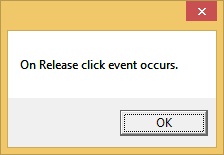
         MessageBox.Show("On Release click event occurs.");
      }
   }
}
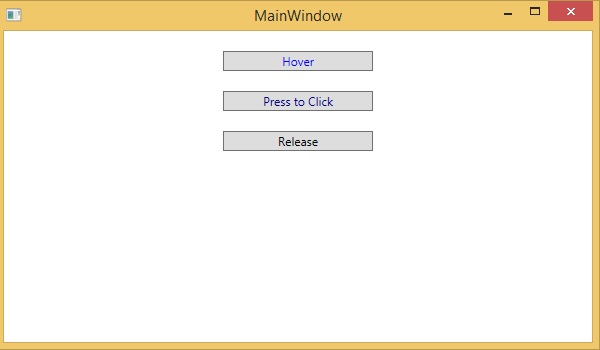
当您编译并执行上述代码时,它将产生以下屏幕 −
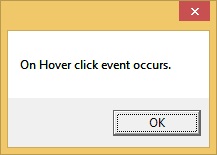
当鼠标进入第一个按钮的区域时,它将显示以下消息 −
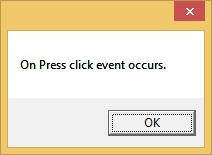
当您按下第二个按钮时,它将显示以下消息 −
当您单击后释放最后一个按钮时,它将显示以下消息 −
我们建议您执行上面的示例代码并尝试一些其他属性和事件。
 xaml_controls.html
