
如何检查 Excel 工作表中是否存在超链接?
如果我们有大量数据,并且超链接分散在整个工作表中,那么查找超链接和外部引用将是一项繁琐的任务。本教程将帮助用户在以下情况下查找工作表中可用的超链接 -
在 Excel 中查找所有超链接
查找链接到特定文本的所有超链接
使用 VBA 代码查找所有超链接位置
在 Excel 中查找所有超链接
步骤 1 - 下面显示了一个包含分散超链接的示例工作表。
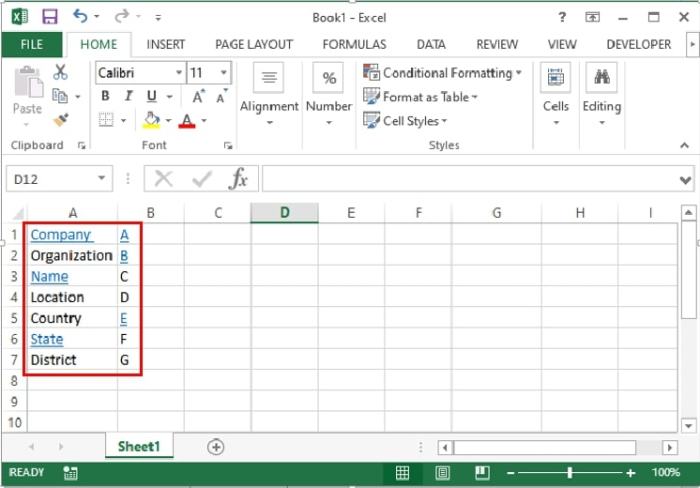
步骤 2 - 请注意,使用"查找和替换"功能可以轻松识别所有超链接。为此,请按键盘上的 Ctrl+H。查找和替换对话框将打开。
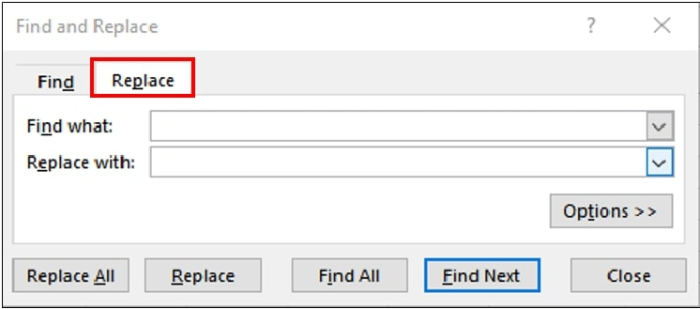
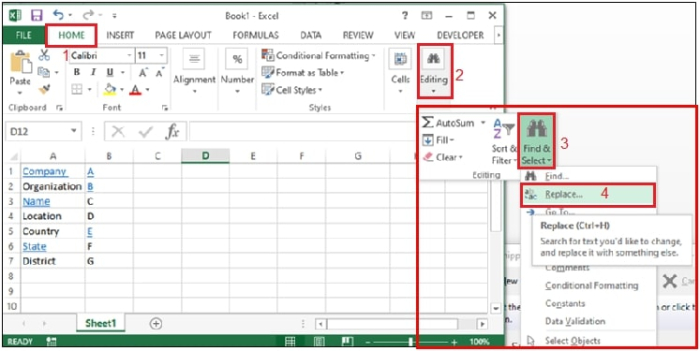
或者您可以按照以下路径打开该对话框 -
首页 > 编辑 > 查找和选择 >替换
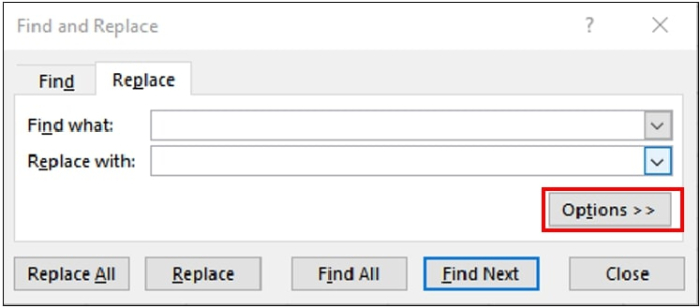
步骤 3 − 在"查找和替换"对话框中,点击选项。
步骤 4− 对话框将展开如下。转到"查找内容"下的"格式",然后点击向下箭头,选择"从单元格中设置格式"。
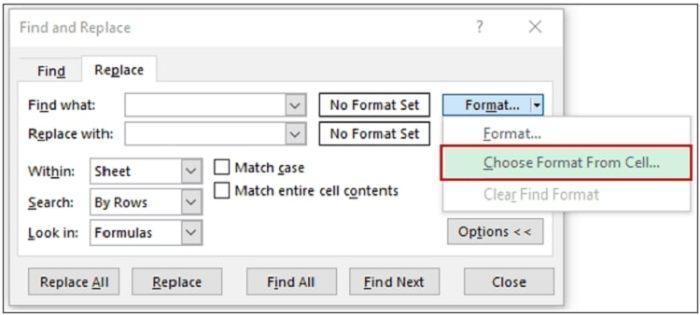
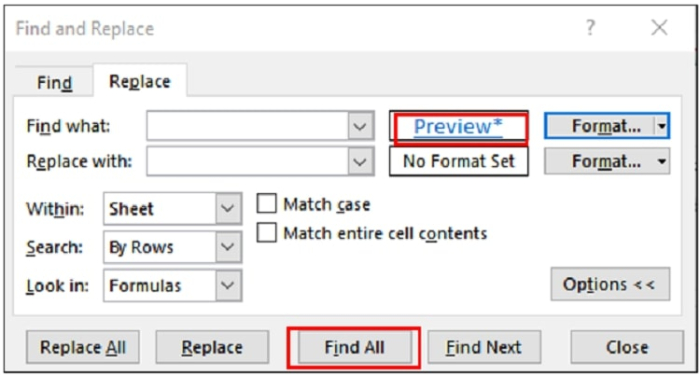
步骤 5 - 从工作表中选择一个包含超链接的单元格。然后,将显示该单元格数据的预览,如下所示。现在,点击对话框底部的"查找全部"按钮。
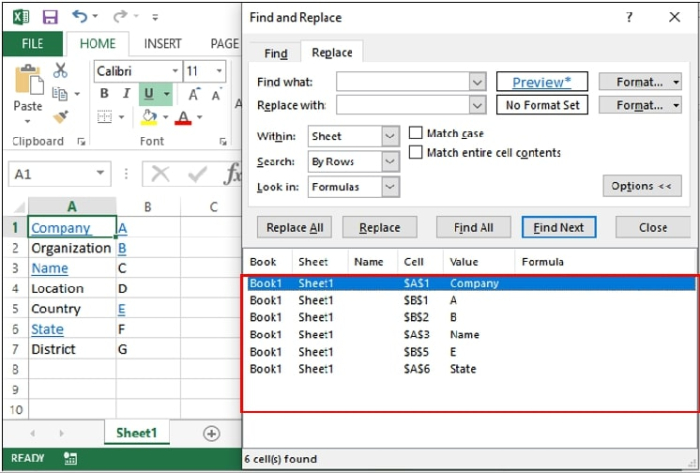
步骤 6 - 它将以列表的形式显示所有包含超链接的单元格,如下所示。您可以单独选择每个单元格,也可以按住 Control 键从列表中选择多个单元格。
在 Excel 中查找链接到特定文本的所有超链接
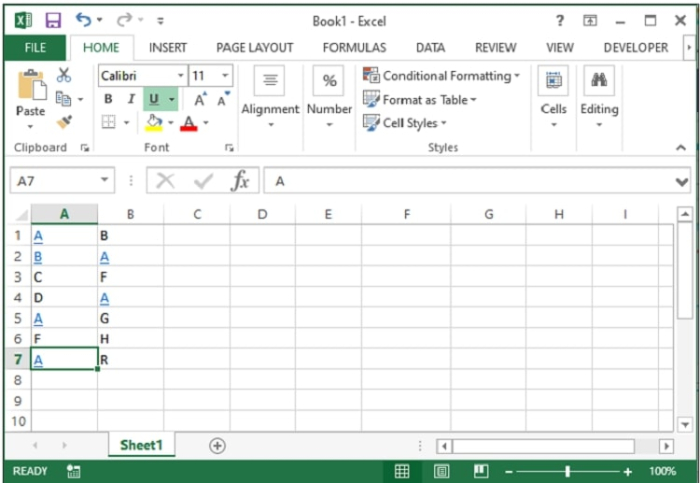
步骤 1 − 已显示一个示例工作表,其中包含一些类似的超链接单元格值。
步骤 2 − 重复上述方法中的步骤 2 和 3。
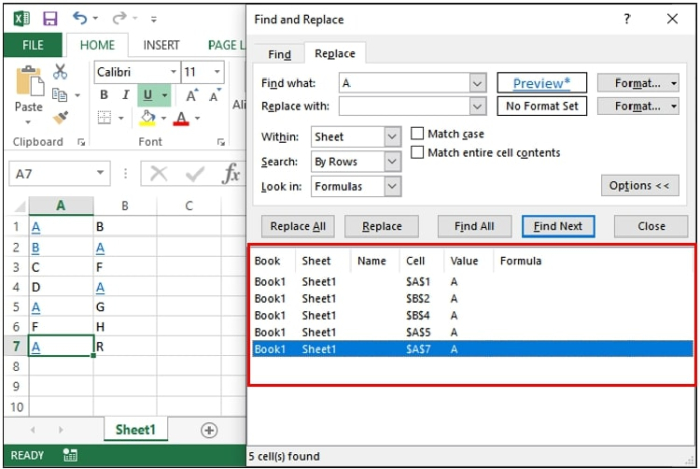
步骤 3 − 转到"格式">下的"查找内容",然后点击向下箭头进行选择选择"单元格格式"。现在,选择一个要搜索特定文本超链接的单元格。接下来,在"查找内容"字段中输入要查找的确切单元格值。
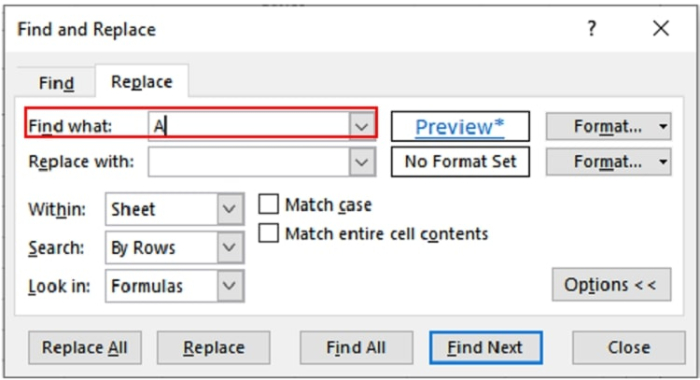
步骤 4 − 现在点击对话框底部的查找全部按钮。它将在列表中显示所有包含输入值的超链接单元格,如下所示。您可以单独选择每个单元格,也可以按住 Control 键从列表中选择多个单元格。
使用 VBA 代码查找所有超链接位置
步骤 1 − 按下键盘上的 Alt+F11 键,这将打开 Microsoft Visual Basic for Applications 窗口。
步骤 2 − 在 Microsoft Visual Basic for Applications 窗口中,转到插入 >模块。
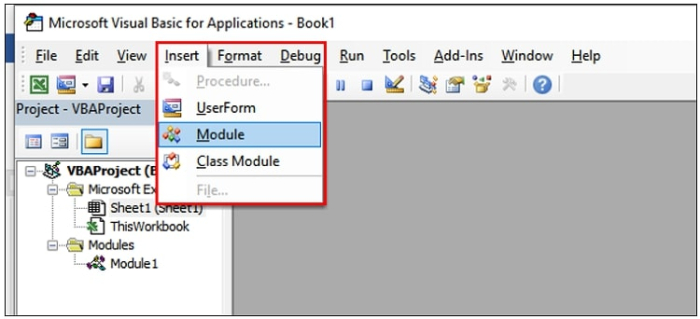
步骤 3 − 现在将以下代码粘贴到工作区中,如下所示 −
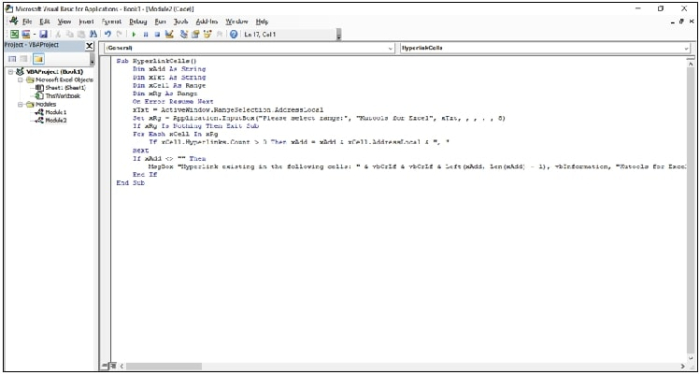
Code Snippet
Sub HyperlinkCells() \ A VBA function used to jump to a location of a worksheet where hyperlinks are available
   Dim xAdd As String \ Adding a variable xAdd as string type
   Dim xTxt As String \ Adding a variable as xText as string type
   Dim xCell As Range \ Adding a variable xCell as Range type
   Dim xRg As Range \ Adding a variable as xRg as range type.
   On Error Resume Next \ when a run-time error occurs, go to the statement immediately following the statement where the error occurred and execute next.
   xTxt = ActiveWindow.RangeSelection.AddressLocal \ Returns a Range object that represents the selected cells on the worksheet in the active window
   Set xRg = Application.InputBox("Please select range:", "Kutools for Excel", xTxt, , , , , 8) \ A popup message box to display range of cells
   If xRg Is Nothing Then Exit Sub \ If no hyperlink is found then exit from the sub statement
   For Each xCell In xRg \ Condition For each xCell variable in the range
      If xCell.Hyperlinks.Count > 0 Then xAdd = xAdd & xCell.AddressLocal & ", " \ Condition to count the hyperlinked cells in the active sheet
      Next
      If xAdd <> "" Then \ If the value of xAdd is Not Equal to firstAddress then execute the next statement.
         MsgBox "Hyperlink existing in the following cells: " & vbCrLf & vbCrLf & Left(xAdd, Len(xAdd) - 1), vbInformation, "Kutools for Excel" \ Display a msg box with all hyperlinked cell addresses.)
      End If \ end if condition
End Sub \ end sub statement
步骤 4 - 现在按 F5 运行代码。将打开一个 Kutools for Excel 对话框。
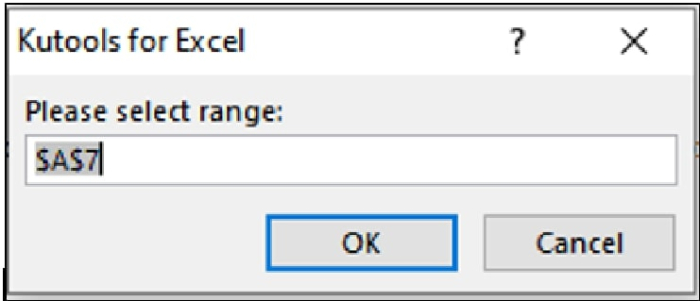
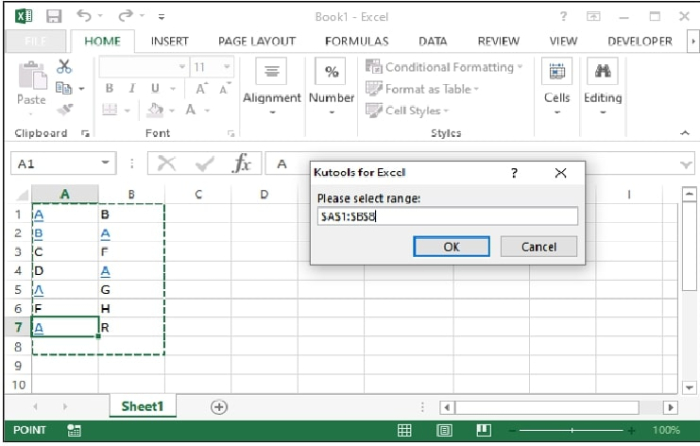
步骤 5 - 现在选择要搜索超链接的数据集范围,然后单击"确定"按钮。
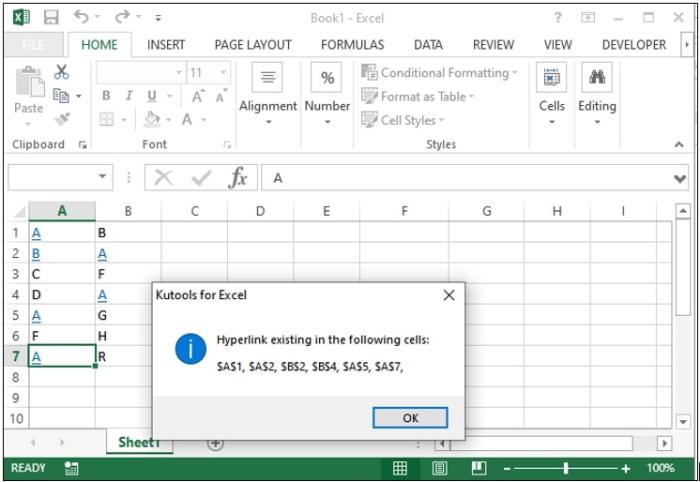
步骤 6 - 然后将打开一个对话框,显示包含超链接的单元格位置。
总结
本文介绍了三种在 Excel 表格中查找超链接的方法。在海量数据中查找超链接是一项繁琐的任务。有时,我们需要将这些数据合并起来用于参考或数据共享。VBA 代码方法实际上可以找到所有隐藏的超链接,即使这些链接没有经过任何特定格式的设置。
希望本文能帮助您学习新的 Excel 技巧。继续探索,继续学习。
相关文章
有用资源
excel 参考教程 - 该教程包含有关 excel 的更多信息:https://www.cainiaomax.com/excel/

