
如何在 iOS 应用中创建 CollectionView 布局?
CollectionView 和 TableView 是 iOS 开发中许多基本概念中的两个,每个开发者都应该掌握它们才能成为优秀的开发者。
在本文中,我们将主要关注 CollectionView。CollectionView 与 Table View 类似,但也有一些区别,Collection View 支持水平和垂直滚动,看起来像一个网格。 iOS 中的 CollectionView 在 Android 中也称为网格视图。
要了解更多信息,请参阅 https://developer.apple.com/documentation/uikit/uicollectionview
如您所见,Collection View 由补充视图和单元格组成。Collection View 使用单元格在屏幕上呈现项目,单元格是 UICollectionViewCell 类的一个实例,该类由您的数据源配置并提供。
由您的数据源配置并提供。
除了单元格之外,补充视图还可以是诸如节头和页脚之类的内容,它们独立于各个单元格,但仍能传达一些信息种类。对补充视图的支持是可选的,由集合视图的布局对象定义,该对象也负责定义这些视图的位置。
因此,在本文中,我们将了解如何创建集合视图。
那么,让我们开始吧。
步骤 1 − 打开 Xcode 并创建一个单视图应用程序,并将其命名为 SampleCollectionView。
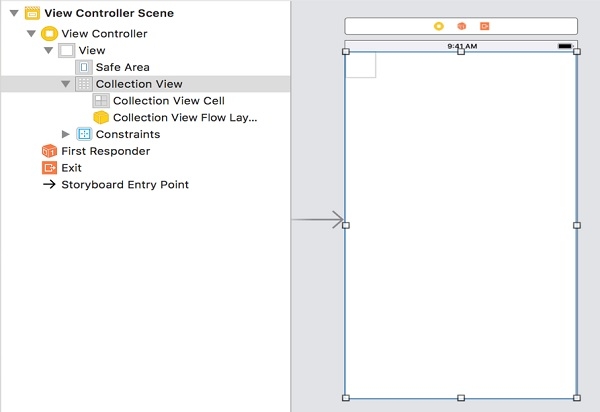
步骤 2 − 在 Main.storyboard 中添加 UICollectionView,如下所示。
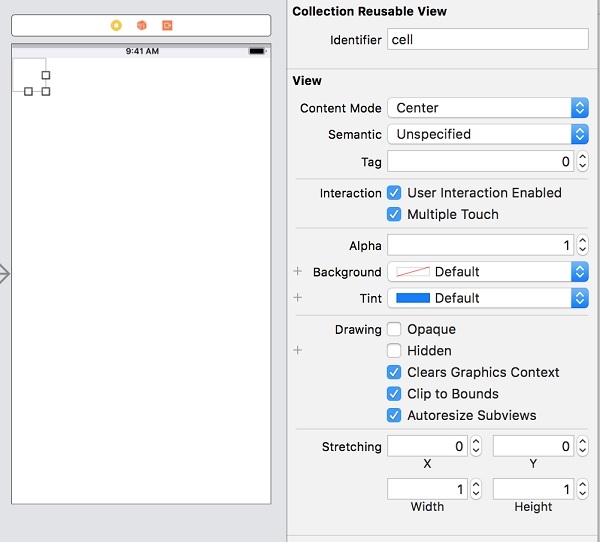
步骤 3 −选中 Collection View Cell,并将重用标识符命名为"cell",如下所示。
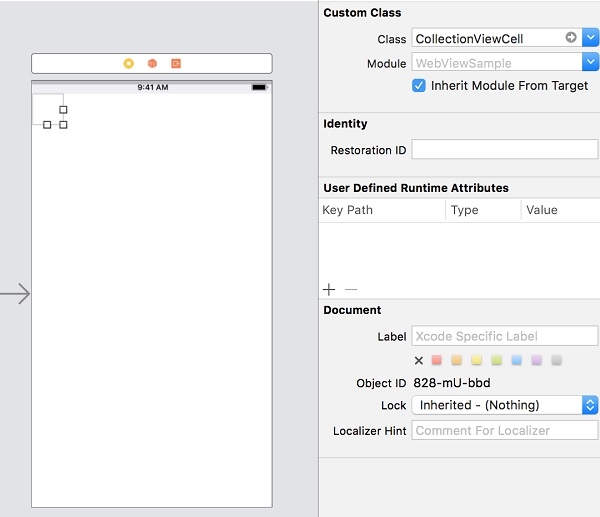
步骤 4 − 创建一个新的 Cocoa Touch 文件,将其命名为 CollectionViewCell,类型为 UICollectionViewCell,并将相同的类添加到 Cell,如下所示。
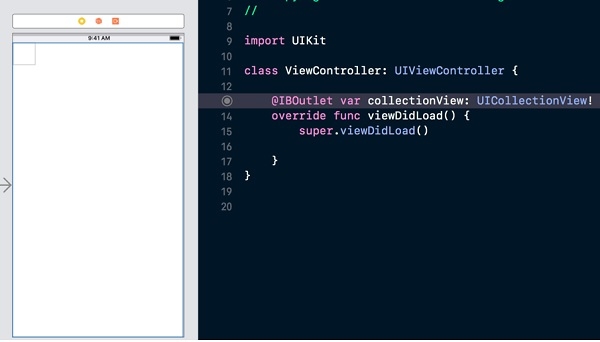
步骤 5 −在 ViewController.swift 中创建集合视图的 @IBOutlet。
步骤 6 − 现在将委托和数据源添加到集合视图
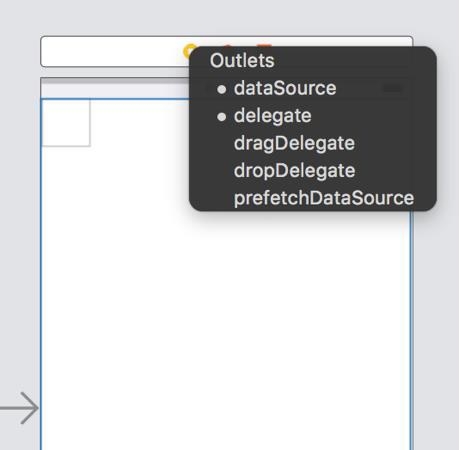
步骤 7 −打开 ViewController.swift 并确认 UICollectionViewDelegate 和 UICollectionViewDataSource
class ViewController: UIViewController, UICollectionViewDelegate, UICollectionViewDataSource
步骤 8 − 实现强制委托方法,如下所示
func collectionView(_ collectionView: UICollectionView, numberOfItemsInSection section: Int) -> Int {
   return 500
}
func collectionView(_ collectionView: UICollectionView, cellForItemAt indexPath: IndexPath) -> UICollectionViewCell {
   let cell: UICollectionViewCell = collectionView.dequeueReusableCell(withReuseIdentifier: "cell", for: indexPath) as! CollectionViewCell
   cell.backgroundColor = UIColor.gray
   return cell
}
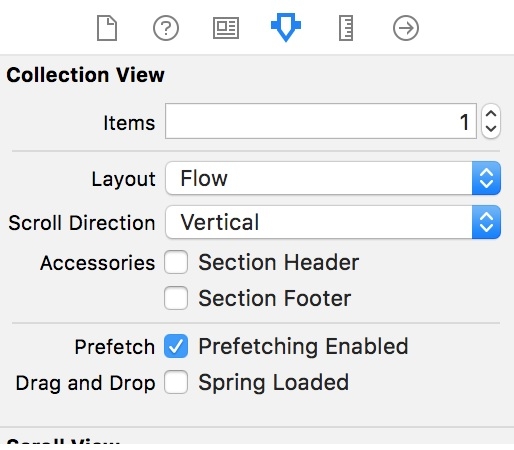
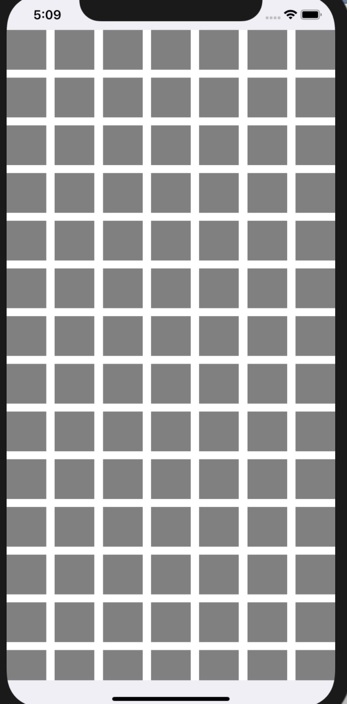
步骤 9 − 运行应用程序,您可以垂直滚动,以使集合视图水平滚动
将滚动方向属性更改为水平。
完整代码
import UIKit
class ViewController: UIViewController, UICollectionViewDelegate, UICollectionViewDataSource {
   @IBOutlet var collectionView: UICollectionView!
   override func viewDidLoad() {
      super.viewDidLoad()
   }
   func collectionView(_ collectionView: UICollectionView, numberOfItemsInSection section: Int) -> Int {
   return 500
   }
   func collectionView(_ collectionView: UICollectionView, cellForItemAt indexPath: IndexPath) -> UICollectionViewCell {
      let cell: UICollectionViewCell = collectionView.dequeueReusableCell(withReuseIdentifier: "cell", for: indexPath) as! CollectionViewCell
      cell.backgroundColor = UIColor.gray
      return cell
   }
}

