
如何在 Python 中创建 Microsoft Word 段落并插入图像?
pythonserver side programmingprogramming更新于 2026/2/15 18:52:17
简介...
作为数据工程专家,我经常收到测试人员在 Microsoft Word 中提供的测试结果。唉!他们从截取屏幕截图和非常大的段落中将大量信息放入 Word 文档中。
前几天,测试团队要求我帮助他们编写一个程序来插入工具生成的文本和图像(通过自动屏幕截图拍摄。本文未涉及)。
与其他文档不同,MS Word 文档没有页面的概念,因为它不幸以段落的形式工作。所以我们需要使用分隔符和节来正确划分文档。
如何做到这一点..
1.继续安装 python-docx。
import docx

# 创建新的 couments
WordDocx = docx.Document()

# 我的段落。
Paragraph = WordDocx.add_paragraph('1. Hello World,这里有一些示例文本...')
run = Paragraph.add_run()

# 带换行符的段落
run.add_break(docx.text.run.WD_BREAK.LINE)

# 添加更多
Paragraph.add_run('2. 我刚刚写了第二行,我可以写更多...')

# 最后保存文档。
WordDocx.save('My_Amazing_WordDoc.docx')
2.现在让我们检查内容是否一切正常。好吧,你是程序员,所以我们将以编程方式进行。
doc = docx.Document('My_Amazing_WordDoc.docx')
print(f"output \n *** 文档有 {len(doc.paragraphs)} - 段落")
for passage_number, passage in enumerate(doc.paragraphs):
if passage.text:
print(f"\n {paragraph.text}")
输出
*** 文档有 1 - 段

1. Hello World,这里有一些示例文本...
2. 我刚刚写了第二行,我可以写更多...
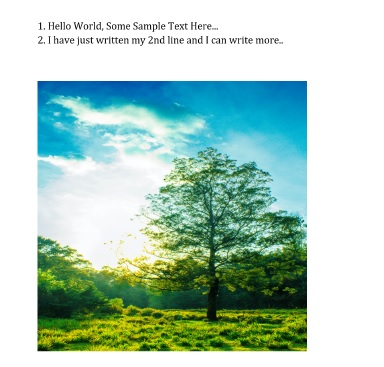
3. 现在我们将向文档添加图像。所以,首先我们需要寻找一张图片。我从 unsplash.com 下载了一张图片,它没有任何版权问题。请确保您从互联网上下载的任何内容都经过最谨慎的处理。
Unsplash 有版权免费图片,我们可以将其用于任何目的,感谢他们的工作。
好的,我已经下载了一张图片并将其命名为 Tree.img,它将被添加到我们的文档中。
import requests
from docx.shared import Cm

# 从 Github 下载图片
response = requests.get("https://raw.githubusercontent.com/sasankac/TestDataSet/master/Tree.jpg")
image = open("Tree.jpg", "wb")
image.write(response.content)
image.close()

# 添加图像
image_to_add = doc.add_picture("Tree.jpg")
print(f"output \n *** 我的图像宽度 = {image_to_add.width} 且高度为 - {image_to_add.height}")
输出
*** 我的图像宽度 = 43891200 且高度为 - 65836800
4.我们需要适当缩放图像,因为我的图像太大了。我们可以使用宽度和高度参数。
image_to_add.width = Cm(10)
image_to_add.height = Cm(10)
print(f" *** 我的新尺寸图像的宽度 = {image_to_add.width} 和高度为 - {image_to_add.height}")

# 最后保存文档
doc.save('report.docx')
*** 我的新尺寸图像的宽度 = 3600000 和高度为 - 3600000
5.打开文档,您将看到添加的图像和文本。
6.将所有内容放在一起。
示例
import requests
from docx.shared import Cm

# 从 Github 下载图像
response = request.get("https://raw.githubusercontent.com/sasankac/TestDataSet/master/Tree.jpg")
image = open("Tree.jpg", "wb")
image.write(response.content)
image.close()

# 添加图像
image_to_add = doc.add_picture("Tree.jpg")
print(f"output \n *** 我的图像宽度 = {image_to_add.width} 高度为 - {image_to_add.height}")

image_to_add.width = Cm(10)
image_to_add.height = Cm(10)
print(f" *** 我的新尺寸图像的宽度 = {image_to_add.width} 和高度为 - {image_to_add.height}")

# 最后保存文档
doc.save('report.docx')
输出
*** 我的图像的宽度 = 43891200 和高度为 - 65836800
*** 我的新尺寸图像的宽度 = 3600000 和高度为 - 3600000
相关文章
有用资源
python 参考教程 - 该教程包含有关 python 的更多信息:https://www.cainiaomax.com/python/

