
如何在 Ubuntu 16.04 上安装和配置 MS SQL(Beta 版)
本文将介绍如何在 Ubuntu 上安装和配置 MS SQL。微软最近宣布计划发布适用于 Linux 的 MS SQL。特指 Red Hat Enterprise Linux、CentOS 和 Ubuntu 的测试版,但仅限 64 位版本。
先决条件
- 至少配备 4 GB 内存和 30 GB 硬盘空间的计算机。
- 已安装 Ubuntu 16.04 的计算机。
- 具有 root 权限的用户或 root 用户。
在 Ubuntu 上安装 MS SQL Server
由于 MS SQL Server 不在默认的 Ubuntu 软件仓库中,我们需要将 MS SQL Server 的软件仓库信息添加到本地计算机的软件仓库中。
我们需要将 GPG 密钥添加到本地计算机。
$ sudo curl https://packages.microsoft.com/keys/microsoft.asc | sudo apt-key add –
% Total % Received % Xferd Average Speed Time Time Time Current
Dload Upload Total Spent Left Speed
100 983 100 983 0 0 253 0 0:00:03 0:00:03 --:--:-- 253
OK
然后我们将把微软软件仓库添加到本地Ubuntu机器上
$ sudo curl https://packages.microsoft.com/config/ubuntu/16.04/mssql-server.list | sudo tee /etc/apt/sources.list.d/mssql-server.list
% Total % Received % Xferd Average Speed Time Time Time Current
Dload Upload Total Spent Left Speed
100 87 100 87 0 0 95 0 --:--:-- --:--:-- --:--:-- 95
deb [arch=amd64] https://packages.microsoft.com/ubuntu/16.04/mssql-server xenial main
我们需要运行更新命令,将软件仓库更新到本地计算机。
$ sudo apt-get update
软件仓库更新完成后,我们将运行以下命令来安装 MS-SQL 服务器。
$ sudo apt-get install -y mssql-server
Reading package lists... Done
Building dependency tree
Reading state information... Done
The following additional packages will be installed:
gcc-5-base gdb gdbserver libbabeltrace-ctf1 libbabeltrace1 libc++1 libc6 libc6-dbg
libcc1-0 libcurl3 libjemalloc1 libpython-stdlib libpython2.7-minimal
libpython2.7-stdlib libstdc++6 libunwind8 python python-minimal python2.7
python2.7-minimal
Suggested packages:
..
..
Need to get 158 MB of archives.
After this operation, 734 MB of additional disk space will be used.
Get:1 http://in.archive.ubuntu.com/ubuntu xenial-updates/main amd64 libpython2.7-minimal amd64 2.7.12-1ubuntu0~16.04.1 [339 kB]
Get:2 https://packages.microsoft.com/ubuntu/16.04/mssql-server xenial/main amd64 mssql-server
amd64 14.0.1.246-6 [144 MB]
..
..
..
14 not fully installed or removed.
Need to get 0 B/144 MB of archives.
After this operation, 681 MB of additional disk space will be used.
Preconfiguring packages ...
(Reading database ... 60605 files and directories currently installed.)
Preparing to unpack .../mssql-server_14.0.1.246-6_amd64.deb ...
Unpacking mssql-server (14.0.1.246-6) ...
Processing triggers for libc-bin (2.23-0ubuntu3) ...
…
..
Setting up libc++1:amd64 (3.7.0-1) ...
Setting up libc6-dbg:amd64 (2.23-0ubuntu4) ...
Setting up libjemalloc1 (3.6.0-9ubuntu1) ...
Setting up mssql-server (14.0.1.246-6) ...
+-------------------------------------------------------------------+
| Please run /opt/mssql/bin/sqlservr-setup to complete the setup of |
| Microsoft(R) SQL Server(R). |
+-------------------------------------------------------------------+
Processing triggers for libc-bin (2.23-0ubuntu3) ...
配置 MS SQL SA 帐户
安装完成后,我们将运行 sqlservr-setup 脚本来设置 SA 帐户的密码;我们需要为 SA 帐户设置一个强密码(至少 8 个字符,包含大小写字母、数字 1 到 10 或任何非字母数字字符)
# sudo /opt/mssql/bin/sqlservr-setup
Microsoft(R) SQL Server(R) Setup
You can abort setup at anytime by pressing Ctrl-C. Start this program
with the --help option for information about running it in unattended mode.
The license terms for this product can be downloaded from
http://go.microsoft.com/fwlink/?LinkId=746388 and found
in /usr/share/doc/mssql-server/LICENSE.TXT.
Do you accept the license terms? If so, please type "YES": YES
Please enter a password for the system administrator (SA) account:
Please confirm the password for the system administrator (SA) account: The passwords specified do not match. Please try again.
Please enter a password for the system administrator (SA) account:
Please confirm the password for the system administrator (SA) account:
Setting system administrator (SA) account password...
Do you wish to start the SQL Server service now? [y/n]: y
Do you wish to enable SQL Server to start on boot? [y/n]: y
Created symlink from /etc/systemd/system/multi-user.target.wants/mssql-server.service to /lib/systemd/system/mssql-server.service.
Created symlink from /etc/systemd/system/multi-user.target.wants/mssql-server-telemetry.service to /lib/systemd/system/mssql-server-telemetry.service.
设置成功
配置完成后,我们将重启 MS SQL 服务,并使用以下命令查看服务状态
重启服务
# systemctl start mssql-server
查看服务状态
# systemctl status mssql-server
mssql-server.service - Microsoft(R) SQL Server(R) Database Engine
Loaded: loaded (/lib/systemd/system/mssql-server.service; enabled; vendor preset: enabled)
Active: active (running) since Tue 2016-12-06 23:13:01 IST; 52s ago
Main PID: 6173 (sqlservr)
CGroup: /system.slice/mssql-server.service
├─6173 /opt/mssql/bin/sqlservr
└─6190 /opt/mssql/bin/sqlservr
Dec 06 23:13:28 ubuntu16 sqlservr[6173]: [45B blob data]
..
..
Dec 06 23:13:28 ubuntu16 sqlservr[6173]: [124B blob data]
Dec 06 23:13:36 ubuntu16 systemd[1]: Started Microsoft(R) SQL Server(R) Database Engine.
安装 MS SQL 客户端工具
安装并更新 GPG 密钥,我们将把存储库更新到本地计算机。
# curl https://packages.microsoft.com/keys/microsoft.asc | sudo apt-key add -
% Total % Received % Xferd Average Speed Time Time Time Current
Dload Upload Total Spent Left Speed
100 983 100 983 0 0 282 0 0:00:03 0:00:03 --:--:-- 282
OK
GPG密钥更新后,我们将使用Microsoft存储库更新本地存储库。
$ sudo curl https://packages.microsoft.com/config/ubuntu/16.04/prod.list | sudo tee /etc/apt/sources.list.d/msprod.list
% Total % Received % Xferd Average Speed Time Time Time Current
Dload Upload Total Spent Left Speed
0 0 0 0 0 0 0 0 --:--:-- 0:00:01 --:--:-- 0
100 79 100 79 0 0 67 0 0:00:01 0:00:01 --:--:-- 67
deb [arch=amd64] https://packages.microsoft.com/ubuntu/16.04/prod xenial main$
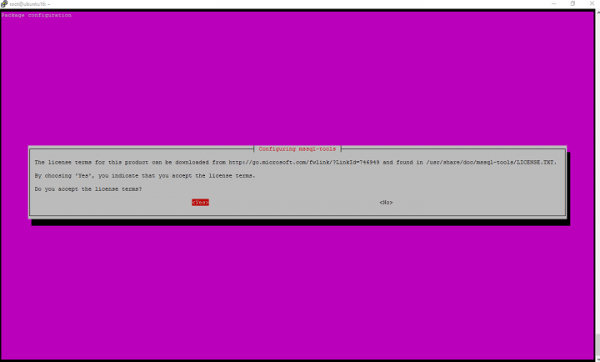
将存储库安装到本地计算机后,我们可以使用以下命令安装 MS SQL 工具
# sudo apt-get install mssql-tools
Reading package lists... Done
Building dependency tree
Reading state information... Done
..
..
Selecting previously unselected package mssql-tools.
(Reading database ... 66292 files and directories currently installed.)
Preparing to unpack .../mssql-tools_14.0.1.246-1_amd64.deb ...
Unpacking mssql-tools (14.0.1.246-1) ...
Setting up mssql-tools (14.0.1.246-1) ...
在 Linux 上连接到 SQL Server
工具安装完成后,我们将进行测试。以下是连接到 MS SQL Server 的命令和通用语法。
语法:
# sqlcmd –S IP-ADDRESS –U SA –P ‘<YOUR SYSTEM PASSWORD’
# sqlcmd sqlcmd -S localhost -U SA -P Test@1234
1>CREATE DATABASE TEST1;
2>GO;
3>quit
例如,我们将执行以下查询,以返回所有数据库的名称。
SELECT Name from sys.Databases;
GO
使用 SQL Server 默认设置创建数据库。
CREATE DATABASE inventdb;
GO
在以上文章中,我们学习了如何在 Ubuntu 16.04 上安装 MS SQL Server,如何使用 MS SQL 命令行工具连接到服务器,以及如何更改或设置 MS SQL 的 SA 帐户密码、安装客户端工具并执行查询。

