
Flex - VGroup
简介
VGroup 容器是使用 VerticalLayout 类的 Group 容器。使用 VGroup 类的属性可以修改 VerticalLayout 类的特性。
类声明
以下是 spark.components.VGroup 类的声明 −
public class VGroup
extends Group
公共属性
| Sr.No | 属性 &描述 |
|---|---|
| 1 | firstIndexInView : int [只读] 布局中第一个布局元素的索引,位于布局目标的滚动矩形内,如果尚未显示任何内容,则为 -1。 |
| 2 | gap : int 布局元素之间的垂直空间,以像素为单位。 |
| 3 | horizontalAlign : String 布局元素的水平对齐方式。 |
| 4 | lastIndexInView : int [只读] 布局中最后一行的索引,位于容器的滚动矩形内,如果尚未显示任何内容,则为 -1。 |
| 5 | paddingBottom : Number 容器底部边缘与最后一个布局元素底部边缘之间的像素数。 |
| 6 | paddingLeft : Number 容器左边缘与布局元素左边缘之间的最小像素数。 |
| 7 | paddingRight : Number 容器右边缘与布局元素右边缘之间的最小像素数。 |
| 8 | paddingTop : Number 容器上边缘与第一个布局元素上边缘之间的像素数。 |
| 9 | requestedMaxRowCount : int 此布局的测量高度足够大,最多可显示 requestedMaxRowCount 个布局元素。 |
| 10 | requestedMinRowCount : int 此布局的测量高度足够大,至少可以显示 requestedMinRowCount 个布局元素。 |
| 11 | requestedRowCount : int 此布局的测量尺寸足够高,可以显示第一个 requestedRowCount 布局元素。 |
| 12 | rowCount : int [只读] 当前可见元素的数量。 |
| 13 | rowHeight : Number 如果 variableRowHeight 为 false,则此属性指定每个子元素的实际高度(以像素为单位)。 |
| 14 | variableRowHeight : Boolean 指定是否为布局元素分配其首选高度。 |
| 15 | verticalAlign : String 内容相对于容器高度的垂直对齐方式。 |
公共方法
| Sr.No | 方法 &描述 |
|---|---|
| 1 | VGroup() 构造函数。 |
继承的方法
此类从以下类继承方法 −
- spark.components.Group
- spark.components.supportClasses.GroupBase
- mx.core.UIComponent
- mx.core.FlexSprite
- flash.display.Sprite
- flash.display.DisplayObjectContainer
- flash.display.InteractiveObject
- flash.display.DisplayObject
- flash.events.EventDispatcher
- Object
Flex VGroup 示例
让我们按照以下步骤通过创建测试应用程序来检查 Flex 应用程序中 VGroup 的使用情况 −
| 步骤 | 描述 |
|---|---|
| 1 | 按照 Flex - 创建应用程序 一章中的说明,在 com.tutorialspoint.client 包下创建一个名为 HelloWorld 的项目。 |
| 2 | 按照下面的说明修改 HelloWorld.mxml。保持其余文件不变。 |
| 3 | 编译并运行应用程序以确保业务逻辑按要求运行。 |
以下是修改后的 mxml 文件 src/com.tutorialspoint/HelloWorld.mxml 的内容。
<?xml version = "1.0" encoding = "utf-8"?>
<s:Application xmlns:fx = "http://ns.adobe.com/mxml/2009"
   xmlns:s = "library://ns.adobe.com/flex/spark"
   xmlns:mx = "library://ns.adobe.com/flex/mx
   width = "100%" height = "100%" minWidth = "500" minHeight = "500">

   <fx:Style source = "/com/tutorialspoint/client/Style.css" />
   <fx:Script>
      <![CDATA[
         private function applyVGroupProperties():void {
            mainVGroup.paddingTop = padTopV.value;
            mainVGroup.paddingLeft = padLeftV.value;
            mainVGroup.paddingRight = padRightV.value;
            mainVGroup.paddingBottom = padBottomV.value;
            mainVGroup.gap = gapV.value;
         }
      ]]>
   </fx:Script>

   <s:BorderContainer width = "630" height = "480" id = "mainContainer"
      styleName = "container">
      <s:VGroup width = "100%" height = "100%" gap = "50"
         horizontalAlign = "center" verticalAlign = "middle">
         <s:Label id = "lblHeader" text = "Layout Panels Demonstration"
            fontSize = "40" color = "0x777777" styleName = "heading" />

         <s:Panel id = "vGroupPanel" title = "Using VGroup"
            width = "500" height = "300" includeInLayout = "true" visible = "true">
            <s:layout>
               <s:HorizontalLayout  gap = "10" verticalAlign = "middle"
                  horizontalAlign = "center" />
            </s:layout>

            <s:VGroup top = "10" left = "15">
               <s:HGroup verticalAlign = "middle">
                  <s:Label text = "Gap:" width = "100" />
                  <s:NumericStepper id = "gapV" maximum = "400" />
               </s:HGroup>

               <s:HGroup verticalAlign = "middle">
                  <s:Label text = "Padding Top:" width = "100" />
                  <s:NumericStepper id = "padTopV" maximum = "400" />
               </s:HGroup>

               <s:HGroup verticalAlign = "middle">
                  <s:Label text = "Padding Left:" width = "100" />
                  <s:NumericStepper id = "padLeftV" maximum = "400" />
               </s:HGroup>

               <s:HGroup verticalAlign = "middle">
                  <s:Label text = "Padding Right:" width = "100" />
                  <s:NumericStepper id = "padRightV" maximum = "400" />
               </s:HGroup>

               <s:HGroup verticalAlign = "middle">
                  <s:Label text = "Padding Bottom:" width = "100" />
                  <s:NumericStepper id = "padBottomV" maximum = "400" />
               </s:HGroup>

               <s:Button label = "Apply Properties"
                  click = "applyVGroupProperties()" />
            </s:VGroup>

            <s:VGroup left = "300" top = "25" id = "mainVGroup">
               <s:BorderContainer width = "50" height = "50"
                  borderWeight = "2" color = "0x323232" />
               <s:BorderContainer width = "50" height = "50"
                  borderWeight = "2" color = "0x323232" />
               <s:BorderContainer width = "50" height = "50"
                  borderWeight = "2" color = "0x323232" />
            </s:VGroup>
         </s:Panel>
      </s:VGroup>
   </s:BorderContainer>
</s:Application>
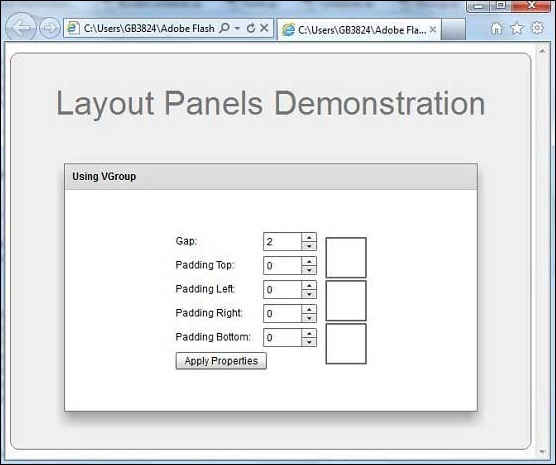
完成所有更改后,让我们像在 Flex - 创建应用程序 一章中一样,以正常模式编译并运行应用程序。如果您的应用程序一切正常,它将产生以下结果:[ 在线试用 ]
 flex_layout_panels.html
