
如何在 Excel 中将重复行移动到另一个工作表?
ms excelmicrosoft technologiesadvanced excel function更新于 2025/1/24 11:24:17
您的工作表可能会被重复数据堵塞,从而难以有效地组织和检查数据。本视频将逐步指导您查找重复行并将其移动到另一个工作表,以保持电子表格的整洁有序。
我们将介绍如何利用 Excel 的预置特性和功能来完成此任务。无论您的 Excel 熟练程度如何,本课程都将为您提供成功处理重复数据和简化工作流程的知识和能力。
将重复行移动到另一个工作表
在这里,我们将首先创建一个 VBA 模块,然后选择单元格来完成任务。让我们通过一个简单的过程来学习如何在 Excel 中将重复行移动到另一张工作表。
步骤 1
假设有一张 Excel 工作表,其中包含重复的行,如下图所示。
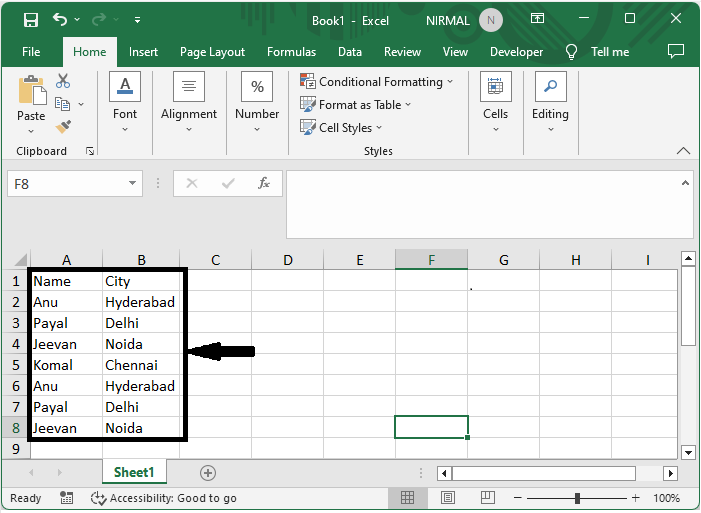
首先,右键单击工作表名称,然后选择"查看代码"以打开 VBA 应用程序。
右键单击 >"查看代码"。
步骤 2
然后单击"插入",选择"模块",然后将以下代码复制到文本框中。
插入 >"模块">复制。
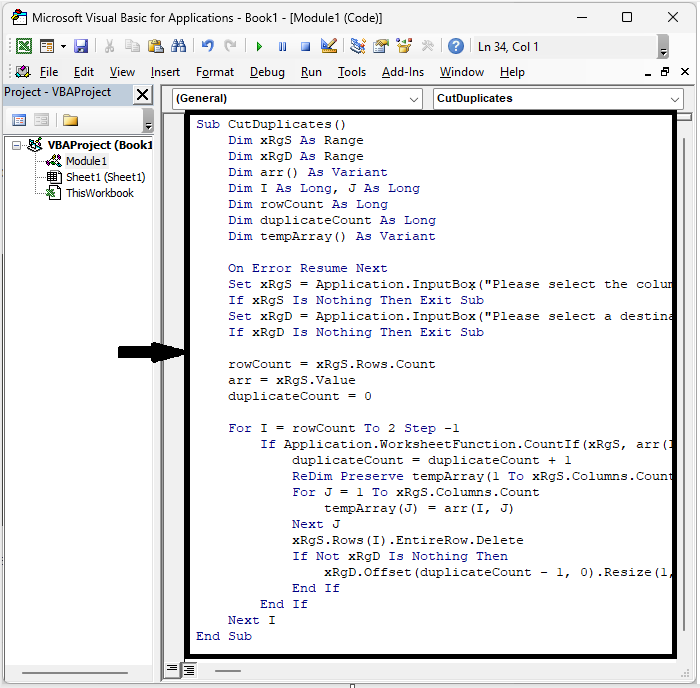
代码
Sub CutDuplicates()
   Dim xRgS As Range
   Dim xRgD As Range
   Dim I As Long, J As Long
   On Error Resume Next
   Set xRgS = Application.InputBox("Please select the column:", "Move Duplicate Rows", Selection.Address, , , , , 8)
   If xRgS Is Nothing Then Exit Sub
   Set xRgD = Application.InputBox("Please select a desitination cell:", "Move Duplicate Rows", , , , , , 8)
   If xRgD Is Nothing Then Exit Sub
   xRows = xRgS.Rows.Count
   J = 0
   For I = xRows To 1 Step -1
      If Application.WorksheetFunction.CountIf(xRgS, xRgS(I)) > 1 Then
         xRgS(I).EntireRow.Copy xRgD.Offset(J, 0)
         xRgS(I).EntireRow.Delete
         J = J + 1
      End If
   Next
End Sub
步骤 3
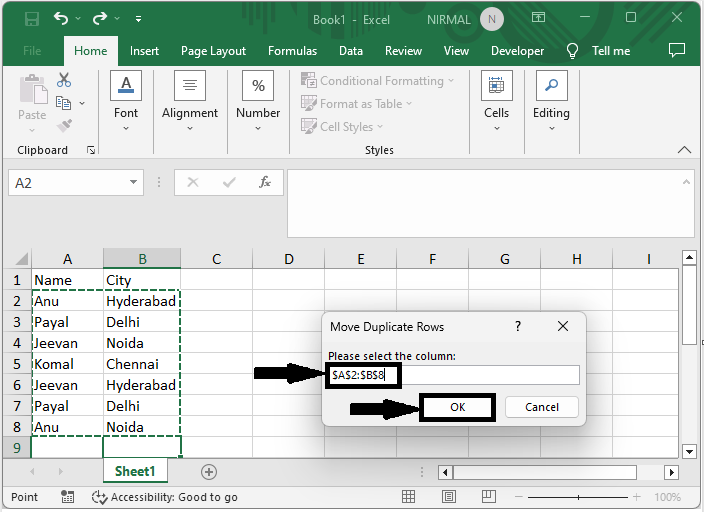
然后点击 F5 运行代码。选择一列并点击"确定"。
步骤 4
最后,选择一个单元格粘贴数据,然后点击"确定"。
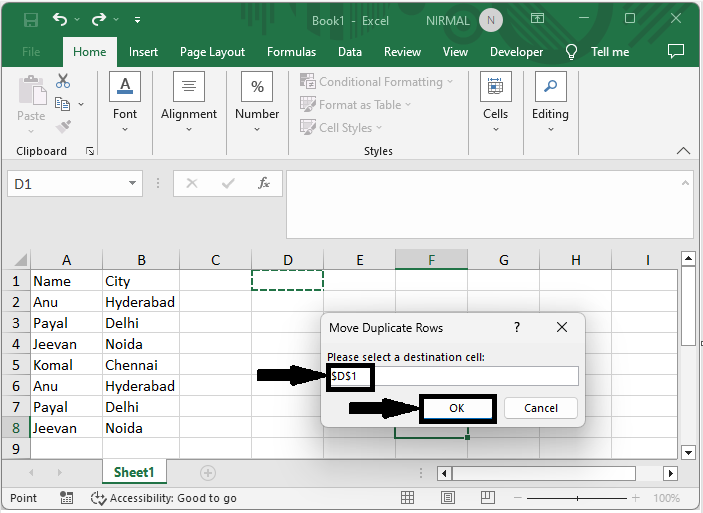
以下是如何在 Excel 中将重复行移动到另一张工作表的方法。
注意
如果要逐行移动行,请使用以下代码。
代码
Sub CutDuplicates()
   Dim xRgD As Range, xRgS As Range
   Dim I As Long, J As Long, K As Long, KK As Long
   On Error Resume Next
   Set xRgS = Application.InputBox("Please select the data range:", "Move Duplicate Rows", Selection.Address, , , , , 8)
   If xRgS Is Nothing Then Exit Sub
   Set xRgD = Application.InputBox("Please select a desitination cell:", " Move Duplicate Rows", , , , , , 8)
   If xRgD Is Nothing Then Exit Sub
   KK = 0
   For I = xRgS.Rows.Count To 1 Step -1
      For J = 1 To I - 1
         For K = 1 To xRgS.Columns.Count
            Debug.Print xRgS.Rows(I).Cells(, K).Value
            Debug.Print xRgS.Rows(J).Cells(, K).Value
            If xRgS.Rows(I).Cells(, K).Value <> xRgS.Rows(J).Cells(, K).Value Then Exit For
         Next
         If K = xRgS.Columns.Count + 1 Then
            xRgS.Rows(I).EntireRow.Copy xRgD.Offset(KK, 0).EntireRow
            xRgS.Rows(I).EntireRow.Delete
            KK = KK + 1
         End If
      Next
   Next
End Sub
结论
在本教程中,我们使用了一个简单的示例来演示如何在 Excel 中将重复行移动到另一个工作表以突出显示特定的一组数据。
相关文章
有用资源
excel 参考教程 - 该教程包含有关 excel 的更多信息:https://www.cainiaomax.com/excel/

