
列举 React Native 的重要核心组件
react nativejavascriptmobile development更新于 2025/7/25 14:04:17
React Native 中最重要的核心组件如下 −
| React Native 组件 | Android Native View | IOS Native View | Web Browser | 说明 |
|---|---|---|---|---|
| View - <View> | 当应用在 Android 设备上显示时,<View> 组件将更改为 <ViewGroup> | 当应用在 IOS 设备上显示时,<View> 组件将更改为 <UIView> | 当在 Web 浏览器中显示时,<View> 组件将更改为 <div>标签 | 它是支持 flexbox 布局的核心容器。它还管理触摸处理。 |
| 文本 - <Text> | 当应用在 Android 设备上显示时,<Text> 组件将更改为 <TextView> | 当应用在 IOS 设备上显示时,<Text> 组件将更改为 <UITextView> | 当在 Web 浏览器中显示时,<Text> 组件将更改为 <p> 标签 | 用于向用户显示文本。它还处理样式和触摸事件。 |
| 图像 - <Image> | 当应用在 Android 设备上显示时,<Image>组件将更改为 <ImageView> | 当应用在 IOS 设备上显示时,<Image> 组件将更改为 <UIImageView> | 当在网络浏览器中显示时,<Image> 组件将更改为 <img> 标签 | 用于显示图像。 |
| Scrollview - <ScrollView> | 当应用在 Android 设备上显示时,<ScrollView> 组件将更改为 <ScrollView> | 当应用在 IOS 设备上显示时,<ScrollView> 组件将更改为 <UIScrollView> | 当在网络浏览器中显示时,<ScrollView>组件将更改为 <div> 标签 | 包含组件和视图的滚动容器。 |
| TextInput - <TextInput> | 当应用在 Android 设备上显示时,<TextInput> 组件将更改为 <EditText> | 当应用在 IOS 设备上显示时,<TextInput> 组件将更改为 <UITextField> | 当在 Web 浏览器中显示时,<TextInput> 组件将更改为 <input type="text"> 标签。 | 用户可以输入文本的输入元素 |
示例
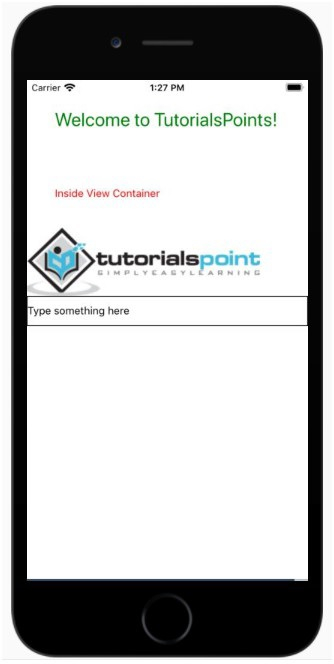
以下是使用 <View>、<Text>、<Image>、<ScrollView> 和 <TextInput> 的工作示例
要使用 Text、View、Image、ScrollView、TextInput,您需要从 react -native 导入组件,如下所示 −
import { View, Text, Image, ScrollView, TextInput } from 'react-native';
View 组件主要用于保存文本、按钮、图像等。组件的使用方式如下 −
<View>
   <Text style={{ padding:"10%", color:"red" }}>视图容器内部</Text>
   <Image
      source={{
         uri: 'https://www.tutorialspoint.com/react_native/images/logo.png',
      }}
      style={{ width: 311, height: 91 }}
   />
</View>
它包含 Text 和 Image 组件。ScrollView 组件的行为类似于处理 View、Text、Image、Button 和其他 React Native 组件的父组件。
import React from 'react';
import { View, Text, Image, ScrollView, TextInput } from 'react-native';

const App = () => {
   return (
      <ScrollView>
         <Text style={{ padding:"10%", color:"green", "fontSize":"25" }}>Welcome to TutorialsPoints!</Text>
         <View>
            <Text style={{ padding:"10%", color:"red" }}>Inside View Container</Text>
            <Image
            source={{
               uri:'https://www.tutorialspoint.com/react_native/images/logo.png',
            }}
            style={{ width: 311, height: 91 }}
         />
      </View>
      <TextInput
         style={{
            height: 40,
            borderColor: 'black',
            borderWidth: 1
         }}
         defaultValue="Type something here"
      />
      </ScrollView>
   );
}
export default App;
输出
相关文章
有用资源
javascript 参考教程 - 该教程包含有关 javascript 的更多信息:https://www.cainiaomax.com/javascript/

