
Angular7 - 动画
动画在 html 元素之间添加了大量交互。 Angular 2 提供了动画功能,从 Angular 4 开始,动画不再是 @angular/core 库的一部分,而是一个单独的包,需要在 app.module.ts 中导入。
首先,我们需要使用以下代码行导入库 −
import { BrowserAnimationsModule } from '@angular/platform-browser/animations';
需要将BrowserAnimationsModule添加到app.module.ts中的导入数组中,如下所示 −
import { BrowserModule } from '@angular/platform-browser';
import { NgModule } from '@angular/core';
import { AppRoutingModule , RoutingComponent} from './app-routing.module';
import { AppComponent } from './app.component';
import { NewCmpComponent } from './new-cmp/new-cmp.component';
import { ChangeTextDirective } from './change-text.directive';
import { SqrtPipe } from './app.sqrt';
import { MyserviceService } from './myservice.service';
import { HttpClientModule } from '@angular/common/http';
import { ScrollDispatchModule } from '@angular/cdk/scrolling';
import { DragDropModule } from '@angular/cdk/drag-drop';
import { ReactiveFormsModule } from '@angular/forms';
import { BrowserAnimationsModule } from '@angular/platform-browser/animations';

@NgModule({
   declarations: [
      SqrtPipe,
      AppComponent,
      NewCmpComponent,
      ChangeTextDirective,
      RoutingComponent
   ],
   imports: [
      BrowserModule,
      AppRoutingModule,
      HttpClientModule,
      ScrollDispatchModule,
      DragDropModule,
      ReactiveFormsModule,
      BrowserAnimationsModule
   ],
   providers: [MyserviceService],
   bootstrap: [AppComponent]
})
export class AppModule { }
在app.component.html中,我们添加了要进行动画处理的html元素。
<div>
   <button (click) = "animate()">Click Me</button>
   <div [@myanimation] = "state" class = "rotate">
      <img src = "assets/images/img.png" width = "100" height = "100">
   </div>
</div>
对于主 div,我们添加了一个按钮和一个带有图像的 div。 有一个单击事件,将调用 animate 函数。 对于 div,添加了 @myanimation 指令并将值指定为状态。
现在让我们看看定义动画的app.component.ts。
import { Component } from '@angular/core';
import { FormGroup, FormControl, Validators} from '@angular/forms';
import { trigger, state, style, transition, animate } from '@angular/animations';

@Component({
   selector: 'app-root',
   templateUrl: './app.component.html',
   styleUrls: ['./app.component.css'],
   styles:[`
      div {
         margin: 0 auto;
         text-align: center;
         width:200px;
      }
      .rotate {
         width:100px;
         height:100px;
         border:solid 1px red;
      }
   `],
   animations: [
      trigger('myanimation',[
         state('smaller',style({
            transform : 'translateY(100px)'
         })),
         state('larger',style({
            transform : 'translateY(0px)'
         })),
         transition('smaller <=> larger',animate('300ms ease-in'))
      ])
   ]
})
export class AppComponent {
   state: string = "smaller";
   animate() {
      this.state= this.state == 'larger' ? 'smaller' : 'larger';
   }
}
我们必须导入要在 .ts 文件中使用的动画函数,如上所示。
import { trigger, state, style, transition, animate } from '@angular/animations';
在这里,我们从 @angular/animations 导入了触发器、状态、样式、过渡和动画。
现在,我们将animations属性添加到@Component()装饰器中 −
animations: [
   trigger('myanimation',[
      state('smaller',style({
         transform : 'translateY(100px)' })),
      state('larger',style({
         transform : 'translateY(0px)' })),
         transition('smaller <=> larger',animate('300ms ease-in'))
   ])
]
触发器定义动画的开始。 它的第一个参数是动画的名称,该名称将赋予需要应用动画的 html 标签。 第二个参数是我们导入的函数 - state、transition等。
state 函数涉及元素将在其间转换的动画步骤。 现在我们已经定义了两个状态,较小的和较大的。 对于较小的状态,我们给出了样式 transform:translateY(100px) 和 transform:translateY(100px)。
transition 函数向 html 元素添加动画。 第一个参数接受开始和结束状态,第二个参数接受 animate 函数。 动画函数允许您定义过渡的长度、延迟和难易程度。
现在让我们查看 .html 文件以了解转换函数是如何工作的 −
<div>
   <button (click) = "animate()">Click Me</button>
   <div [@myanimation] = "state" class = "rotate">
      <img src = "assets/images/img.png" width = "100" height = "100">
   </div>
</div>
@component 指令中添加了一个 style 属性,该属性使 div 居中对齐。 让我们考虑以下示例来理解相同的内容 −
styles:[`
   div{
      margin: 0 auto;
      text-align: center;
      width:200px;
   }
   .rotate{
      width:100px;
      height:100px;
      border:solid 1px red;
   }
`],
这里,一个特殊字符 [``] 用于向 html 元素添加样式(如果有)。 对于 div,我们给出了 app.component.ts 文件中定义的动画名称。
单击按钮时,它会调用 animate 函数,该函数在 app.component.ts 文件中定义,如下所示 −
export class AppComponent {
   state: string = "smaller";
   animate() {
      this.state = this.state == ‘larger’? 'smaller' : 'larger';
   }
}
状态变量已定义,并被赋予较小的默认值。 动画函数会在单击时更改状态。 如果状态较大,则转换为较小; 如果较小,则会转换为较大。
这就是浏览器中的输出(http://localhost:4200/)的样子 −
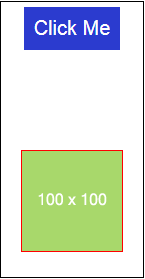
单击Click Me按钮后,图像的位置将发生变化,如下面的屏幕截图所示−
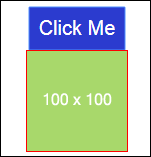
变换函数应用于 y 方向,当我们单击 Click Me 按钮时,y 方向从 0 变为 100px。 图像存储在assets/images文件夹中。

