在 Selenium WebDriver 中检查元素是否可点击
seleniumautomation testingtesting tools更新于 2026/1/24 5:52:17
我们可以使用同步功能在 Selenium WebDriver 中检查元素是否可点击。在同步过程中,驱动程序会显式等待,直到元素的预期条件得到满足。
为了验证元素是否可以点击,我们将使用 elementToBeClickable 条件。如果在驱动程序等待时间内元素的条件仍未满足,则会抛出超时异常。
语法
WebDriverWait wt = new WebDriverWait(driver, 5);
wt.until(ExpectedConditions.elementToBeClickable (By.className("s-buy")));
我们必须添加 import org.openqa.selenium.support.ui.ExpectedConditions 和 import org.openqa.selenium.support.ui.WebDriverWait 语句,以便在代码中实现 ExpectedConditions。
示例
import org.openqa.selenium.By;
import org.openqa.selenium.WebDriver;
import org.openqa.selenium.WebElement;
import org.openqa.selenium.chrome.ChromeDriver;
import java.util.concurrent.TimeUnit;
import org.openqa.selenium.support.ui.ExpectedConditions;
import org.openqa.selenium.support.ui.WebDriverWait;
public class ElemntClickable{
   public static void main(String[] args) {
      System.setProperty("webdriver.chrome.driver", "C:\Users\ghs6kor\Desktop\Java\chromedriver.exe");
      WebDriver driver = new ChromeDriver();
      //隐式等待
      driver.manage().timeouts().implicitlyWait(5, TimeUnit.SECONDS);
      //URL 启动
      driver.get("https://www.tutorialspoint.com/index.htm");
      WebElement n=driver.findElement(By.className("mui-btn"));
      n.click();
      // 显式等待
      WebDriverWait wt = new WebDriverWait(driver,6);
      // elementToBeClickable 预期条件
      wt.until(ExpectedConditions.elementToBeClickable (By.className("s-buy")));
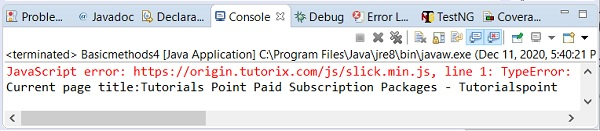
      System.out.println("Current page title:" + driver.getTitle());
      driver.close();
   }
}
输出