
如何在 Excel 中单击激活单元格进行编辑?
ms excelmicrosoft technologiesadvanced excel function更新于 2025/4/10 20:28:17
当我们需要更改单元格中的任何内容时,编辑是一种常见的操作。因此,练习使用快捷键进行此项操作非常有必要。有时我们需要更改单元格的内容。由于我们经常需要修改公式或调试公式,因此快捷键非常有用。我们经常需要编辑公式。此外,对于初学者来说,练习快捷键对于减少完成特定任务所需的时间至关重要。因此,如果我们只需单击一下单元格本身即可编辑单元格,那就太方便了。
本文讨论如何使用 VBA 激活某些单元格,从而在 Excel 中实现一键可编辑。
使用 VBA 代码单击激活单元格
步骤 1
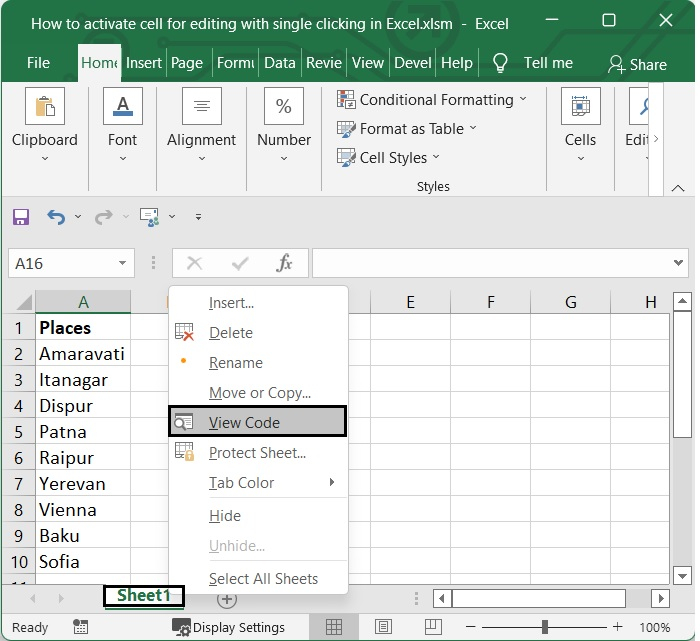
打开要应用此代码的 Excel 工作表。选择该工作表,然后右键单击"工作表"选项卡,在上下文菜单中单击"查看代码"选项。参见下图。
步骤 2
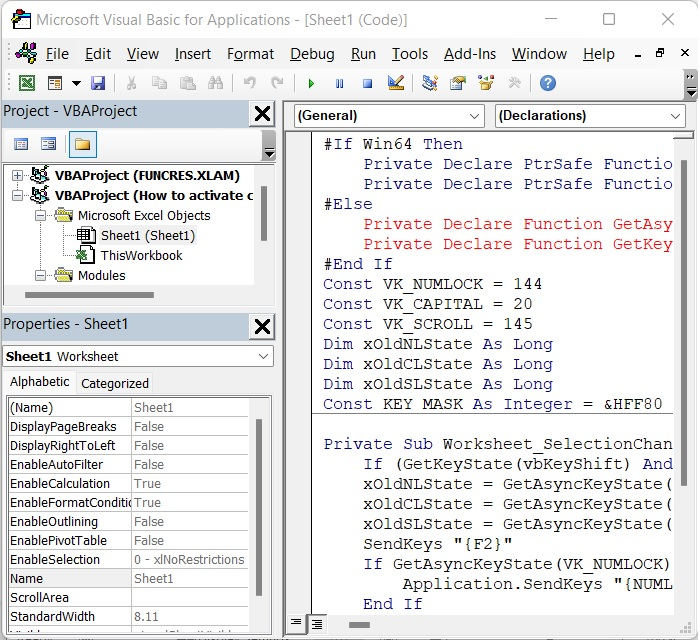
应将以下 Visual Basic for Applications 代码写入新打开的 Microsoft Visual Basic for Applications 窗口的"代码"窗口中。
#If Win64 Then
   Private Declare PtrSafe Function GetAsyncKeyState Lib "user32" (ByVal vKey As Long) As Integer
   Private Declare PtrSafe Function GetKeyState Lib "user32" (ByVal nVirtKey As Long) As Integer
#Else
   Private Declare Function GetAsyncKeyState Lib "user32" (ByVal vKey As Long) As Integer
   Private Declare Function GetKeyState Lib "user32" (ByVal nVirtKey As Long) As Integer
#End If
Const VK_NUMLOCK = 144
Const VK_CAPITAL = 20
Const VK_SCROLL = 145
Dim xOldNLState As Long
Dim xOldCLState As Long
Dim xOldSLState As Long
Const KEY_MASK As Integer = &HFF80 '

Private Sub Worksheet_SelectionChange(ByVal Target As Range)
   If (GetKeyState(vbKeyShift) And KEY_MASK) <> 0 Then Exit
Sub
   xOldNLState = GetAsyncKeyState(VK_NUMLOCK)
   xOldCLState = GetAsyncKeyState(VK_CAPITAL)
   xOldSLState = GetAsyncKeyState(VK_SCROLL)
   SendKeys "{F2}"
   If GetAsyncKeyState(VK_NUMLOCK) <> xOldNLState Then
      Application.SendKeys "{NUMLOCK}"
   End If
   If GetAsyncKeyState(VK_CAPITAL) <> xOldCLState Then
      Application.SendKeys "{CAPSLOCK}"
   End If
   If GetAsyncKeyState(VK_SCROLL) <> xOldSLState Then
      Application.SendKeys "{SCROLLLOCK}"
   End If
End Sub
参见下图。
步骤 3
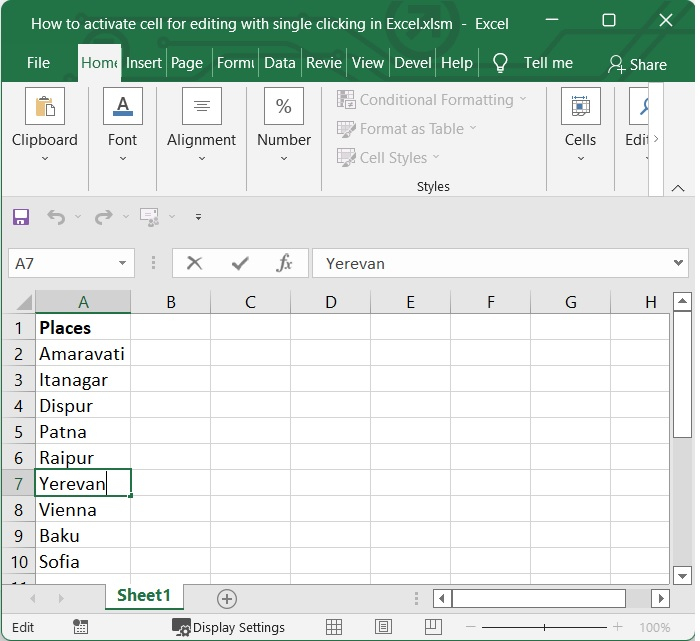
要关闭显示 Microsoft Visual Basic for Applications 的窗口,请同时按下键盘上的 Alt+Q 键。继续操作时,只要单击当前工作表中的单元格,该单元格就会立即激活。参见下图。
总结
在以上教程中,您学习了如何使用 VBA 代码单击激活单元格。
相关文章
有用资源
excel 参考教程 - 该教程包含有关 excel 的更多信息:https://www.cainiaomax.com/excel/

