
如何删除 Excel 列中的非英语字符?
ms excelmicrosoft technologiesadvanced excel function更新于 2025/3/17 20:28:17
像 Microsoft Excel 这样功能强大的软件经常用于数据分析、操作和组织。处理包含不同语言字符的数据集有时会很困难,尤其是在需要过滤或清理数据时。
本分步教程将向您展示如何从 Excel 列中查找并删除非英语字符。本课程将为您提供有效清理数据所需的知识,并确保其符合您的语言标准,无论您处理的是杂乱的数据、外语输入,还是想要从分析中消除的特殊字符。
删除非英语字符
在这里,我们可以使用 VBA 应用程序完成任务。让我们通过一个简单的过程来了解如何删除 Excel 列中的非英文字符。
步骤 1
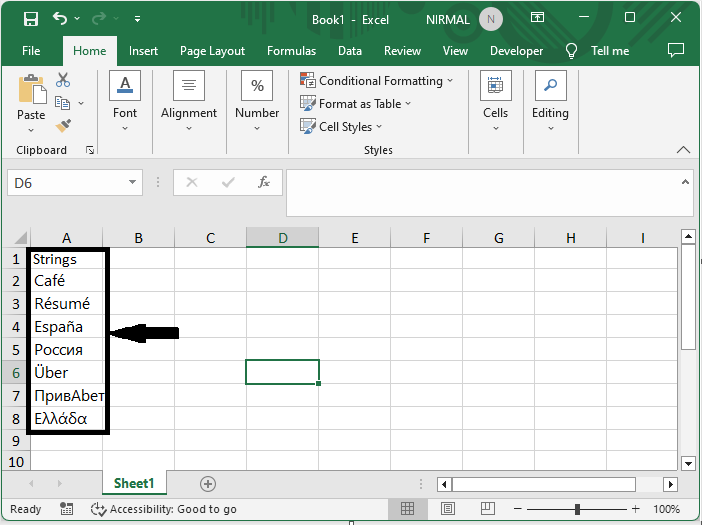
假设有一张 Excel 工作表,其中包含包含非英文字符的单元格,如下图所示。
首先,右键单击工作表名称,然后选择"查看代码"以打开 VBA 应用程序。
右键单击 >"查看代码"。
步骤 2
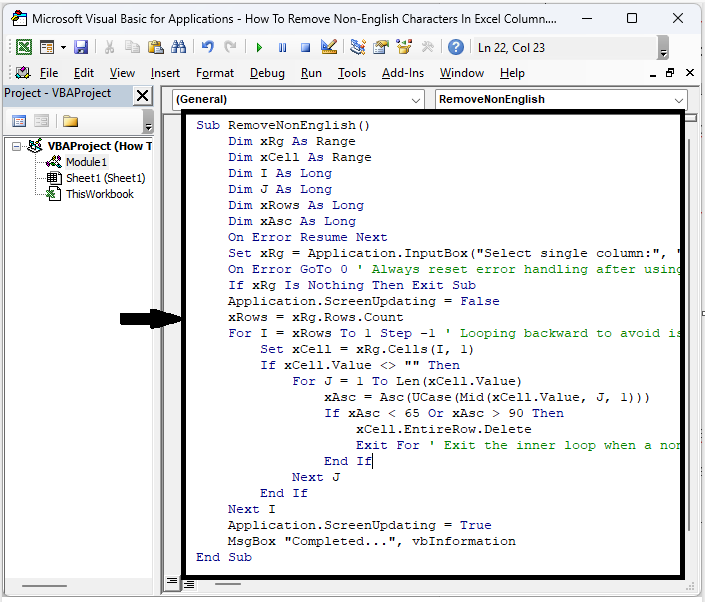
然后单击"插入"并选择"模块",然后将以下代码复制到文本框中。
插入 >"模块">"复制"。
代码
Sub RemoveNonEnglish()
   Dim xRg As Range
   Dim xCell As Range
   Dim I As Long
   Dim J As Long
   Dim xRows As Long
   Dim xAsc As Long
   On Error Resume Next
   Set xRg = Application.InputBox("Select single column:", "Remove Non-English", Selection.Address, , , , , 8)
   On Error GoTo 0 ' Always reset error handling after using it
   If xRg Is Nothing Then Exit Sub
   Application.ScreenUpdating = False
   xRows = xRg.Rows.Count
   For I = xRows To 1 Step -1 ' Looping backward to avoid issues with deleting rows
      Set xCell = xRg.Cells(I, 1)
      If xCell.Value <> "" Then
         For J = 1 To Len(xCell.Value)
            xAsc = Asc(UCase(Mid(xCell.Value, J, 1)))
            If xAsc < 65 Or xAsc > 90 Then
               xCell.EntireRow.Delete
               Exit For ' Exit the inner loop when a non-English character is found
            End If
         Next J
      End If
   Next I
   Application.ScreenUpdating = True
   MsgBox "Completed...", vbInformation
End Sub
步骤 3
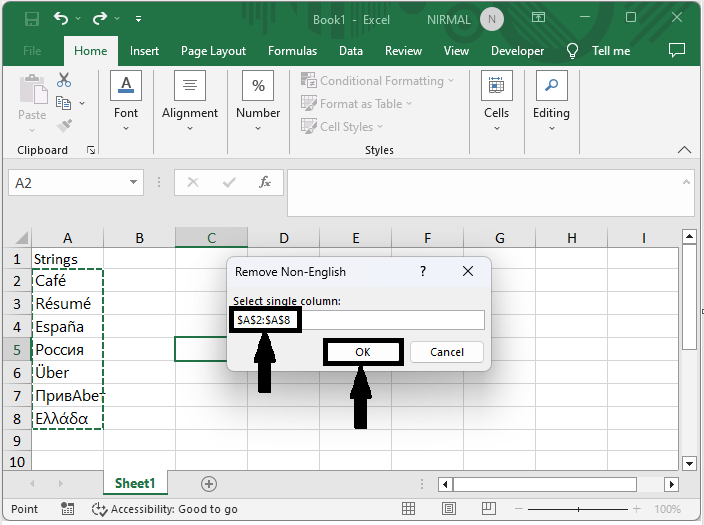
然后点击 F5 运行模块。选择单元格区域并点击"确定"完成任务。之后您将看到非英文字符已被删除。
F5 > 选择单元格 > 确定
以上就是如何在 Excel 列中删除非英文字符的方法。
总结
在本教程中,我们通过一个简单的示例演示了如何在 Excel 列中删除非英文字符以突出显示特定的一组数据。
相关文章
有用资源
excel 参考教程 - 该教程包含有关 excel 的更多信息:https://www.cainiaomax.com/excel/

