
如何使用 ReactNative 中的 Alerts 对话框?
Alert 组件有助于显示一个对话框,即向用户弹出一个带有标题、消息、按钮的窗口,以便根据显示的消息了解用户的确认。
Alert 的基本组件如下 −
Alert.alert('yourtile', 'yourmessage', [yourbuttons], ‘options’)
要使用 Alert 组件,您需要按如下方式导入它 −
import { Alert } from 'react-native';
要获取弹出窗口,您只需调用 Alert.alert() 函数。 alert() 有四个参数,分别是标题、消息、按钮和选项。标题是必需参数,其余参数是可选的。
以下是有关如何使用 Alert.alert() 的简单示例 −
Alert.alert(
   "Hi",
   "Do you want to continue?",
   [
      {
         text: "Later",
         onPress: () => console.log("User pressed Later")
      },
      {
         text: "Cancel",
         onPress: () => console.log("Cancel Pressed"),
         style: "cancel"
      },
      { text: "OK",
         onPress: () => console.log("OK Pressed")
      }
   ],
   { cancelable: false }
);
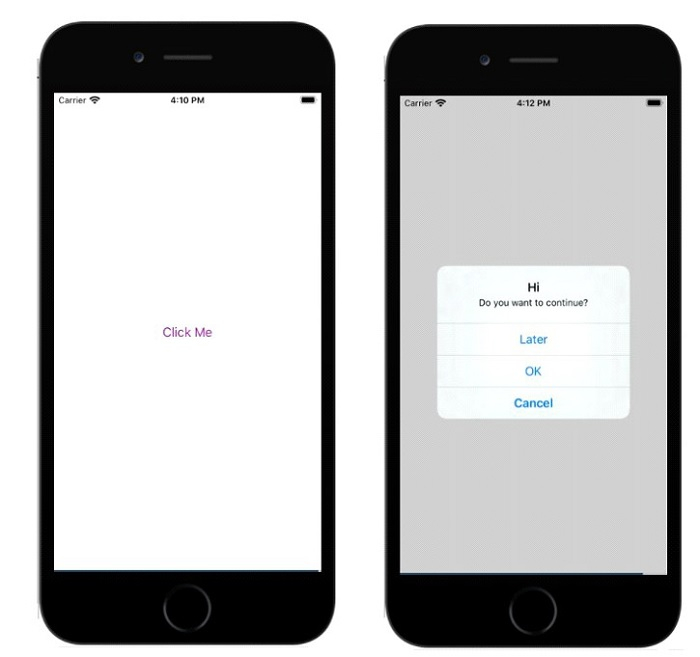
此处的标题是"您好",消息是"是否要继续",我想在对话框中显示的按钮是稍后、取消和确定。每个按钮都添加了 onPress 事件,显示控制台消息。最后一个是选项参数,可用于控制弹出窗口的行为。在 Android 上,默认情况下,如果在弹出窗口边界外单击,弹出窗口将关闭。要禁用此功能,您可以使用 {cancelable: false} 作为选项参数。当您在弹出窗口区域外单击时,由于可取消设置为 false,它不会关闭。
在 iOS 中,您可以指定任意数量的按钮,但在 Android 中,您可以使用三个按钮。Android 中的三个按钮具有中性、负面和正面按钮的概念,例如 −
如果指定一个按钮,它将像"positive"一样例如"OK"。
如果有两个按钮,则第一个按钮为"negative",第二个按钮为"positive"。例如"Cancel"和"OK"。
如果有三个按钮,则三个按钮为"negative"、"positive"。例如"Later"、"Cancel"和"OK"。
以下是展示 Alert 组件工作原理的一个工作示例 −
Example 1: Display of Alert box
import React from 'react';
import { Button, View, Alert } from 'react-native';
const App = () => {
   const testAlert = () =>
   Alert.alert(
      "Hi",
      "Do you want to continue?",
      [
         {
            text: "Later",
            onPress: () => console.log("User pressed Later")
         },
         {
            text: "Cancel",
            onPress: () => console.log("Cancel Pressed"),
            style: "cancel"
         },
         { text: "OK",
            onPress: () => console.log("OK Pressed")
         }
      ],
      { cancelable: false }
   );
   return (
      <View style={{flex :1, justifyContent: 'center', margin: 15 }}>
         <Button
            title="Click Me"
            color="#9C27B0"
            onPress={testAlert}
         />
      </View>
   );
}
export default App;
输出
示例 2:在 Android 中使用 {cancelable: true}
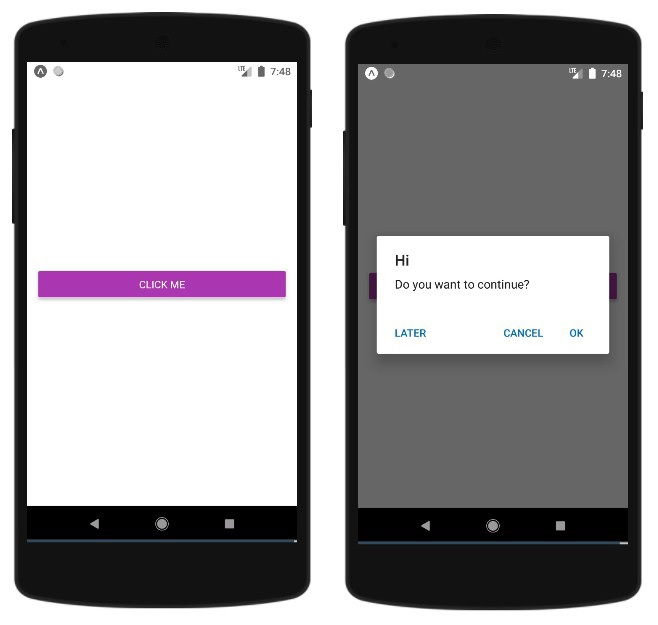
在下面的示例中,{cancelable: true} 与标题、消息和按钮一起使用。因此警告框将如下所示 −
Alert.alert(
   "Hi",
   "Do you want to continue?",
   [
      {
         text: "Later",
         onPress: () => console.log("User pressed Later")
      },
      {
         text: "Cancel",
         onPress: () => console.log("Cancel Pressed"),
         style: "cancel"
      },
      { text: "OK",
         onPress: () => console.log("OK Pressed")
      }
   ],
   { cancelable: true }
);
完整工作示例如下 −
import React from 'react';
import { Button, View, Alert } from 'react-native';
const App = () => {
   const testAlert = () =>
   Alert.alert(
      "Hi",
      "Do you want to continue?",
      [
         {
            text: "Later",
            onPress: () => console.log("User pressed Later")
         },
         {
            text: "Cancel",
            onPress: () => console.log("Cancel Pressed"),
            style: "cancel"
         },
         { text: "OK",
            onPress: () => console.log("OK Pressed")
         }
      ],
      { cancelable: true }
   );
   return (
      <View style={{flex :1, justifyContent: 'center', margin: 15 }}>
         <Button
            title="Click Me"
            color="#9C27B0"
            onPress={testAlert}
         />
      </View>
   );
}
export default App;
当您点击弹出区域之外的区域时,它将关闭。
输出
相关文章
有用资源
javascript 参考教程 - 该教程包含有关 javascript 的更多信息:https://www.cainiaomax.com/javascript/

