
如何在打开和退出 Excel 工作簿时清除指定单元格的内容?
本文将学习如何在打开或关闭 Excel 工作簿时清除特定单元格的内容。此操作可以通过 VBA 代码完成,这些代码可以一次单独应用,无论是在关闭文件时还是在打开文件时。当您在工作簿的特定范围内执行了一些计算或分析,并希望在关闭文件或下次打开文件时立即清除这些计算或分析时,此功能非常有用。让我们看看如何应用 VBA 代码。
打开工作簿时清除指定单元格内容
步骤 1:以下是示例数据。
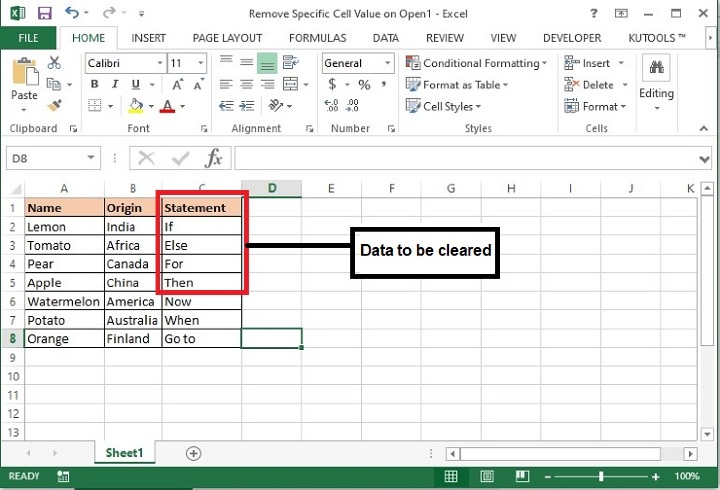
步骤 2:在此文件中,我们将删除 C1:C5 的内容。
步骤 3:按下键盘上的 Alt+F11 键,将打开 Microsoft Visual Basic for Applications 窗口。
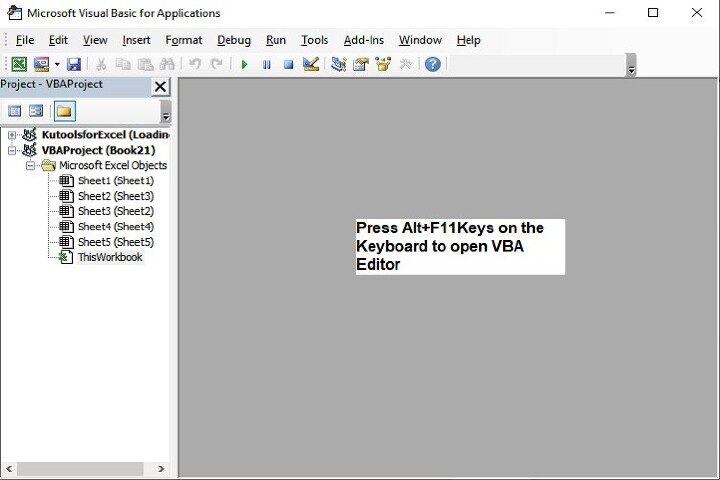
上述编辑器也可以使用"开发人员"选项卡打开,如下所示:

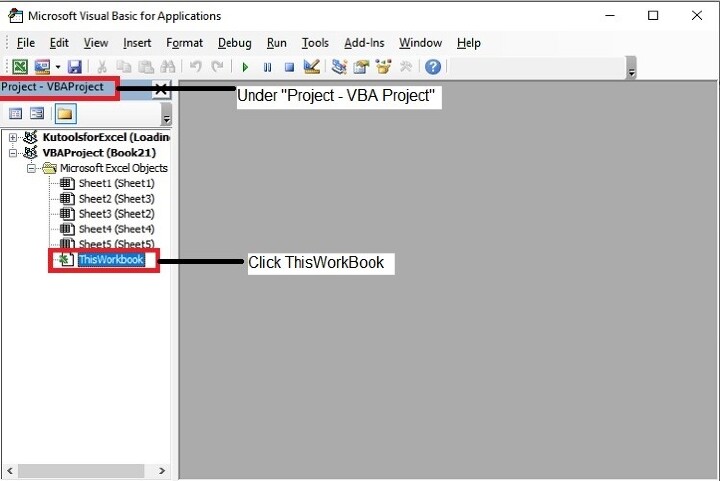
步骤 4:在 Microsoft Visual Basic for Applications 窗口中,双击"项目"面板中的 ThisWorkbook。
步骤 5:现在复制以下 VBA 代码并将其输入到 ThisWorkbook(代码)窗口中。
Private Sub
Workbook_Open() /event to call the function when the workbook will be opened.
    Application.EnableEvents = False / This property is set to False to prevent
the application from raising any of its events.
       Worksheets("Sheet1").Range("C1:C5").Value = "" / Defining the Sheet name
as ‘Sheet1’ and range of cells as ‘C1:C5’ whose data to be cleared when opening
the file. You may modify this as per your need.
    Application.EnableEvents = True / specifying whether we want events to take
place when the VBA code is running or not.
End Sub / end of sub.
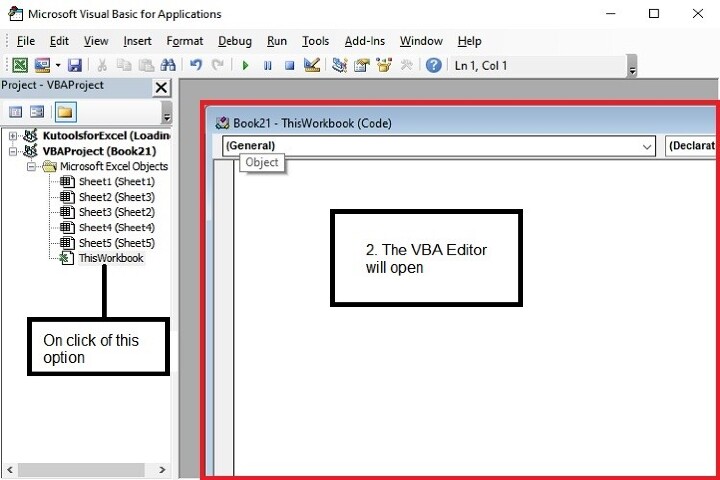
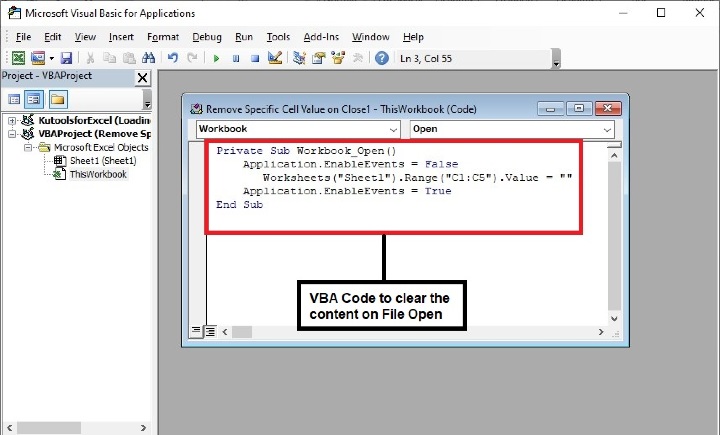
步骤 6:输入代码后,按键盘上的 Alt+Q 键关闭 Microsoft Visual Basic for Applications 窗口。
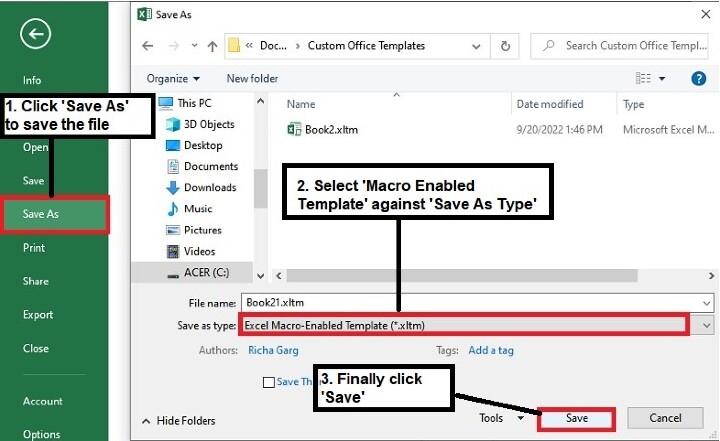
步骤 7:接下来,将文件保存为"Excel 启用宏的工作簿"格式。
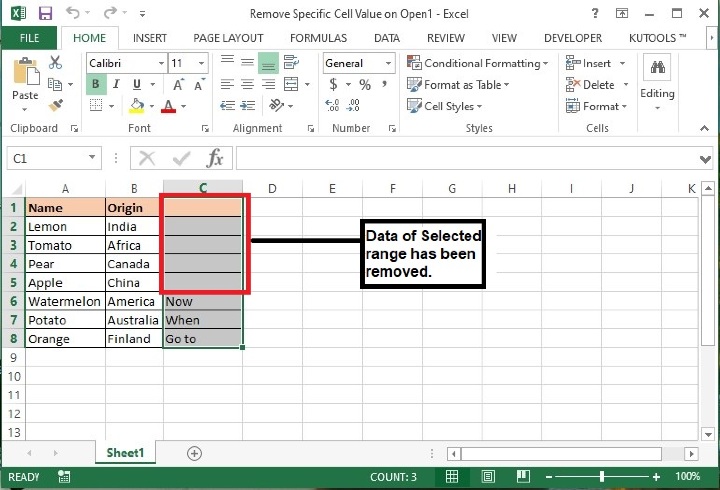
步骤 8:现在重新打开文件,输出内容如下:
退出工作簿时清除指定单元格内容
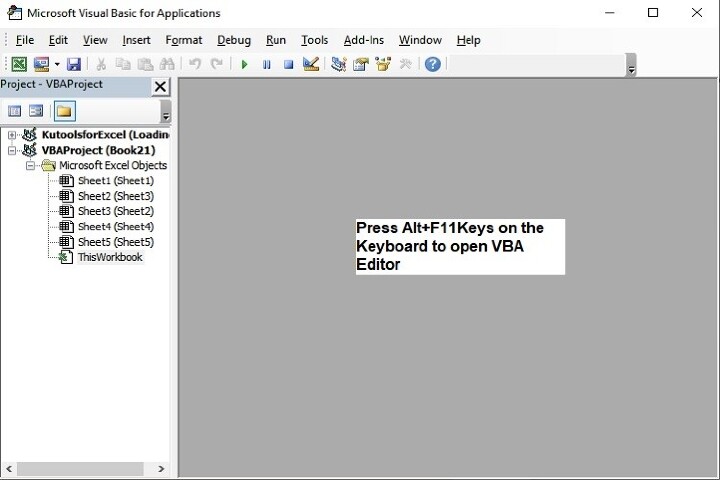
步骤 1:按下键盘上的 Alt+F11 键,Microsoft Visual Basic for Applications 窗口将打开。
也可以使用"开发人员"选项卡打开上述编辑器,如下所示:

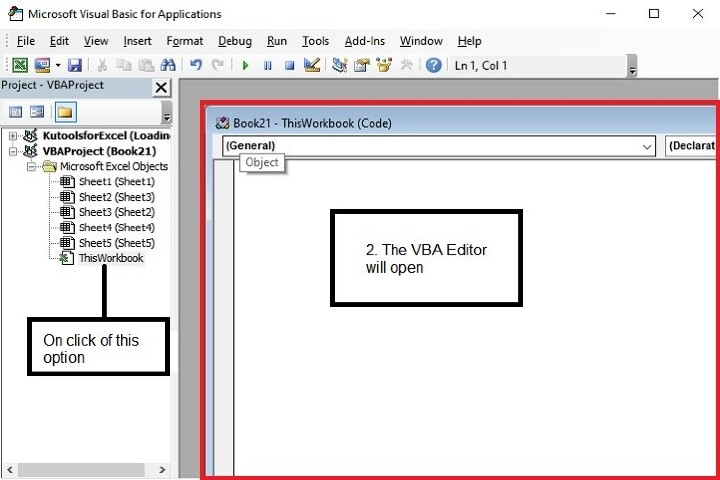
步骤 2:在 Microsoft Visual Basic for Applications 窗口中,双击"项目"面板中的 ThisWorkbook。
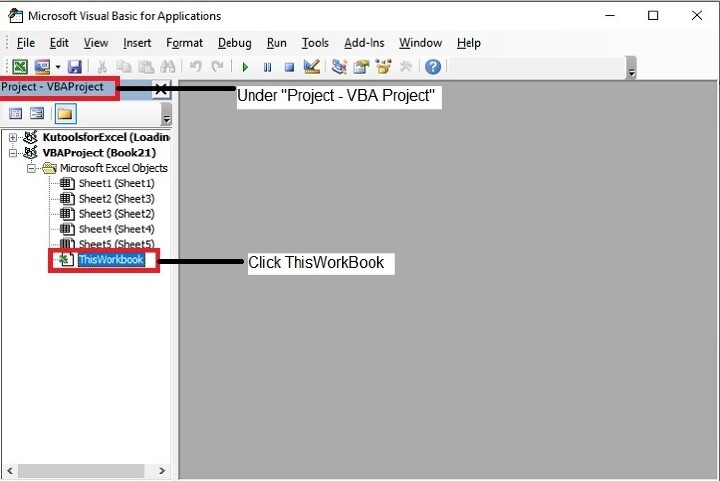
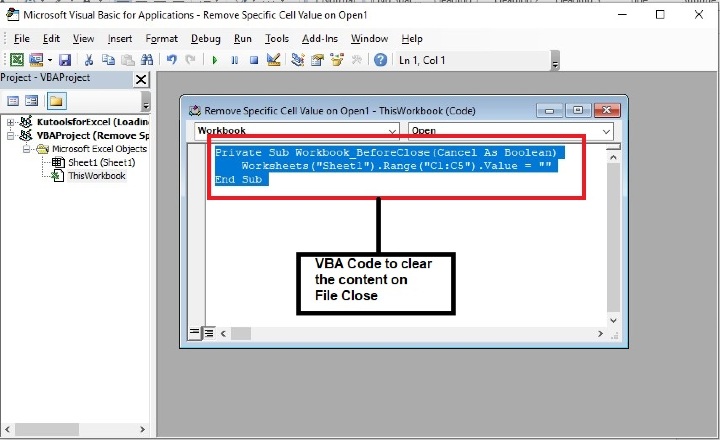
步骤 3:现在复制以下 VBA 代码并将其输入到 ThisWorkbook(代码)窗口中。
Private Sub
Workbook_BeforeClose(Cancel As Boolean) / calling an event just before closing
the file.
    Worksheets("Sheet1").Range("C1:C5").Value = ""/ Defining the Sheet name as
‘Sheet1’ and range of cells as ‘C1:C5’ whose data to be cleared when closing the
file. You may modify this as per your need.
End Sub
步骤 4:输入代码后,按下键盘上的 Alt+Q 键关闭 Microsoft Visual Basic for Applications 窗口。
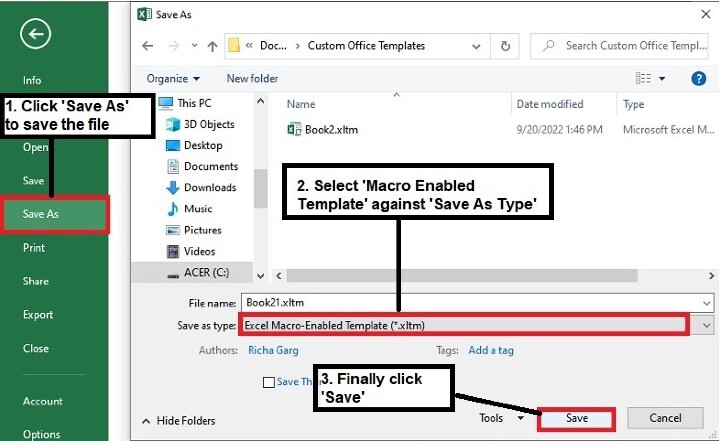
步骤 5:接下来,将文件保存为"Excel 启用宏的工作簿"格式。
步骤 6:现在关闭文件,系统将在关闭文件之前删除指定的内容,并显示以下提示。
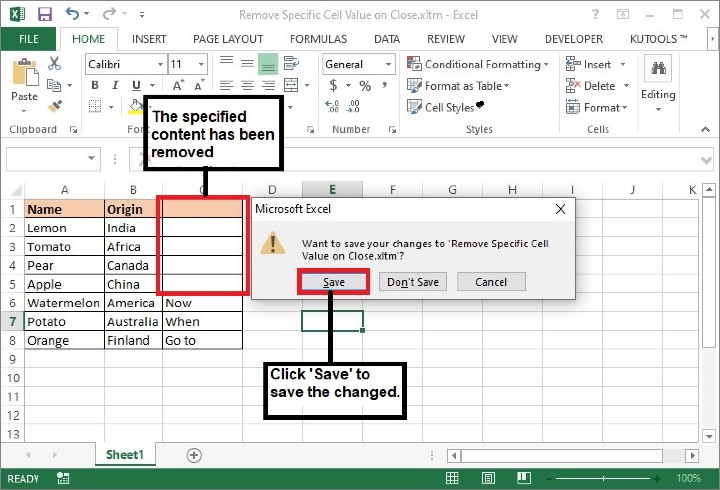
注意:在上述代码中,Sheet1 和 C1:C5 是工作表名称和单元格区域,将清除内容。请根据需要进行更改。
结论
因此,本文介绍了两种清除 Excel 工作簿中特定单元格内容的方法。一种是在打开文件时,另一种是在关闭文件时。使用这些方法时请小心,因为一旦清除数据,就无法恢复。继续学习,继续探索 Excel。
相关文章
有用资源
excel 参考教程 - 该教程包含有关 excel 的更多信息:https://www.cainiaomax.com/excel/

