
如何在 Excel 中创建包含多个选项或值的下拉列表?
ms excelmicrosoft technologiescomputers更新于 2024/8/29 15:08:17
Excel 是一款功能强大的电子表格工具,广泛用于个人、企业和组织。Excel 最实用的功能之一是创建下拉列表,它可以大大简化数据输入,并确保不同单元格或列之间的一致性。在本教程中,我们将重点介绍如何在 Excel 中创建包含多个选项或值的下拉列表。当您想要允许用户从选项列表中选择多个选项时,此功能尤其有用。我们将逐步指导您创建此类下拉列表,并学习如何根据您的特定需求进行自定义。完成本教程后,您将更好地了解如何使用 Excel 的下拉列表功能,并将其应用到您自己的电子表格中。
创建包含多个选项或值的下拉列表
在这里,我们只需将 VAB 代码插入工作表即可完成任务。因此,让我们通过一个简单的过程来了解如何在 Excel 中创建包含多个选项或值的下拉列表。
步骤 1
考虑任何包含数据验证列表的 Excel 工作表。首先,右键单击工作表名称,然后选择"查看代码"以打开 VBA 应用程序。然后将以下代码复制到文本框中,如下所示。
右键单击 > 查看代码 >复制代码。
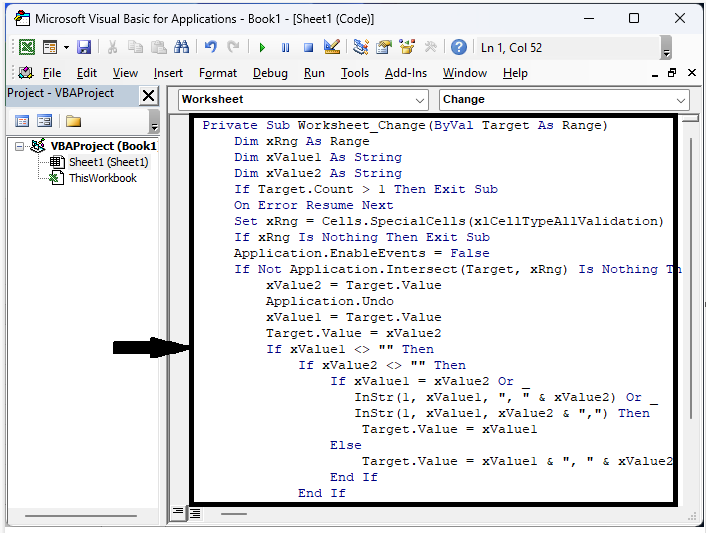
代码
Private Sub Worksheet_Change(ByVal Target As Range)
   Dim xRng As Range
   Dim xValue1 As String
   Dim xValue2 As String
   If Target.Count > 1 Then Exit Sub
   On Error Resume Next
   Set xRng = Cells.SpecialCells(xlCellTypeAllValidation)
   If xRng Is Nothing Then Exit Sub
   Application.EnableEvents = False
   If Not Application.Intersect(Target, xRng) Is Nothing Then
      xValue2 = Target.Value
      Application.Undo
      xValue1 = Target.Value
      Target.Value = xValue2
      If xValue1 <> "" Then
         If xValue2 <> "" Then
            If xValue1 = xValue2 Or _
               InStr(1, xValue1, ", " & xValue2) Or _
                  InStr(1, xValue1, xValue2 & ",") Then
                  Target.Value = xValue1
               Else
                  Target.Value = xValue1 & ", " & xValue2
               End If
         End If
      End If
   End If
   Application.EnableEvents = True
End Sub
步骤 2
从现在开始,我们可以为数据验证列表选择多个值。
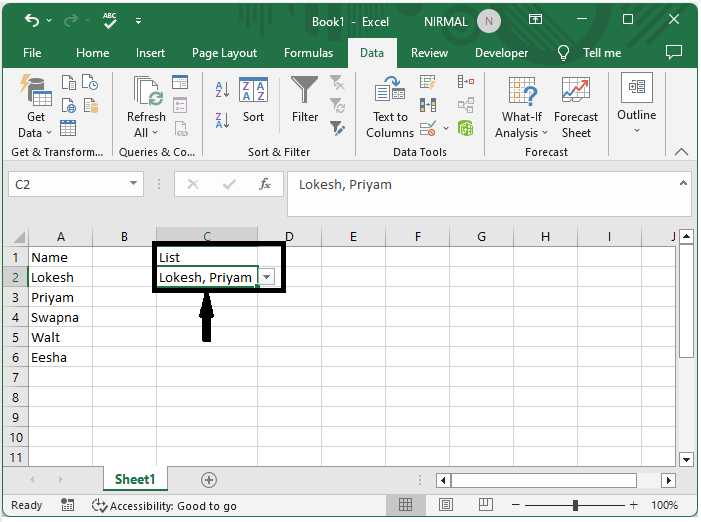
注意事项 −
使用以下代码允许在下拉列表中进行多项选择,而不会创建重复项(您可以通过再次选择来删除某项)。
代码
Private Sub Worksheet_Change(ByVal Target As Range)
   Dim xRng As Range
   Dim xValue1 As String
   Dim xValue2 As String
   Dim semiColonCnt As Integer
   Dim xType As Integer
   If Target.Count > 1 Then Exit Sub
   On Error Resume Next

   xType = 0
   xType = Target.Validation.Type
   If xType = 3 Then
      Application.ScreenUpdating = False
      Application.EnableEvents = False
      xValue2 = Target.Value
      Application.Undo
      xValue1 = Target.Value
      Target.Value = xValue2
      If xValue1 <> "" Then
         If xValue2 <> "" Then
            If xValue1 = xValue2 Or xValue1 = xValue2 & ";" Or xValue1 = xValue2 & "; " Then ' leave the value if only one in list
                  xValue1 = Replace(xValue1, "; ", "")
                  xValue1 = Replace(xValue1, ";", "")
                  Target.Value = xValue1
               ElseIf InStr(1, xValue1, "; " & xValue2) Then
                  xValue1 = Replace(xValue1, xValue2, "") ' removes existing value from the list on repeat selection
                  Target.Value = xValue1
               ElseIf InStr(1, xValue1, xValue2 & ";") Then
                  xValue1 = Replace(xValue1, xValue2, "")
                  Target.Value = xValue1
               Else
                  Target.Value = xValue1 & "; " & xValue2
               End If
               Target.Value = Replace(Target.Value, ";;", ";")
               Target.Value = Replace(Target.Value, "; ;", ";")
               If Target.Value <> "" Then
                  If Right(Target.Value, 2) = "; " Then
                     Target.Value = Left(Target.Value, Len(Target.Value) - 2)
                  End If
               End If
               If InStr(1, Target.Value, "; ") = 1 Then ' check for ; as first character and remove it
                  Target.Value = Replace(Target.Value, "; ", "", 1, 1)
               End If
               If InStr(1, Target.Value, ";") = 1 Then
                  Target.Value = Replace(Target.Value, ";", "", 1, 1)
               End If
               semiColonCnt = 0
               For i = 1 To Len(Target.Value)
                  If InStr(i, Target.Value, ";") Then
                     semiColonCnt = semiColonCnt + 1
                  End If
               Next i
               If semiColonCnt = 1 Then ' remove ; if last character
                  Target.Value = Replace(Target.Value, "; ", "")
                  Target.Value = Replace(Target.Value, ";", "")
               End If
            End If
      End If
      Application.EnableEvents = True
      Application.ScreenUpdating = True
   End If
End Sub
结论
在本教程中,我们使用了一个简单的示例来演示如何在 Excel 中创建包含多个选项或值的下拉列表,以突出显示特定的一组数据。
相关文章
有用资源
excel 参考教程 - 该教程包含有关 excel 的更多信息:https://www.cainiaomax.com/excel/

