
如何在 Excel 中生成或列出所有可能的排列?
ms excelmicrosoft technologiescomputers更新于 2024/6/1 8:44:17
排列可以定义为按特定顺序排列对象。本文将指导用户使用 VBA 代码生成排列的方法。为此,用户需要打开 VBA 代码编辑器,然后点击"确定"按钮。最后,运行编写的代码,排列序列将正常显示在工作表上。请参阅列出的所有步骤,以了解完整的方法。
示例 1:使用 VBA 代码在 Excel 中生成或列出所有可能的排列
步骤 1
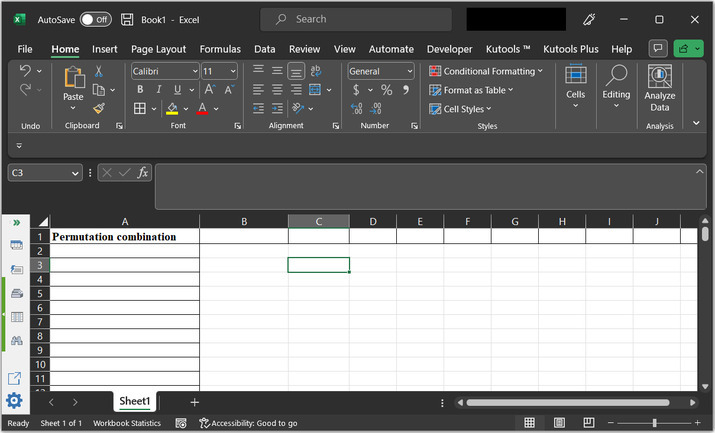
了解在 Excel 中生成所有可能排列的过程。在此示例中,用户将能够使用 VBA 代码计算所有可能的排列组合。
请参考以下工作表 -
步骤 2
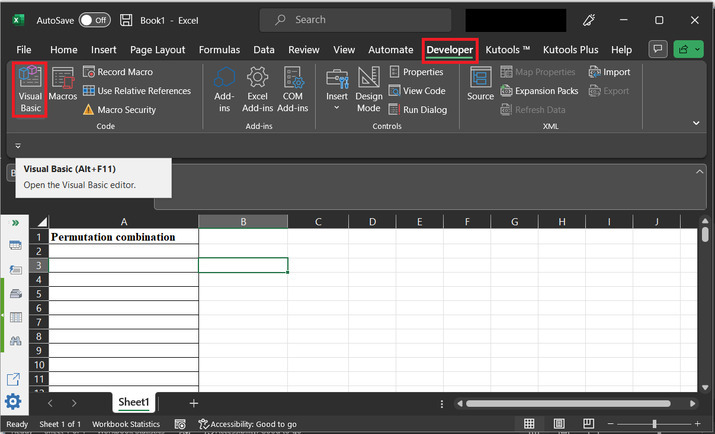
转到"开发人员"选项卡,然后在"代码"部分下,转到"Visual Basic"选项卡。请参考以下图片以获得正确的参考 -
步骤 3
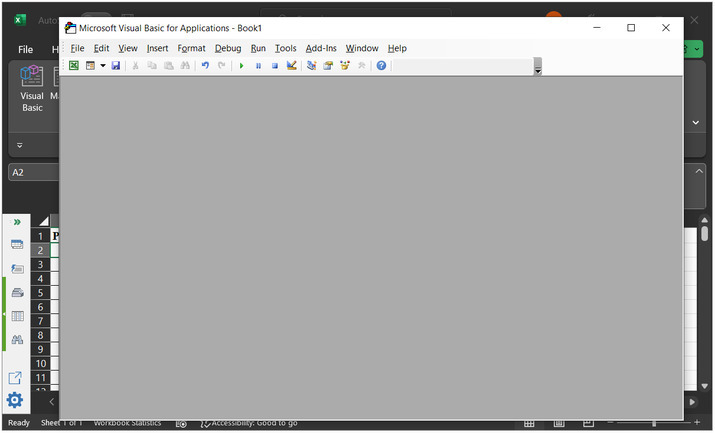
新打开的对话框是"Microsoft Visual Basic for Applications"。这将打开以下代码窗口 -
步骤 4
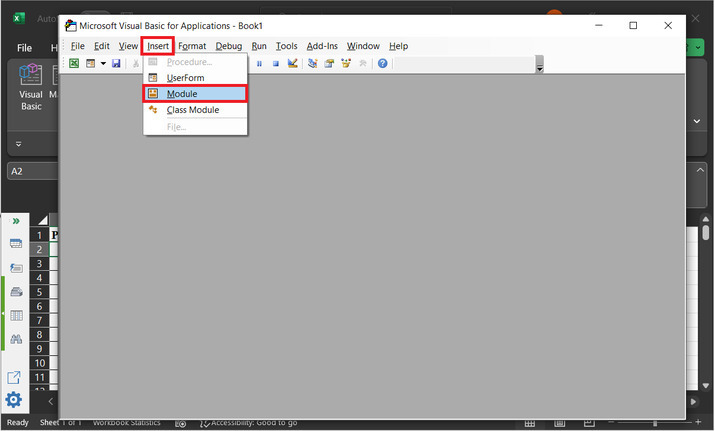
在对话框中,打开"插入"选项,然后点击"模块"。请参考下图
步骤 5
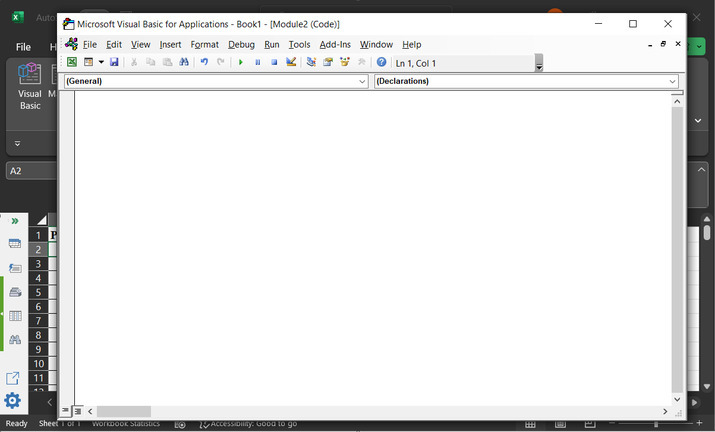
这将打开一个空白代码区域 −
步骤 6
在编辑器中输入以下代码 −
' 定义函数头
Sub Evaluating_String()
   'Declaring required variables
   Dim str_x As String
   Dim row_f As Long
   Dim sc_x As Boolean
   ' setting required parameter values
   sc_x = Application.ScreenUpdating
   Application.ScreenUpdating = False
   ' message to display for dialog box
   str_x = Application.InputBox("Enter text to permute:", "Input dialog box", , , , , , 2)
   ' if length of entered string is less than 2
      ' then exist the sub
   If Len(str_x) < 2 Then Exit Sub
      ' if len is greater than 8, then
   If Len(str_x) >= 8 Then
      ' print message for too many premutations
      MsgBox "Please eneter less than 8 word combination!!!!!", vbInformation, "Input dialog box"
      Exit Sub
   ' else block
   Else
      'clear column 1 data
      ActiveSheet.Columns(1).Clear
      'set 1 to row_f value
      row_f = 1
      ' calling GetPermutation
      Call GetPermutation("", str_x, row_f)
   End If
      Application.ScreenUpdating = sc_x
End Sub
' 定义子模块
Sub GetPermutation(str_1 As String, str_2 As String, ByRef row_x As Long)
    Dim i As Integer, len_x As Integer
    ' 计算所需长度
    len_x = Len(str_2)
    ' if 表达式
   If len_x < 2 Then
      ' calculating range data
      Range("A" & row_x) = str_1 & str_2
      row_x = row_x + 1
   ' else block
   Else
      ' for each block
      For i = 1 To len_x
         ' calling permutation
         Call GetPermutation(str_1 + Mid(str_2, i, 1), Left(str_2, i - 1) + Right(str_2, len_x - i), row_x)
      Next
   End If
End Sub
代码区域快照如下 -
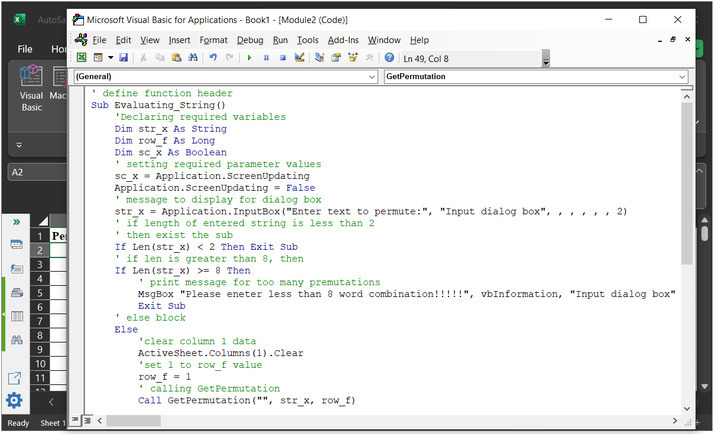
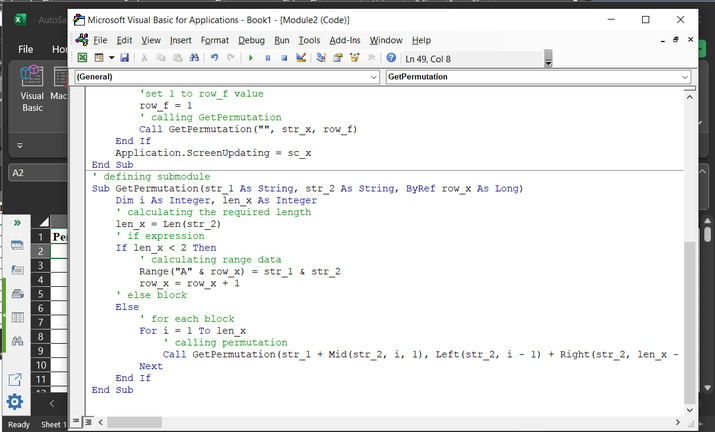
为确保结果正确执行,请注意正确的语法和代码缩进。
步骤 7
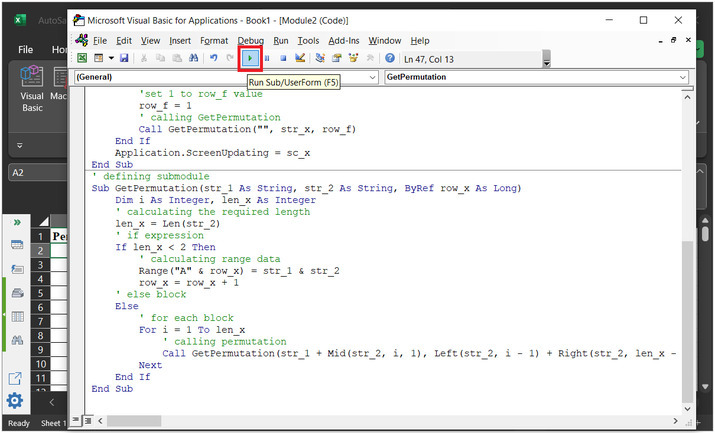
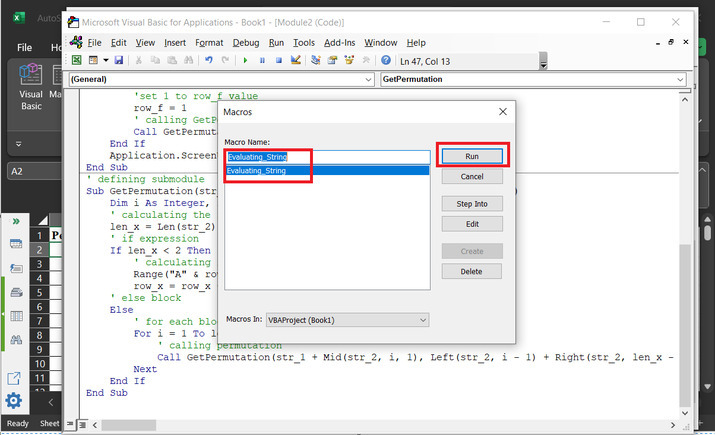
点击"运行"按钮,如下所示 -
步骤 8
之后,将出现一个新对话框,其中包含名称 "Macros" 显示上面声明的模块名称。
步骤 9
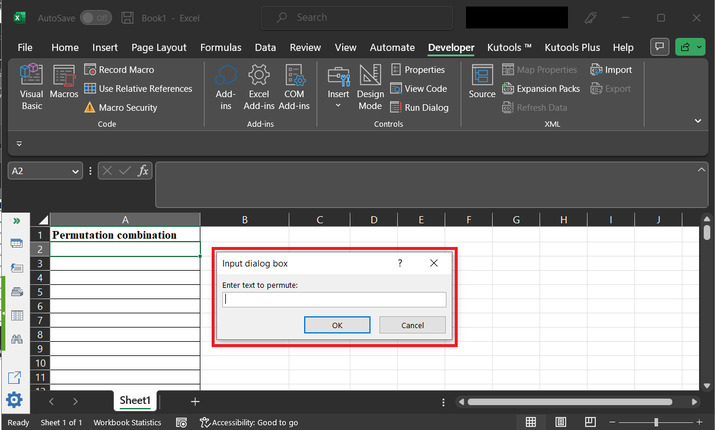
这将打开"输入对话框",其中包含一个输入标签。用户可以输入想要创建排列组合的数据。
步骤 10
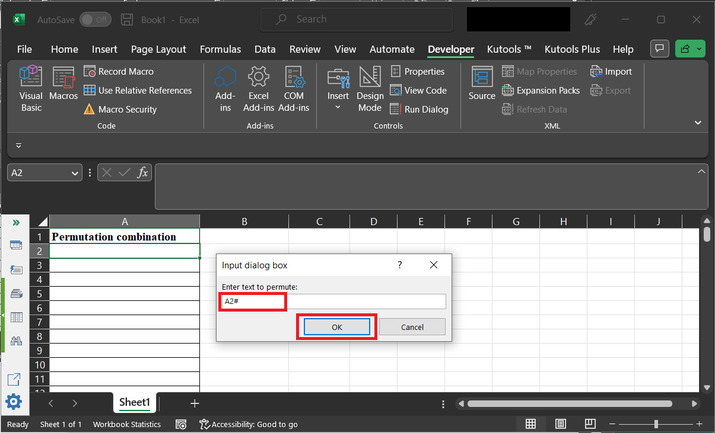
输入数据"A2#",然后点击"确定"。
步骤 11
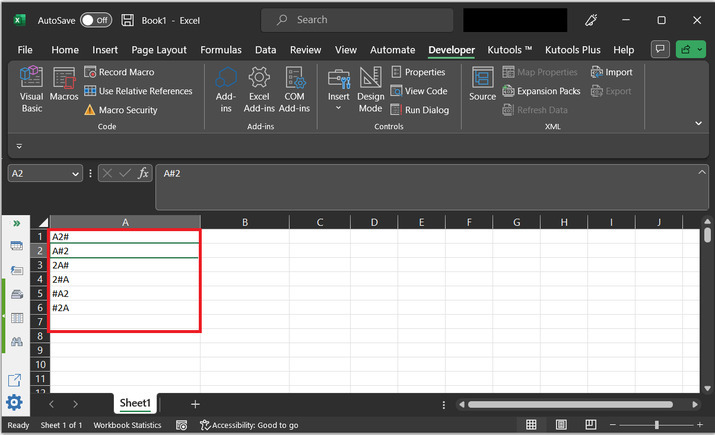
这将显示如下所示的可能排列 -
结论
完成以上文章后,用户将能够使用 VBA 代码根据提供的字符串数据生成排列序列。使用 VBA 代码唯一需要考虑的就是使用正确的语法执行提供的代码语句,并按照上述说明编写正确的代码。在本例中,将 3 个字符传递给字符串,得到的结果数量为 $\mathrm{2^{3}\:=\:6}$。
相关文章
有用资源
excel 参考教程 - 该教程包含有关 excel 的更多信息:https://www.cainiaomax.com/excel/

