
如何在 Excel 中比较两个字符串的相似性或突出显示差异?
在本文中,我们将学习如何在 Excel 中比较两个相邻的字符串以识别差异或相似性。本文介绍了两种方法,如下所示。
使用公式比较两个字符串的相似性。
使用 VBA 代码比较并突出显示两个字符串的相似性或差异性。
使用公式比较两个字符串的相似性
步骤 1 − 如下所示,我们获取了一个示例数据来比较两列的字符串。
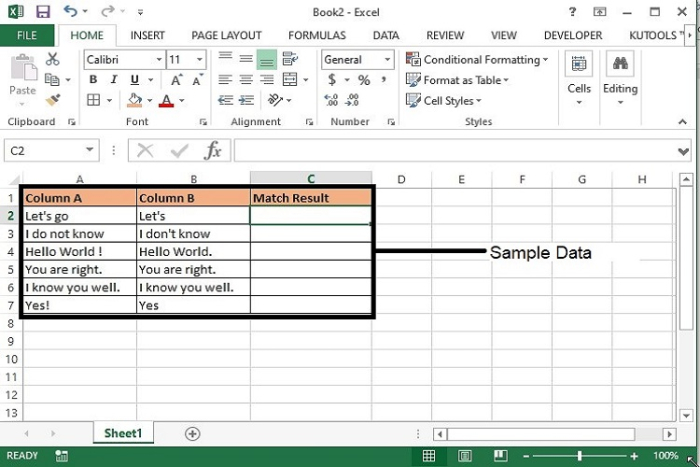
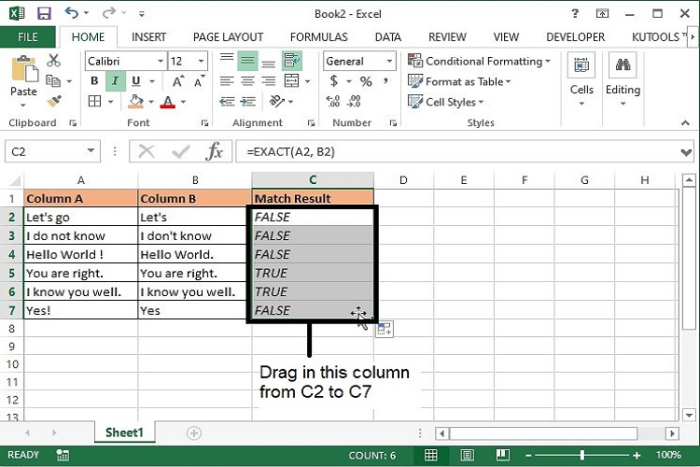
步骤 2 − 现在,在"匹配结果"列中输入以下公式,并将其拖动到需要比较数据的最后一行,然后按 Enter 键。
=EXACT(A2, B2)
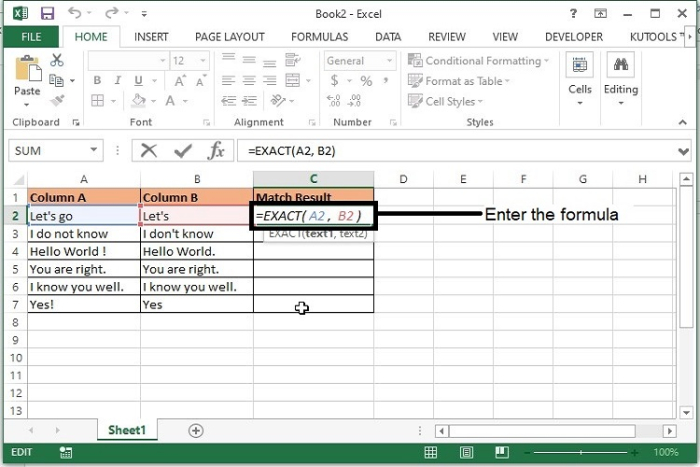
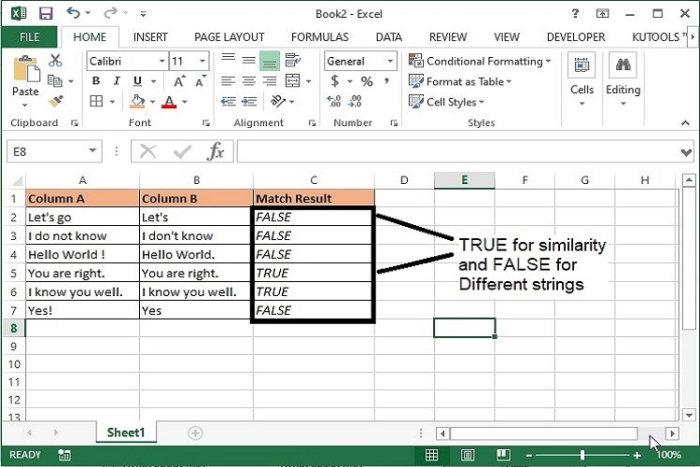
注意− 公式中,A2 和 B2 为比较字符串的单元格。 FALSE 结果表示比较的字符串不同,TRUE 结果表示比较的字符串相似−
公式语法说明
参数 |
说明 |
|---|---|
EXACT(text1, text2) |
|
使用 VBA 代码比较并突出显示两个字符串的相似之处或差异之处
步骤 1 − 按下键盘上的 Alt+F11 键,Microsoft Visual Basic for Applications 窗口将打开。
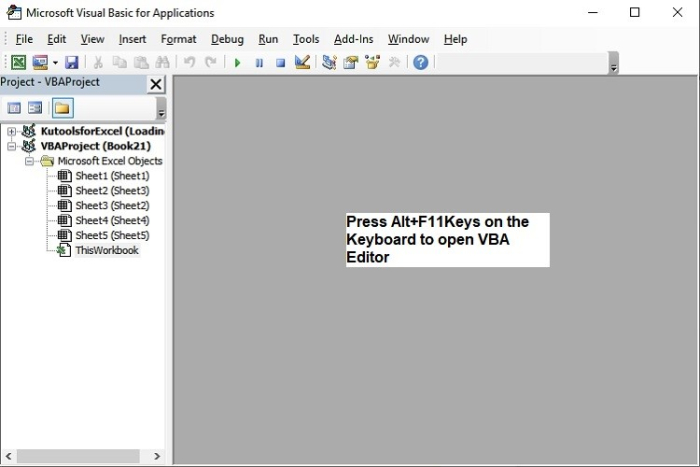
也可以使用"开发人员"选项卡打开上述编辑器,如下所示:

步骤 2 − 在 Microsoft Visual Basic for Applications 窗口中,双击"项目"面板中的 ThisWorkbook。
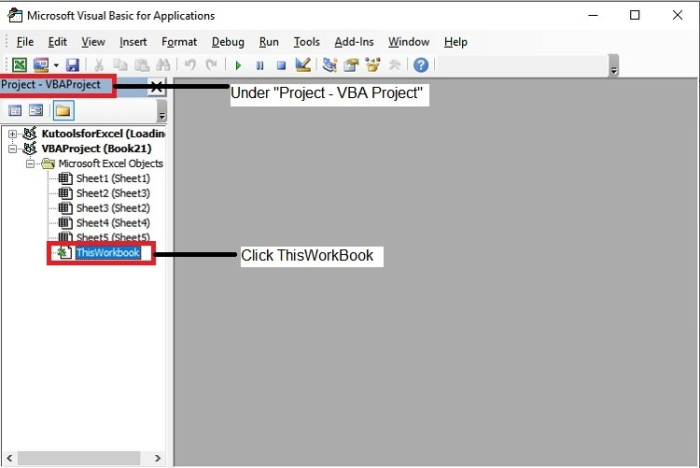
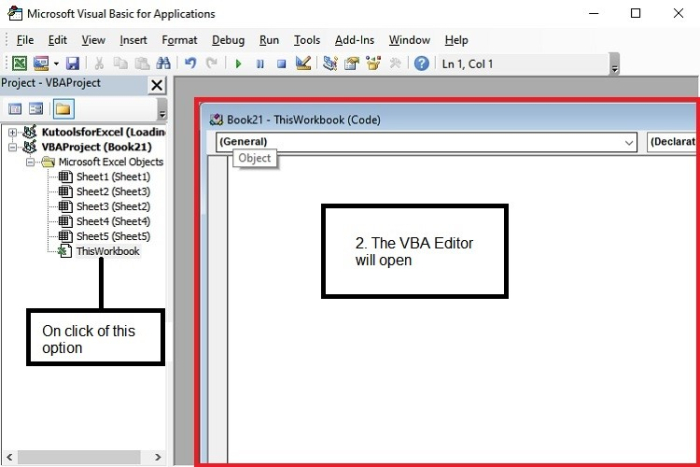
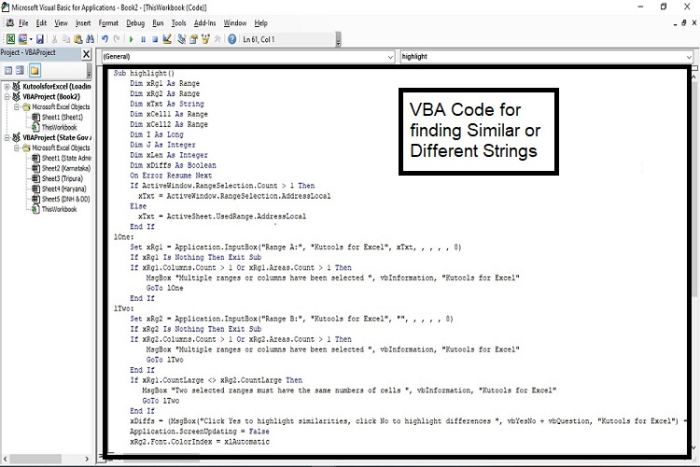
步骤 3 − 现在复制以下 VBA 代码并将其输入到 ThisWorkbook(代码)窗口中。
Sub highlight()
   Dim xRg1 As Range
   Dim xRg2 As Range
   Dim xTxt As String
   Dim xCell1 As Range
   Dim xCell2 As Range
   Dim I As Long
   Dim J As Integer
   Dim xLen As Integer
   Dim xDiffs As Boolean
   On Error Resume Next
   If ActiveWindow.RangeSelection.Count > 1 Then
     xTxt = ActiveWindow.RangeSelection.AddressLocal
   Else
     xTxt = ActiveSheet.UsedRange.AddressLocal
   End If
lOne:
   Set xRg1 = Application.InputBox("Range A:", "Kutools for Excel", xTxt, , , , , 8)
   If xRg1 Is Nothing Then Exit Sub
   If xRg1.Columns.Count > 1 Or xRg1.Areas.Count > 1 Then
      MsgBox "Multiple ranges or columns have been selected ", vbInformation, "Kutools for Excel"
      GoTo lOne
   End If
lTwo:
   Set xRg2 = Application.InputBox("Range B:", "Kutools for Excel", "", , , , , 8)
   If xRg2 Is Nothing Then Exit Sub
   If xRg2.Columns.Count > 1 Or xRg2.Areas.Count > 1 Then
      MsgBox "Multiple ranges or columns have been selected ", vbInformation, "Kutools for Excel"
      GoTo lTwo
   End If
   If xRg1.CountLarge <> xRg2.CountLarge Then
      MsgBox "Two selected ranges must have the same numbers of cells ", vbInformation, "Kutools for Excel"
      GoTo lTwo
   End If
   xDiffs = (MsgBox("Click Yes to highlight similarities, click No to highlight differences ", vbYesNo + vbQuestion, "Kutools for Excel") = vbNo)
   Application.ScreenUpdating = False
   xRg2.Font.ColorIndex = xlAutomatic
   For I = 1 To xRg1.Count
      Set xCell1 = xRg1.Cells(I)
      Set xCell2 = xRg2.Cells(I)
      If xCell1.Value2 = xCell2.Value2 Then
         If Not xDiffs Then xCell2.Font.Color = vbRed
      Else
         xLen = Len(xCell1.Value2)
         For J = 1 To xLen
            If Not xCell1.Characters(J, 1).Text = xCell2.Characters(J, 1).Text Then Exit For
         Next J
         If Not xDiffs Then
            If J <= Len(xCell2.Value2) And J > 1 Then
               xCell2.Characters(1, J - 1).Font.Color = vbRed
            End If
         Else
            If J <= Len(xCell2.Value2) Then
               xCell2.Characters(J, Len(xCell2.Value2) - J + 1).Font.Color = vbRed
            End If
         End If
      End If
   Next
   Application.ScreenUpdating = True
End Sub
步骤 4 − 输入代码后,按键盘上的 Alt+Q 键关闭 Microsoft Visual Basic for Applications 窗口。
步骤 5 − 接下来,将文件保存为"Excel 宏启用工作簿"格式。
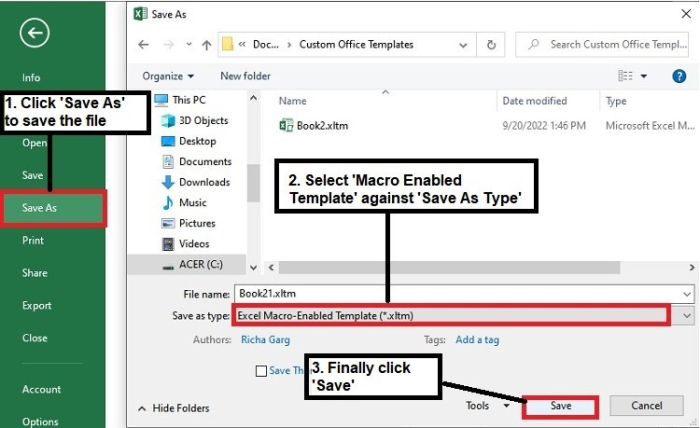
步骤 6 − 现在按 Alt+F8 运行代码。将打开以下提示:-
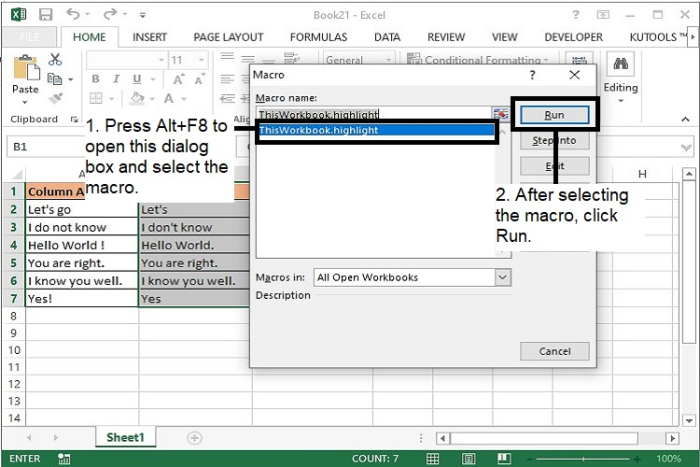
步骤 7- 选择宏名称并点击"运行"。
步骤 8- 将打开第一个 Kutools for Excel 对话框。在这里,选择您需要比较的第一列文本字符串,然后单击"确定"按钮。
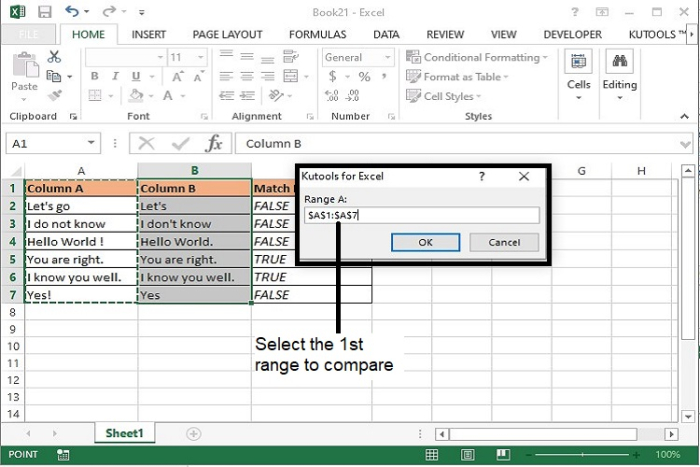
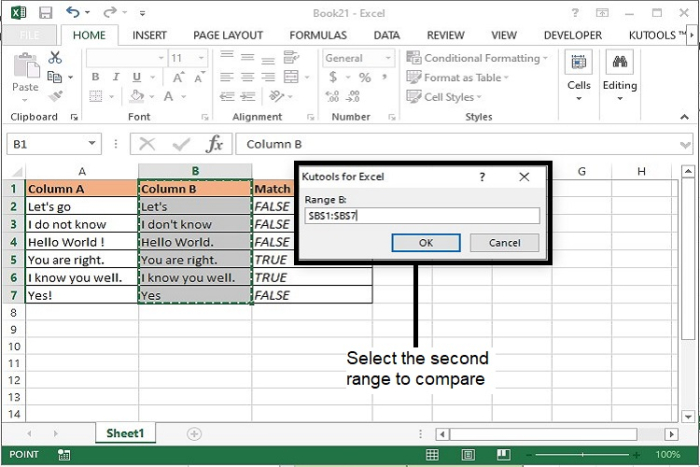
步骤 9 - 接下来,将打开第二个Kutools for Excel 对话框,选择第二列字符串,然后单击"确定"按钮。
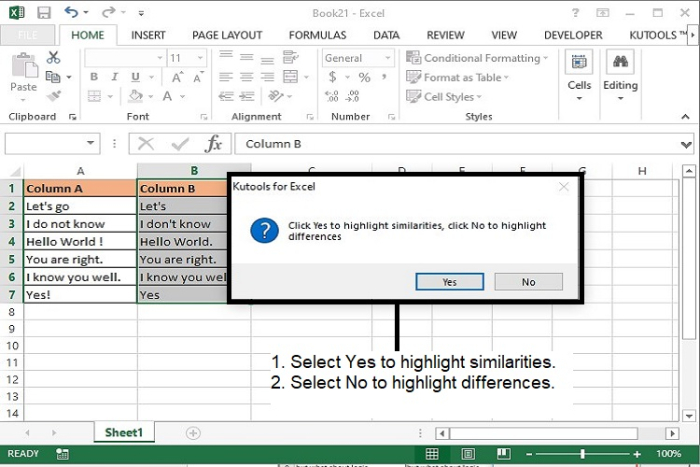
步骤 10 - 之后新的 Kutools for Excel 对话框打开。在这里,如果您想比较字符串的相似性,请单击"是";如果您想突出显示字符串的差异,请单击下方屏幕截图中的"否"。
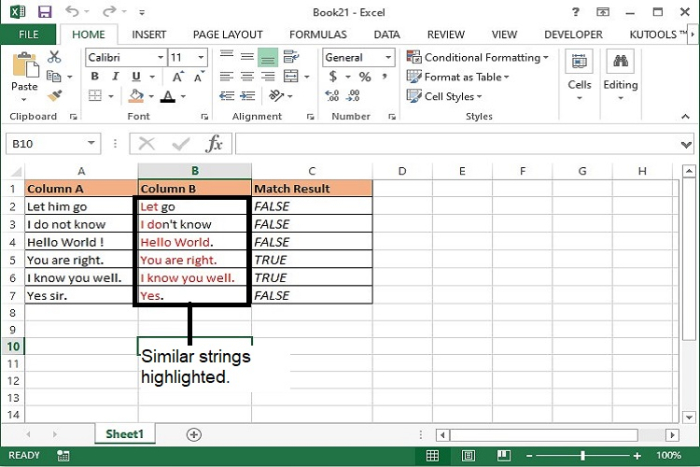
步骤 11 - 如果选择"是",相似的字符串将突出显示,如下所示。
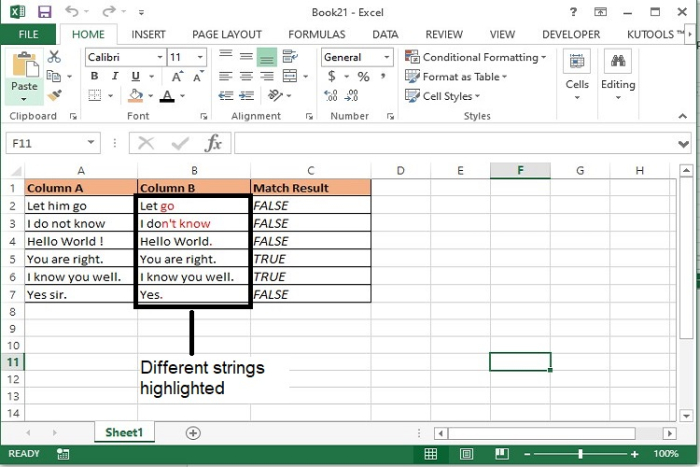
步骤 12 - 如果选择"否",不同的字符串将突出显示,如下所示。
总结
至此,我们学习了两种识别 Excel 数据中不同和相似字符串的方法。请注意,VBA 代码只能识别某些特殊字符。例如,它无法比较包含撇号和感叹号的字符串。
相关文章
有用资源
excel 参考教程 - 该教程包含有关 excel 的更多信息:https://www.cainiaomax.com/excel/

