
如何在 Excel 中一次性将多个工作簿或工作表转换为 PDF 文件?
ms excelmicrosoft technologiescomputers更新于 2025/2/24 14:04:17
有时,在使用 Excel 时,您需要将 Excel 工作簿转换为 PDF 文件。如果尝试手动执行此操作,可能会非常耗时。由于 Excel 无法直接完成此任务,因此我们可以使用 VBA 应用程序来完成。阅读本文,了解如何在 Excel 中一次性将多个工作簿或工作表转换为 PDF 文件。让我们更简要地了解该过程。
在 Excel 中一次性将多个工作簿转换为 PDF 文件
在这里,我们将首先创建一个 VBA 模块,然后运行它来选择包含工作簿和 PDF 文件的文件夹,然后单击"确定"完成任务。让我们通过一个简单的过程来了解如何将多个工作簿转换为 Excel 中的 PDF 文件。
步骤 1
假设有一个新的 Excel 工作表,右键单击工作表名称并选择"查看代码"以打开 VBA 应用程序,然后点击"插入"并选择"模块"。
右键单击 >"查看代码">"插入">"模块"
然后,如下图所示,在文本框中输入以下程序代码。
Program 1
Sub ExcelSaveAsPDF()
'Update By Nirmal
    Dim strPath As String
    Dim xStrFile1, xStrFile2 As String
    Dim xWbk As Workbook
    Dim xSFD, xRFD As FileDialog
    Dim xSPath As String
    Dim xRPath, xWBName As String
    Dim xBol As Boolean
    Set xSFD = Application.FileDialog(msoFileDialogFolderPicker)
    With xSFD
    .Title = "Please select the folder contains the Excel files you want to convert:"
    .InitialFileName = "C:"
    End With
    If xSFD.Show <> -1 Then Exit Sub
    xSPath = xSFD.SelectedItems.Item(1)
    Set xRFD = Application.FileDialog(msoFileDialogFolderPicker)
    With xRFD
    .Title = "Please select a destination folder to save the converted files:"
    .InitialFileName = "C:"
    End With
    If xRFD.Show <> -1 Then Exit Sub
    xRPath = xRFD.SelectedItems.Item(1) & ""
    strPath = xSPath & ""
    xStrFile1 = Dir(strPath & "*.*")
    Application.ScreenUpdating = False
    Application.DisplayAlerts = False
    Do While xStrFile1 <> ""
        xBol = False
        If Right(xStrFile1, 3) = "xls" Then
            Set xWbk = Workbooks.Open(Filename:=strPath & xStrFile1)
            xbwname = Replace(xStrFile1, ".xls", "_pdf")
            xBol = True
        ElseIf Right(xStrFile1, 4) = "xlsx" Then
            Set xWbk = Workbooks.Open(Filename:=strPath & xStrFile1)
            xbwname = Replace(xStrFile1, ".xlsx", "_pdf")
            xBol = True
        ElseIf Right(xStrFile1, 4) = "xlsm" Then
            Set xWbk = Workbooks.Open(Filename:=strPath & xStrFile1)
            xbwname = Replace(xStrFile1, ".xlsm", "_pdf")
            xBol = True
        End If
        If xBol Then
            xWbk.ExportAsFixedFormat Type:=xlTypePDF, Filename:=xRPath & xbwname & ".pdf"
            xWbk.Close SaveChanges:=False
       End If
        xStrFile1 = Dir
    Loop
    Application.DisplayAlerts = True
    Application.ScreenUpdating = True
End Sub
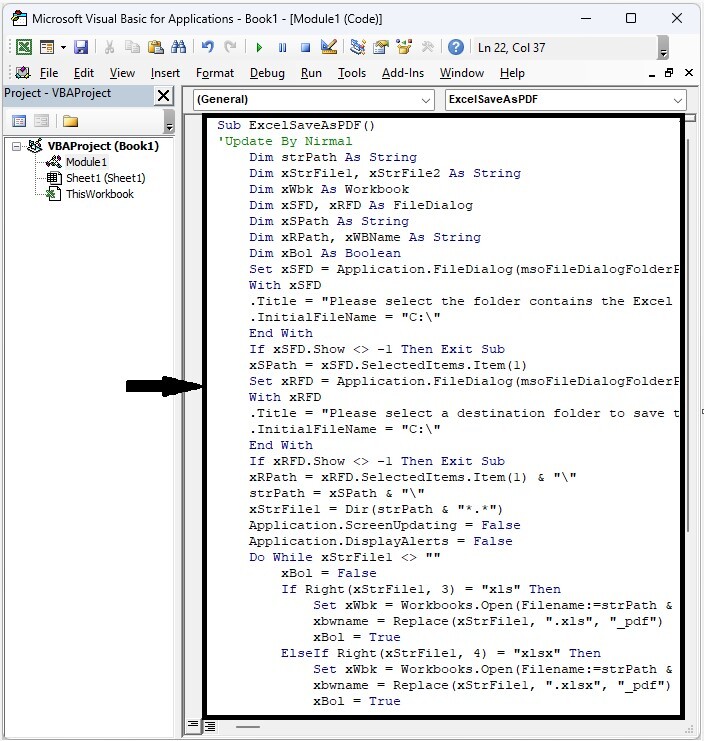
步骤 2
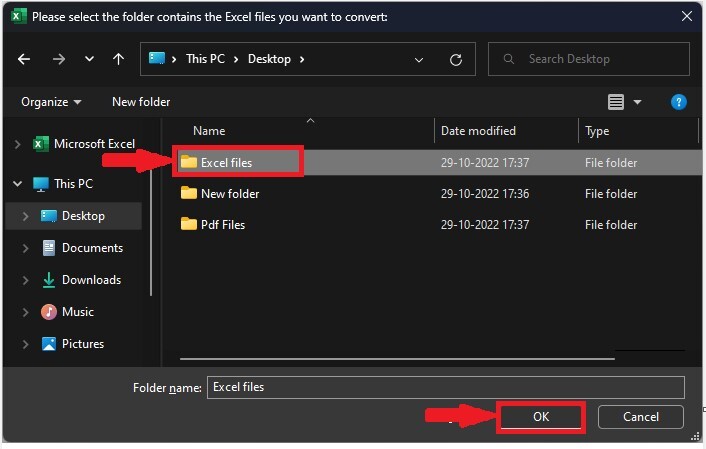
然后将工作表另存为启用宏的工作簿,选择 Excel 文件所在的文件夹,然后点击"确定"。
步骤 3
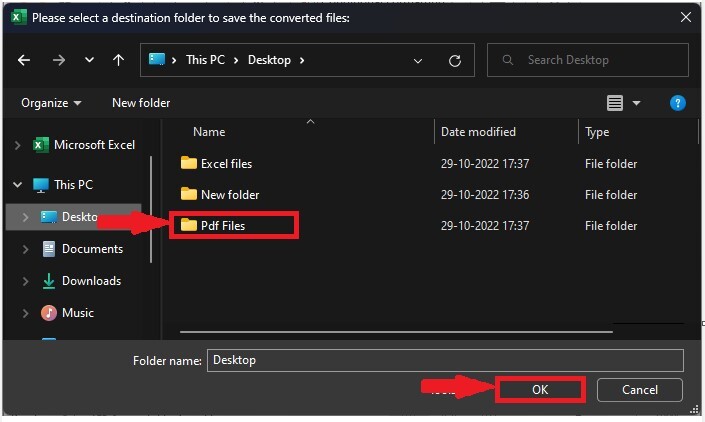
现在选择要存储 PDF 文件的文件夹,然后点击"确定"完成转换。
以下是我们在Excel。
如果我们需要从单个工作簿转换多个工作表,则打开工作簿后使用程序 2。
程序 2
Sub SplitEachWorksheet()
'Update by Nirmal
Dim xSPath As String
Dim xSFD As FileDialog
Dim xWSs As Sheets
Dim xWb As Workbook
Dim xWbs As Workbooks
Dim xNWb As Workbook
Dim xInt, xI As Integer
Set xSFD = Application.FileDialog(msoFileDialogFolderPicker)
With xSFD
.title = "Please select a folder to save the converted files:"
.InitialFileName = "C:"
End With
If xSFD.Show <> -1 Then Exit Sub
xSPath = xSFD.SelectedItems.Item(1)
Application.ScreenUpdating = False
Application.DisplayAlerts = False
Set xWb = Application.ActiveWorkbook
Set xWbs = Application.Workbooks
Set xWSs = xWb.Sheets
Set xNWb = xWbs.Add
xInt = xWSs.Count
For xI = 1 To xInt
On Error GoTo EBreak
Set xWs = xWSs.Item(xI)
If xWs.Visible Then
xWSs(xWs.Name).Copy
Application.ActiveSheet.ExportAsFixedFormat Type:=xlTypePDF, Filename:=xSPath & "" & xWs.Name & ".pdf"
Application.ActiveWorkbook.Close False
End If
EBreak:
Next
xWb.Activate
Application.DisplayAlerts = True
Application.ScreenUpdating = True
End Sub
结论
在本教程中,我们使用了一个简单的示例来演示如何在 Excel 中将多个 Excel 文件转换为 PDF 文件。
相关文章
有用资源
excel 参考教程 - 该教程包含有关 excel 的更多信息:https://www.cainiaomax.com/excel/

