React Native - Flexbox
为了适应不同的屏幕尺寸,React Native 提供了 Flexbox 支持。
我们将使用与 React Native - Styling 章节中相同的代码。我们只会更改 PresentationalComponent。
布局
为了实现所需的布局,flexbox 提供了三个主要属性 - flexDirection justifyContent 和 alignItems。
下表显示了可能的选项。
| 属性 | 值 | 描述 |
|---|---|---|
| flexDirection | 'column', 'row' | 用于指定元素是否垂直对齐或水平对齐。 |
| justifyContent | 'center', 'flex-start', 'flex-end', 'space-around', 'space-between' | 用于确定元素在容器内如何分布。 |
| alignItems | 'center', 'flex-start', 'flex-end', 'stretched' | 用于确定元素应如何沿次轴(与 flexDirection 相反)在容器内分布 |
如果要垂直对齐项目并使其居中,则可以使用以下代码。
App.js
import React, { Component } from 'react'
import { View, StyleSheet } from 'react-native'

const Home = (props) => {
   return (
      <View style = {styles.container}>
         <View style = {styles.redbox} />
         <View style = {styles.bluebox} />
         <View style = {styles.blackbox} />
      </View>
   )
}

export default Home

const styles = StyleSheet.create ({
   container: {
      flexDirection: 'column',
      justifyContent: 'center',
      alignItems: 'center',
      backgroundColor: 'grey',
      height: 600
   },
   redbox: {
      width: 100,
      height: 100,
      backgroundColor: 'red'
   },
   bluebox: {
      width: 100,
      height: 100,
      backgroundColor: 'blue'
   },
   blackbox: {
      width: 100,
      height: 100,
      backgroundColor: 'black'
   },
})
输出
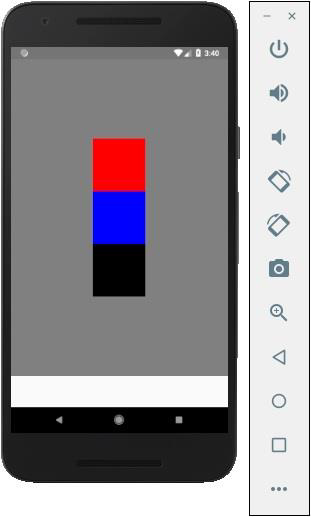
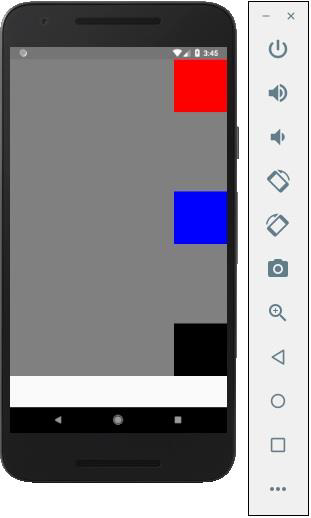
如果需要将项目移到右侧,并在它们之间添加空格,那么我们可以使用以下代码。
App.js
import React, { Component } from 'react'
import { View, StyleSheet } from 'react-native'

const App = (props) => {
   return (
      <View style = {styles.container}>
         <View style = {styles.redbox} />
         <View style = {styles.bluebox} />
         <View style = {styles.blackbox} />
      </View>
   )
}

export default App

const styles = StyleSheet.create ({
   container: {
      flexDirection: 'column',
      justifyContent: 'space-between',
      alignItems: 'flex-end',
      backgroundColor: 'grey',
      height: 600
   },
   redbox: {
      width: 100,
      height: 100,
      backgroundColor: 'red'
   },
   bluebox: {
      width: 100,
      height: 100,
      backgroundColor: 'blue'
   },
   blackbox: {
      width: 100,
      height: 100,
      backgroundColor: 'black'
   },
})