React Native - 文本输入
在本章中,我们将向您展示如何在 React Native 中使用 TextInput 元素。
Home 组件将导入和呈现输入。
App.js
import React from 'react';
import Inputs from './inputs.js'

const App = () => {
   return (
      <Inputs />
   )
}
export default App
输入
我们将定义初始状态。
定义初始状态后,我们将创建 handleEmail 和 handlePassword 函数。这些函数用于更新状态。
login() 函数只会提醒状态的当前值。
我们还将向文本输入添加一些其他属性,以禁用自动大写、删除 Android 设备上的底部边框并设置占位符。
inputs.js
import React, { Component } from 'react'
import { View, Text, TouchableOpacity, TextInput, StyleSheet } from 'react-native'

class Inputs extends Component {
   state = {
      email: '',
      password: ''
   }
   handleEmail = (text) => {
      this.setState({ email: text })
   }
   handlePassword = (text) => {
      this.setState({ password: text })
   }
   login = (email, pass) => {
      alert('email: ' + email + ' password: ' + pass)
   }
   render() {
      return (
         <View style = {styles.container}>
            <TextInput style = {styles.input}
               underlineColorAndroid = "transparent"
               placeholder = "Email"
               placeholderTextColor = "#9a73ef"
               autoCapitalize = "none"
               onChangeText = {this.handleEmail}/>

            <TextInput style = {styles.input}
               underlineColorAndroid = "transparent"
               placeholder = "Password"
               placeholderTextColor = "#9a73ef"
               autoCapitalize = "none"
               onChangeText = {this.handlePassword}/>

            <TouchableOpacity
               style = {styles.submitButton}
               onPress = {
                  () => this.login(this.state.email, this.state.password)
               }>
               <Text style = {styles.submitButtonText}> Submit </Text>
            </TouchableOpacity>
         </View>
      )
   }
}
export default Inputs

const styles = StyleSheet.create({
   container: {
      paddingTop: 23
   },
   input: {
      margin: 15,
      height: 40,
      borderColor: '#7a42f4',
      borderWidth: 1
   },
   submitButton: {
      backgroundColor: '#7a42f4',
      padding: 10,
      margin: 15,
      height: 40,
   },
   submitButtonText:{
      color: 'white'
   }
})
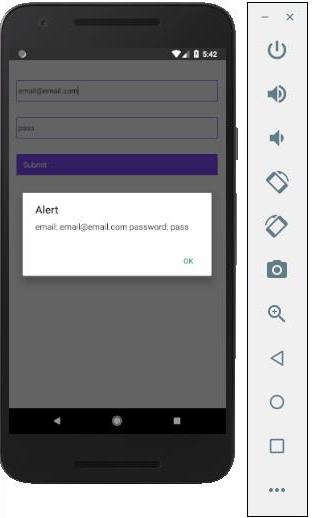
每当我们在其中一个输入字段中输入内容时,状态就会更新。当我们点击提交按钮时,输入的文本将显示在对话框中。
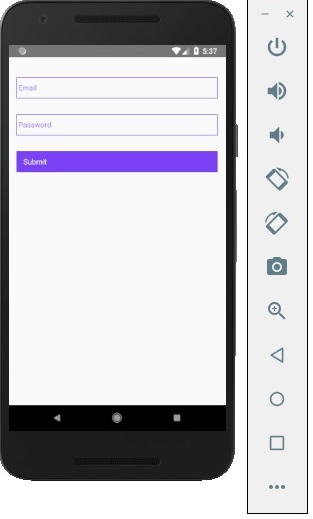
每当我们在其中一个输入字段中输入内容时,状态就会更新。当我们点击提交按钮时,输入的文本将显示在对话框中。