OpenCV - 彩色图像转二进值图像
使用名为 threshold() 的方法将灰度图像转换为二进值图像。以下是此方法的语法。
threshold(Mat src, Mat dst, double thresh, double maxval, int type)
此方法接受以下参数 −
mat − 表示输入图像的 Mat 对象。
dst − 表示输出图像的 Mat 对象。
thresh −表示阈值的整数。
maxval − 表示与 THRESH_BINARY 和 THRESH_BINARY_INV 阈值类型一起使用的最大值的整数。
type − 表示转换类型的整数代码,例如,RGB 到灰度。
您可以通过将代码 Imgproc.THRESH_BINARY 以及值传递给其余参数,将灰度图像转换为二进制图像。
示例
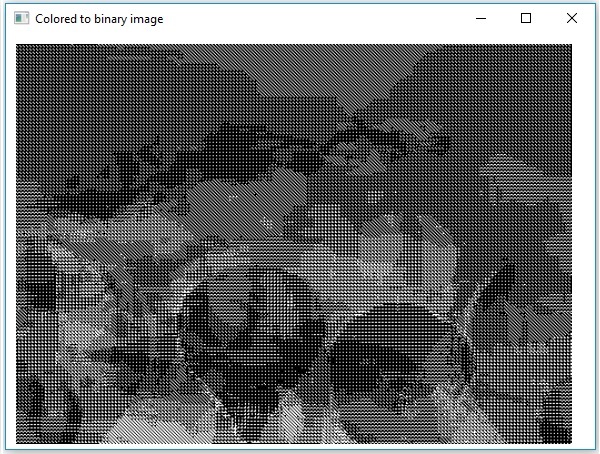
以下程序演示了如何将彩色图像读取为二进制图像并使用 JavaFX 窗口显示它。
import java.awt.image.BufferedImage;

import org.opencv.core.Core;
import org.opencv.core.Mat;
import org.opencv.imgcodecs.Imgcodecs;
import org.opencv.imgproc.Imgproc;

import javafx.application.Application;
import javafx.embed.swing.SwingFXUtils;
import javafx.scene.Group;
import javafx.scene.Scene;
import javafx.scene.image.ImageView;
import javafx.scene.image.WritableImage;
import javafx.stage.Stage;

public class ColorToBinary extends Application {
   @Override
   public void start(Stage stage) throws Exception {
        WritableImage writableImage = loadAndConvert();

        // 设置图像视图
        ImageView imageView = new ImageView(writableImage);

        // 设置图像的位置
        imageView.setX(10);
        imageView.setY(10);

        // 设置图像视图的适合高度和宽度
        imageView.setFitHeight(400);
        imageView.setFitWidth(600);

        // 设置图像视图的保留比例
        imageView.setPreserveRatio(true);

        // 创建 Group 对象
        Group root = new Group(imageView);

        // 创建场景对象
        Scene scene = new Scene(root, 600, 400);

        // 设置舞台标题
        stage.setTitle("正在加载图像");

        // 将场景添加到舞台
        stage.setScene(scene);

        // 显示舞台内容
        stage.show();
   }
   public WritableImage loadAndConvert() throws Exception {
        // 加载OpenCV核心库
        System.loadLibrary( Core.NATIVE_LIBRARY_NAME );

        // 实例化Imgcodecs类
        Imgcodecs imageCodecs = new Imgcodecs();

        // File input = new File("C:/EXAMPLES/OpenCV/sample.jpg");
        String input = "C:/EXAMPLES/OpenCV/sample.jpg";

        // 读取图像
        Mat src = imageCodecs.imread(input);

        // 创建目标矩阵
        Mat dst = new Mat();

        // 转换为二值图像...
        Imgproc.threshold(src, dst, 200, 500, Imgproc.THRESH_BINARY);

        // 从转换后的图像(dst)中提取数据
        byte[] data1 = new byte[dst.rows() * dst.cols() * (int)(dst.elemSize())];
        dst.get(0, 0, data1);

        // 使用数据创建缓冲图像
        BufferedImage bufImage = new BufferedImage(dst.cols(),dst.rows(),
        BufferedImage.TYPE_BYTE_GRAY);

        // 将数据元素设置为图像
        bufImage.getRaster().setDataElements(0, 0, dst.cols(), dst.rows(), data1);

        // 创建可写图像
        WritableImage writableImage = SwingFXUtils.toFXImage(bufImage, null);

        System.out.println("转换为二进制");
        return writableImage;
   }
   public static void main(String args[]) throws Exception {
      launch(args);
   }
}
输入图像
假设以下是上述程序中指定的输入图像 sample.jpg。

输出图像
执行程序后,您将获得以下输出。