Windows 10 开发 - 自适应代码
在本章中,我们将演示如何将您的应用程序适配到 Windows 10 支持的不同设备上。我们已经学习了如何适配您的 UI 以及 UWP 应用程序中使用的所有技巧、技术和控件。
现在,我们将学习如何适配您的代码,因为
应用程序代码在所有设备上并不相同。
所使用的 API(尤其是 Xbox 的 API)将不适用于移动设备。 HoloLens 等设备也是如此。

自适应代码可以有条件地点亮您的应用程序,并且仅在特定设备系列和/或特定版本的平台/扩展 API 上运行时才执行代码。
编写代码
在 Windows 10 中,您可以使用 C++、C#、Visual Basic 或 JavaScript 在 Visual Studio 中实现 UWP 应用程序。
使用 C# 和 Visual Basic,您可以使用 XAML 进行 UI 设计。
使用 C++,您可以使用 DirectX 而不是 XAML。
对于 JavaScript,您可以使用 HTML 作为表示层,它是一个跨平台的 Web标准。
Windows 核心 API 在所有设备上以相同的方式运行,其中包含代码和 UI 所需的大部分功能。但是,对于针对特定设备系列定制的代码和 UI,您需要使用自适应代码和自适应 UI。
调用目标设备系列未实现的 API −
UI 可以轻松适应不同的屏幕,但不同的设备系列不仅具有不同的屏幕尺寸,还具有更多其他功能。
例如,手机有一些硬件按钮,例如"返回"和"相机",而这些按钮在其他设备(例如 PC)上可能不可用。
默认情况下,核心 API 包含适用于所有设备的大部分功能,但特定于设备的功能可以通过在 UWP 应用程序中引用扩展 SDK 来使用,就像外部程序集一样。
要添加应用程序所需的任何特定扩展 SDK,请按照以下步骤 −
右键单击引用。
选择"添加引用...."。将打开以下对话框。
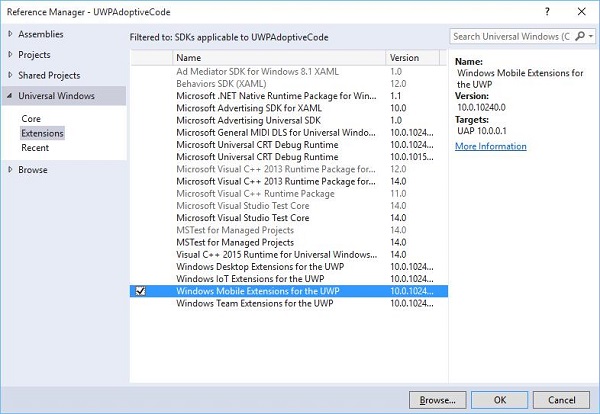
添加扩展就像添加项目引用一样简单。
现在您可以从列表中添加任何扩展 SDK,其中包含桌面扩展、物联网扩展和移动扩展等。
桌面和移动扩展是两种最常见的平台扩展 SDK。例如,移动扩展启用了使用硬件相机按钮所需的 API。
您可以使用 Windows.Foundation.Metadata.ApiInformation 类方法检查设备功能,如果当前设备支持该类型,该方法将返回布尔值输出。例如,您可以使用如下代码启用 Windows 应用使用相机按钮 −
bool isHardwareButtonsAPIPresent =
   Windows.Foundation.Metadata.ApiInformation.
   IsTypePresent("Windows.Phone.UI.Inpu t.HardwareButtons");

if (isHardwareButtonsAPIPresent) {
   Windows.Phone.UI.Input.HardwareButtons.CameraPressed += HardwareButtons_CameraPressed;
}
仅当设备上启用了移动扩展 SDK 时,手机相机按钮代码才会执行。同样,您也可以使用 IsEventPresent、IsMethodPresent 和 IsPropertyPresent 来检查当前 API 版本中是否存在任何特定事件、方法或属性,而不是 IsTypePresent,如下所示。
bool isHardwareButtons_CameraPressedAPIPresent =
    Windows.Foundation.Metadata.ApiInformation.IsEventPresent
    ("Windows.Phone.UI.Input.HardwareButtons", "CameraPressed");
UWP 中的 Win32 API
使用 C++/CX 编写的通用 Windows 平台 (UWP) 应用程序或 Windows 运行时组件可以访问 Win32 API,这些 API 现在也已成为 UWP 的一部分。所有 Windows 10 设备系列都可以通过将应用程序与 Windowsapp.lib 链接来实现 Win32 API。
Windowsapp.lib 是一个"伞状"库,它提供 UWP API 的导出功能。链接到 Windowsapp.lib 将为您的应用添加对所有 Windows 10 设备系列中存在的 dll 的依赖关系。
让我们看一个简单的示例,其中应用程序同时面向桌面和手机。因此,当应用程序在桌面上运行时,它不会显示状态栏,但当同一应用程序在手机上运行时,它会显示状态栏。
下面是添加了不同控件的 XAML 代码。
<Page
   x:Class = "UWPAdoptiveCode.MainPage"
   xmlns = "http://schemas.microsoft.com/winfx/2006/xaml/presentation"
   xmlns:x = "http://schemas.microsoft.com/winfx/2006/xaml"
   xmlns:local = "using:UWPAdoptiveCode"
   xmlns:d = "http://schemas.microsoft.com/expression/blend/2008"
   xmlns:mc = "http://schemas.openxmlformats.org/markup-compatibility/2006"
   mc:Ignorable = "d">

   <Page.Background>
      <SolidColorBrush Color = "Green"/>
   </Page.Background>

   <Page.BottomAppBar>
      <CommandBar x:Name = "commandBar" >
         <AppBarButton Icon = "Accept" Label = "appbarbutton"/>
         <AppBarButton Icon = "Cancel" Label = "appbarbutton"/>
      </CommandBar>
   </Page.BottomAppBar>

   <Grid Background = "AliceBlue">

      <VisualStateManager.VisualStateGroups>

         <VisualStateGroup>

            <VisualState>
               <VisualState.StateTriggers>
                  <local:DeviceFamilyTrigger DeviceFamily = "Desktop" />
               </VisualState.StateTriggers>

               <VisualState.Setters>
                  <Setter Target = "StatusBarControls.Visibility"
                     Value = "Collapsed"/>
               </VisualState.Setters>

            </VisualState>

         </VisualStateGroup>

      </VisualStateManager.VisualStateGroups>

      <StackPanel HorizontalAlignment = "Left" Margin = "75,164,0,0"
         VerticalAlignment = "Top" >

         <RadioButton x:Name = "ShowAppBarRadioButton" Content = "Show AppBar"
            HorizontalAlignment = "Stretch" VerticalAlignment = "Stretch"
            IsChecked = "True" Checked = "RadioButton_Checked"/>

         <RadioButton x:Name = "ShowOpaqueAppBarRadioButton"
            Content = "Show Transparent AppBar" HorizontalAlignment = "Stretch"
            VerticalAlignment = "Stretch" Checked = "RadioButton_Checked"/>

         <RadioButton x:Name = "HideAppBarRadioButton" Content = "Hide AppBar"
            HorizontalAlignment = "Stretch" VerticalAlignment = "Stretch"
            Checked = "RadioButton_Checked"/>

      </StackPanel>

      <StackPanel x:Name = "StatusBarControls" Orientation = "Vertical"
         Margin = "75,350,0,0" Visibility = "Visible">

         <CheckBox x:Name = "StatusBarBackgroundCheckBox"
            Content = "Set StatusBar Background"
            Checked = "StatusBarBackgroundCheckBox_Checked"
            Unchecked = "StatusBarBackgroundCheckBox_Unchecked"/>

         <CheckBox x:Name = "StatusBarHiddenCheckBox"
            Content = "Set StatusBar Hidden" Checked = "StatusBarHiddenCheckBox_Checked"
            Unchecked = "StatusBarHiddenCheckBox_Unchecked"/>

      </StackPanel>

   </Grid>

</Page>
以下是不同事件的 C# 实现。
using Windows.UI;
using Windows.UI.Xaml;
using Windows.UI.Xaml.Controls;

// 空白页项目模板的文档位于
   http://go.microsoft.com/fwlink/?LinkId=402352&clcid=0x409

namespace UWPAdoptiveCode {
   /// <summary>
      /// An empty page that can be used on its own or navigated to within a Frame.
   /// </summary>

   public sealed partial class MainPage : Page {

      private Color? DefaultTitleBarButtonsBGColor;
      private Color? DefaultTitleBarBGColor;

      public MainPage() {
         this.InitializeComponent();

         //Windows.UI.ViewManagement.ApplicationView.GetForCurrentView().
            VisibleBoundsCh anged += MainPage_VisibleBoundsChanged;

         var viewTitleBar = Windows.UI.ViewManagement.ApplicationView.
            GetForCurrentView().TitleBar;

         DefaultTitleBarBGColor = viewTitleBar.BackgroundColor;
         DefaultTitleBarButtonsBGColor = viewTitleBar.ButtonBackgroundColor;
      }

      private void RadioButton_Checked(object sender, RoutedEventArgs e) {

         // Bottom AppBar shows on Desktop and Mobile
         if (ShowAppBarRadioButton != null) {

            if (ShowAppBarRadioButton.IsChecked.HasValue &&
               (ShowAppBarRadioButton.IsChecked.Value == true)) {
                 commandBar.Visibility = Windows.UI.Xaml.Visibility.Visible;
                 commandBar.Opacity = 1;
            } else {
               commandBar.Visibility = Windows.UI.Xaml.Visibility.Collapsed;
            }
         }

         if (ShowOpaqueAppBarRadioButton != null) {

            if (ShowOpaqueAppBarRadioButton.IsChecked.HasValue &&
               (ShowOpaqueAppBarRadioButton.IsChecked.Value == true)){
                  commandBar.Visibility = Windows.UI.Xaml.Visibility.Visible;
                  commandBar.Background.Opacity = 0;
            } else{
               commandBar.Background.Opacity = 1;
            }
         }

      }

      private void StatusBarHiddenCheckBox_Checked(object sender, RoutedEventArgs e){

         // StatusBar is Mobile only
         if (Windows.Foundation.Metadata.ApiInformation.
            IsTypePresent("Windows.UI.ViewManag ement.StatusBar")){
               var ignore = Windows.UI.ViewManagement.StatusBar.GetForCurrentView().HideAsync();
         }
      }

      private void StatusBarHiddenCheckBox_Unchecked(object sender, RoutedEventArgs e){

         // StatusBar is Mobile only
         if (Windows.Foundation.Metadata.ApiInformation.
            IsTypePresent("Windows.UI.ViewManag ement.StatusBar")){
               var ignore = Windows.UI.ViewManagement.StatusBar.GetForCurrentView().ShowAsync();
         }
      }

      private void StatusBarBackgroundCheckBox_Checked(object sender, RoutedEventArgs e){

         // StatusBar is Mobile only
         if (Windows.Foundation.Metadata.ApiInformation.
            IsTypePresent("Windows.UI.ViewManag ement.StatusBar")){

               Windows.UI.ViewManagement.StatusBar.GetForCurrentView().
                  BackgroundColor = Windows.UI.Colors.Blue;

               Windows.UI.ViewManagement.StatusBar.GetForCurrentView().
                   BackgroundOpacity = 1;
         }
      }

      private void StatusBarBackgroundCheckBox_Unchecked(object sender, RoutedEventArgs e){

         // StatusBar is Mobile only
         if (Windows.Foundation.Metadata.ApiInformation.
            IsTypePresent("Windows.UI.ViewManag ement.StatusBar")){
               Windows.UI.ViewManagement.StatusBar.GetForCurrentView().
                  BackgroundOpacity = 0;
         }
      }

   }

   public class DeviceFamilyTrigger : StateTriggerBase{

      //private variables
      private string _deviceFamily;

      //Public property
      public string DeviceFamily {

         get {
            return _deviceFamily;
         }
         set{
            _deviceFamily = value;
            var qualifiers = Windows.ApplicationModel.Resources.Core.ResourceContext.
               GetForCurrentView().Qua lifierValues;

            if (qualifiers.ContainsKey("DeviceFamily"))
               SetActive(qualifiers["DeviceFamily"] == _deviceFamily);
            else
               SetActive(false);
         }
      }
   }
}
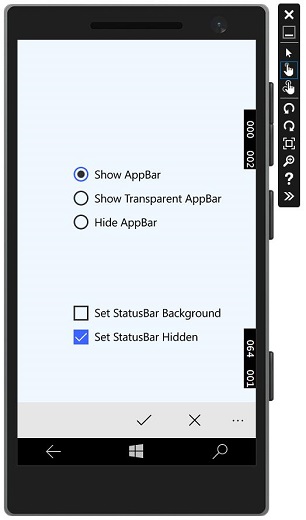
当上述代码在移动设备上编译并执行时,您将看到以下窗口。
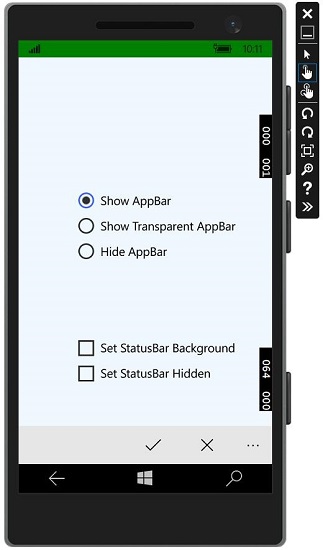
您可以使用图中所示的复选框更改状态栏的背景颜色。
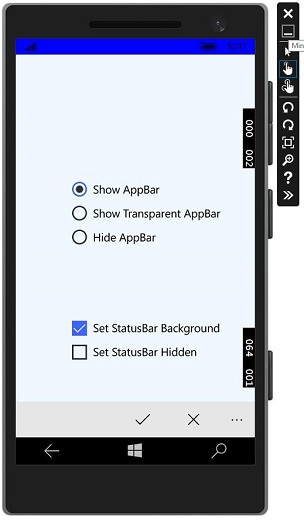
您还可以隐藏状态栏。
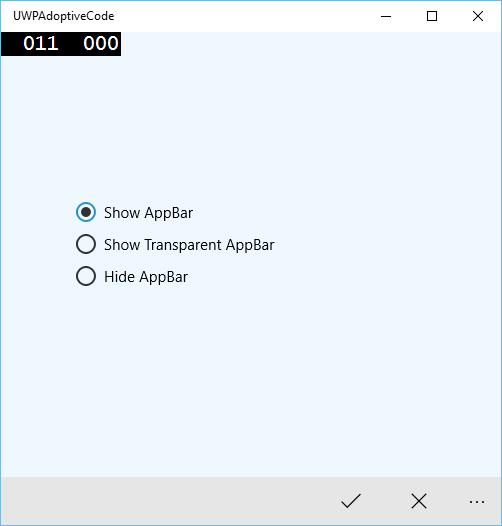
现在,当您在桌面设备上运行相同的应用程序时,您将看到以下窗口,其中状态栏和状态栏上的复选框不可见。