Windows10 开发 - 文件管理
在任何应用程序中,最重要的部分之一就是数据。如果您是 .NET 开发人员,您可能了解独立存储,并且通用 Windows 平台 (UWP) 应用程序也遵循相同的概念。
文件位置
这些是您的应用程序可以访问数据的区域。应用程序包含一些区域,这些区域是该应用程序私有的,其他应用程序无法访问,但还有许多其他区域,您可以在其中存储和保存文件中的数据。
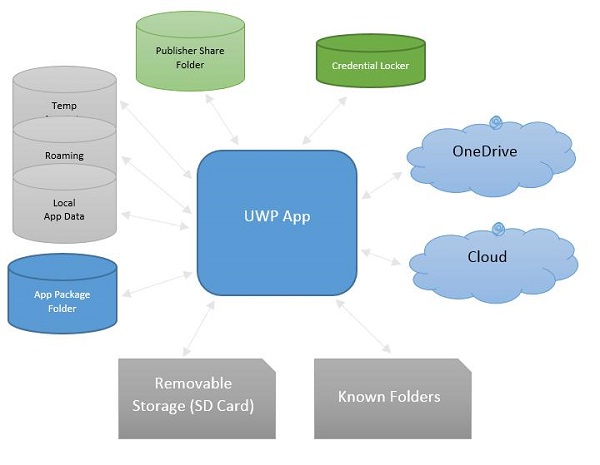
以下是每个文件夹的简要说明。
| 序列号 | 文件夹 &说明 |
|---|---|
| 1 | App package folder 包管理器会将应用的所有相关文件安装到应用包文件夹中,应用只能从此文件夹读取数据。 |
| 2 | Local folder 应用将本地数据存储到本地文件夹中。本地文件夹的存储容量不超过存储设备的上限。 |
| 3 | Roaming folder 与应用相关的设置和属性存储在漫游文件夹中。其他设备也可以从此文件夹访问数据。每个应用程序的大小限制为 100KB。 |
| 4 | Temp Folder 使用临时存储空间,并且无法保证应用程序再次运行时该存储空间仍然可用。 |
| 5 | Publisher Share 同一发布商的所有应用程序共享存储空间。它在应用清单中声明。 |
| 6 | Credential Locker 用于安全存储密码凭据对象。 |
| 7 | OneDrive OneDrive 是 Microsoft 帐户附带的免费在线存储空间。 |
| 8 | Cloud 将数据存储在云端。 |
| 9 | Known folders 这些文件夹是已知的文件夹,例如"我的图片"、"视频"和"音乐"。 |
| 10 | Removable storage USB 存储设备或外部硬盘等 |
文件处理 API
Windows 8 引入了新的文件处理 API。这些 API 位于 Windows.Storage 和 Windows.Storage.Streams 命名空间中。您可以使用这些 API 替代 System.IO.IsolatedStorage 命名空间。使用这些 API,您可以更轻松地将 Windows Phone 应用移植到 Windows 应用商店,并且可以轻松地将应用升级到 Windows 的未来版本。
要访问本地、漫游或临时文件夹,您需要调用这些 API −
StorageFolder localFolder = ApplicationData.Current.LocalFolder;
StorageFolder roamingFolder = ApplicationData.Current.RoamingFolder;
StorageFolder tempFolder = ApplicationData.Current.TemporaryFolder;
要在本地文件夹中创建新文件,请使用以下代码 −
StorageFolder localFolder = ApplicationData.Current.LocalFolder;
StorageFile textFile = await localFolder.CreateFileAsync(filename,
CreationCollisionOption.ReplaceExisting);
以下代码用于打开新创建的文件并在其中写入一些内容。
using (IRandomAccessStream textStream = await textFile.OpenAsync(FileAccessMode.ReadWrite)) {

   using (DataWriter textWriter = new DataWriter(textStream)){
      textWriter.WriteString(contents);
      await textWriter.StoreAsync();
   }

}
您可以从本地文件夹再次打开同一个文件,如下面的代码所示。
using (IRandomAccessStream textStream = await textFile.OpenReadAsync()) {

   using (DataReader textReader = new DataReader(textStream)){
      uint textLength = (uint)textStream.Size;
      await textReader.LoadAsync(textLength);
      contents = textReader.ReadString(textLength);
   }

}
为了理解数据的读写工作原理,我们来看一个简单的示例。下面是添加了不同控件的 XAML 代码。
<Page
   x:Class = "UWPFileHandling.MainPage"
   xmlns = "http://schemas.microsoft.com/winfx/2006/xaml/presentation"
   xmlns:x = "http://schemas.microsoft.com/winfx/2006/xaml"
   xmlns:local = "using:UWPFileHandling"
   xmlns:d = "http://schemas.microsoft.com/expression/blend/2008"
   xmlns:mc = "http://schemas.openxmlformats.org/markup-compatibility/2006"
   mc:Ignorable = "d">

   <Grid Background = "{ThemeResource ApplicationPageBackgroundThemeBrush}">

      <Button x:Name = "readFile" Content = "Read Data From File"
         HorizontalAlignment = "Left" Margin = "62,518,0,0"
         VerticalAlignment = "Top" Height = "37" Width = "174"
         Click = "readFile_Click"/>

      <TextBox x:FieldModifier = "public" x:Name = "textBox"
         HorizontalAlignment = "Left" Margin = "58,145,0,0" TextWrapping = "Wrap"
         VerticalAlignment = "Top" Height = "276" Width = "245"/>.

      <Button x:Name = "writeFile" Content = "Write Data to File"
         HorizontalAlignment = "Left" Margin = "64,459,0,0"
         VerticalAlignment = "Top" Click = "writeFile_Click"/>

      <TextBlock x:Name = "textBlock" HorizontalAlignment = "Left"
         Margin = "386,149,0,0" TextWrapping = "Wrap"
         VerticalAlignment = "Top" Height = "266" Width = "250"
         Foreground = "#FF6231CD"/>

   </Grid>

</Page>
下面给出了不同事件的 C# 实现,以及用于读取和写入文本文件数据的 FileHelper 类的实现。
using System;
using System.IO;
using System.Threading.Tasks;

using Windows.Storage;
using Windows.Storage.Streams;
using Windows.UI.Xaml;
using Windows.UI.Xaml.Controls;

// 空白页项目模板记录在
   http://go.microsoft.com/fwlink/?LinkId=402352&clcid=0x409

namespace UWPFileHandling {

   /// <summary>
      /// An empty page that can be used on its own or navigated to within a Frame.
   /// </summary>

   public partial class MainPage : Page {
      const string TEXT_FILE_NAME = "SampleTextFile.txt";

      public MainPage(){
         this.InitializeComponent();
      }

      private async void readFile_Click(object sender, RoutedEventArgs e) {
         string str = await FileHelper.ReadTextFile(TEXT_FILE_NAME);
         textBlock.Text = str;
      }

      private async void writeFile_Click(object sender, RoutedEventArgs e) {
         string textFilePath = await FileHelper.WriteTextFile(TEXT_FILE_NAME, textBox.Text);
      }

   }

   public static class FileHelper {

      // Write a text file to the app's local folder.

      public static async Task<string>
         WriteTextFile(string filename, string contents) {

         StorageFolder localFolder = ApplicationData.Current.LocalFolder;
         StorageFile textFile = await localFolder.CreateFileAsync(filename,
            CreationCollisionOption.ReplaceExisting);

         using (IRandomAccessStream textStream = await
            textFile.OpenAsync(FileAccessMode.ReadWrite)){

               using (DataWriter textWriter = new DataWriter(textStream)){
                  textWriter.WriteString(contents);
                  await textWriter.StoreAsync();
               }
         }

         return textFile.Path;
      }

      // Read the contents of a text file from the app's local folder.

      public static async Task<string> ReadTextFile(string filename) {
         string contents;
         StorageFolder localFolder = ApplicationData.Current.LocalFolder;
         StorageFile textFile = await localFolder.GetFileAsync(filename);

         using (IRandomAccessStream textStream = await textFile.OpenReadAsync()){

            using (DataReader textReader = new DataReader(textStream)){
               uint textLength = (uint)textStream.Size;
               await textReader.LoadAsync(textLength);
               contents = textReader.ReadString(textLength);
            }

         }

         return contents;
      }
   }
}
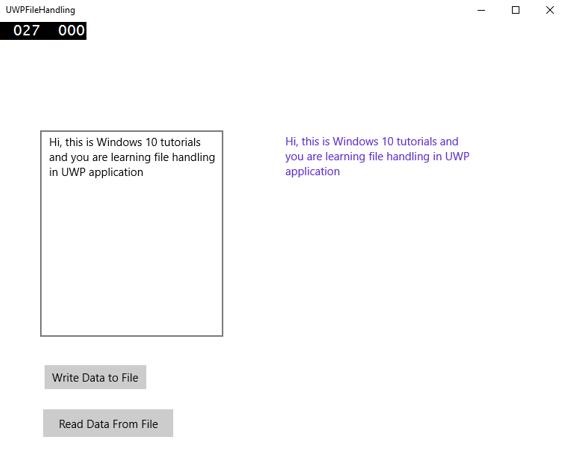
编译并执行上述代码后,您将看到以下窗口。
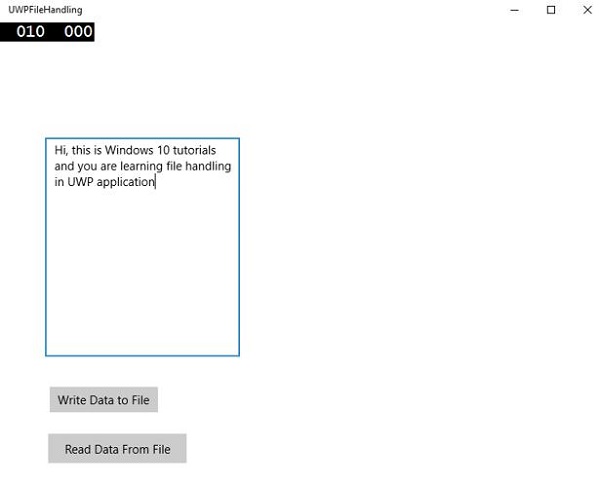
现在,您在文本框中输入一些内容,然后点击"将数据写入文件"按钮。程序会将数据写入本地文件夹中的文本文件。如果您点击"从文件读取数据"按钮,程序将从位于本地文件夹中的同一文本文件中读取数据,并将其显示在文本块中。